 Lavkush
 When you type a URL into your browser and press Enter, a short chain of jobs runs in the background in well under a second: the browser works out exactly what you asked for, looks up the server's numeric IP address using DNS (the internet's phone book), opens a TCP connection to that server, adds a TLS security handshake if the site uses HTTPS, sends an HTTP request, receives the server's response, and finally renders the HTML, CSS and JavaScript into the page you see. Nothing about it is magic — it is the same eight steps, in the same order, for almost every website you visit. This article tells that story step by step, in plain words.
Step 1: The Browser Reads the URL — and Checks Its Cache
First, the browser breaks your URL into parts: the scheme (https), the host (codingcush.com), and the path (/some-post). Then it asks: "Have I visited this recently?" If the page or its images are in the browser cache and still fresh, some later steps can be skipped — which is why a second visit often feels faster.
Step 2: DNS Lookup — Finding the Server's Number
Computers reach each other using IP addresses like 93.184.216.34, but humans remember names. The Domain Name System, DNS, translates the name into the number. Your browser checks its own DNS cache, then asks the operating system, then a resolver (usually run by your internet provider or a public service), which may ask root, top-level-domain and authoritative name servers in turn until someone gives the final answer: the IP address for that host name.
You can watch a DNS lookup yourself with the dig command-line tool. A trimmed example looks like this:
$ dig codingcush.com

;; ANSWER SECTION:
codingcush.com.   300   IN   A   93.184.216.34
The answer line gives a lifetime in seconds (the TTL, how long it may be cached) and the IP address the browser will now use. If DNS fails, nothing else can start — the browser has nowhere to send anything.
Step 3: TCP Connection — Opening the Line
With an IP address in hand, the browser opens a TCP connection to the server, usually on port 443 for HTTPS or port 80 for plain HTTP. TCP begins with a famous three-way handshake: the browser sends SYN ("shall we talk?"), the server replies SYN-ACK ("yes, ready"), and the browser answers ACK ("great, starting").
This makes TCP reliable: both sides agree on sequence numbers, so lost pieces are spotted and resent, and data arrives complete and in order. It costs one round trip before any content moves.
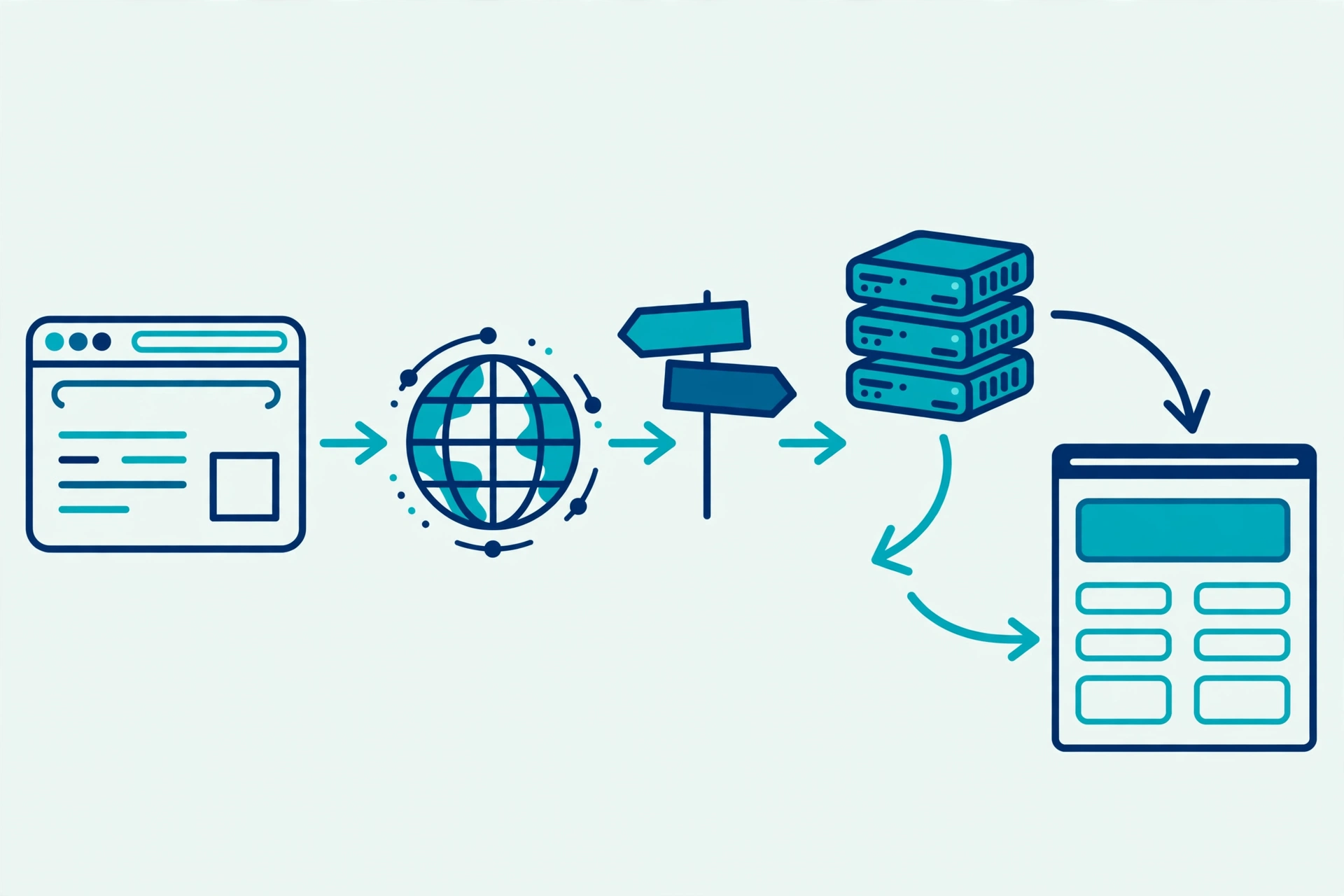
Step 4: TLS Handshake — Locking the Conversation
If the scheme is HTTPS, one more handshake happens inside the fresh TCP connection: TLS. The server presents its certificate, which the browser checks — is it issued by a trusted authority, is it for this exact host name, and is it still in date? The two sides then agree on encryption keys for this session.
From this point, everything travels encrypted: passwords, cookies and page content are unreadable to anyone between you and the server. If the certificate check fails, the browser shows a full-page warning — take it seriously rather than clicking through. The HTTP overview on MDN at developer.mozilla.org explains where this security layer sits in the wider protocol picture.
Step 5: The HTTP Request — Asking for the Page
Now, finally, the browser asks for what you actually wanted. An HTTP request is plain, readable text. A simplified one looks like this:
GET /some-post HTTP/1.1
Host: codingcush.com
Accept: text/html
User-Agent: Mozilla/5.0 ...
The first line carries the method (GET means "give me this"), the path, and the protocol version. The lines after it are headers — extra facts such as which formats the browser accepts and which cookies belong to this site. When you submit a form, the method is usually POST and the data travels in the request body.
Step 6: The Server Processes the Request
On the server side, software such as Apache or Nginx receives the request. For a static file, it finds the file on disk. For a dynamic page — a blog post from a database — the server runs code, queries its database, and builds the HTML on the spot. This is where hosting quality shows: the same page can take 30 milliseconds or two seconds. If you are choosing where your first site will live, our round-up of the top free web hosting providers compares beginner-friendly options.
Step 7: The HTTP Response — The Page Travels Back
The server replies with an HTTP response: a status line, its own headers, and then the body. The status code summarises the outcome — 200 means success, 301 means "moved permanently, ask over there", 404 means the server could not find that path, and 500 means the server itself hit an error. The body of a page request is the HTML document itself.
The headers say how long the response may be cached, what type of content follows, and whether cookies should be updated. Rendering can then begin — often before the whole response has finished arriving.
Step 8: Rendering — From Code to the Page You See
Rendering is the browser's final performance. It parses the HTML into a tree called the DOM, parses the CSS into style rules, and combines them to work out every element's size, position and colour — layout. It then paints the pixels into the finished screen.
Along the way it discovers extra work: CSS files, images and JavaScript files named in the HTML each trigger their own request, following exactly the same request–response cycle (usually reusing the existing connection). JavaScript can then change the DOM, fetch more data — very often as JSON, the lightweight format compared in our guide to the difference between XML and JSON — and update the page without a reload. The classic research piece "How Browsers Work" on web.dev goes far deeper into parsing and painting, and it rewards a read once this basic story feels comfortable.
How to Explain It in an Interview
This question is an interview favourite because it tests whether you understand the whole journey, not one tool. A strong short answer sounds like this:
"The browser parses the URL and checks its cache. If it needs the server, DNS resolves the host name to an IP address. The browser opens a TCP connection with a three-way handshake, and for HTTPS completes a TLS handshake to agree encryption. It then sends an HTTP request; the server processes it and returns an HTTP response with a status code and the HTML. Finally, the browser parses the HTML and CSS, runs the JavaScript, and renders the page — fetching any extra resources along the way."
Say that calmly, then stop. Interviewers usually follow up on one step — DNS caching, TLS, or status codes — and the FAQ below prepares you for the common ones. Structure beats detail: eight steps, in order, one crisp sentence each.
FAQ
Why does a website load faster the second time I visit it?
Because of caching at several levels. DNS answers, images, CSS and JavaScript files may all be stored locally with a freshness lifetime, so repeat visits skip the lookup and many downloads, going almost straight to rendering.
What is the difference between TCP and HTTP?
TCP is the transport: it opens a reliable, ordered connection between two computers. HTTP is the conversation held over that connection: requests and responses with methods, headers and status codes. TCP carries; HTTP speaks.
What happens if DNS fails?
The browser never learns the server's IP address, so no connection can start and you see an error such as "server IP address could not be found". Trying another network or DNS resolver often confirms whether DNS was the problem.
Is HTTPS slower than HTTP?
Slightly, because of the extra TLS handshake, but modern TLS versions have cut that cost to a minimum, and HTTPS unlocks faster modern protocols such as HTTP/2. In practice, the security is always worth the tiny cost.
What does a 404 error actually mean in this story?
It means everything up to the server worked perfectly — DNS, TCP, TLS and the request all succeeded — but the server had no page at that path. A 404 is a successful journey with a "not here" answer at the end.
Conclusion
Type, parse, resolve, connect, secure, ask, answer, render — eight small steps, finished before you have lifted your finger from the Enter key. Once you hold this story in your head, a surprising amount of web development clicks into place: caching advice, HTTPS warnings, status codes and slow-page debugging are all just details of one step or another. Learn the journey once, and you will reuse it in every project and every interview that follows.
Leave a Comment