 Lavkush
If Gmail says your storage is full, your Google account has used up its free 15 GB of storage — and that 15 GB is shared across Gmail, Google Drive and Google Photos, not given to each app separately. When the storage fills up, you can no longer send or receive emails, and new messages sent to you bounce back to the sender. The fix is simple: check what is using your space, delete large emails, big Drive files and unwanted photos, and empty the trash in each app. Most people free up several gigabytes in about 15 minutes, without paying for anything.
What happens when your Google storage is full?
Google gives every account 15 GB of free storage. Emails and their attachments, files in Drive, and photos and videos in Google Photos all draw from the same pool. When you hit the limit, a few things happen at once:
- You cannot send or receive emails in Gmail. People who write to you get a bounce-back message saying your mailbox is full.
- You cannot upload new files to Google Drive or create new Google Docs, Sheets or Slides.
- Google Photos stops backing up new photos and videos from your phone.
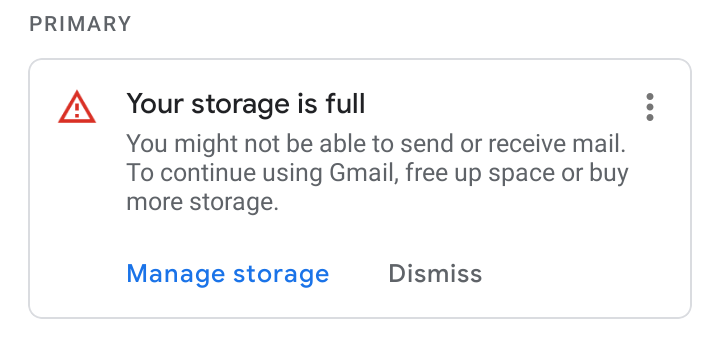
Gmail shows a clear warning when this happens, both in the app and on the website.
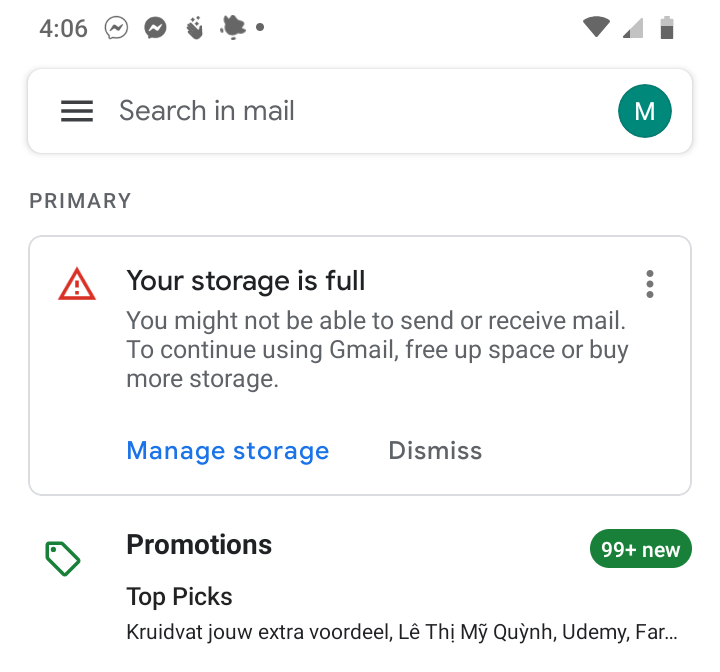
It helps to understand that a bounced email is not lost in your account somewhere — it never arrives at all. The sender's mail server tries to deliver it, Google refuses it because there is no room, and the sender receives a delivery failure notice. If you are curious about what goes on behind the scenes when a message is sent, our guide on how to send emails in PHP using PHPMailer explains the sending and delivery process step by step.
Step 1: Check where your storage is going
Do not start deleting blindly. First, find out which of the three services is actually eating your space — for most people it is Photos or Drive, not Gmail itself.
- Open your browser and go to
one.google.com/storage. - Sign in with the Google account that is full.
- Look at the storage bar at the top. It shows how much space Gmail, Google Drive and Google Photos each use.
- Scroll down to the review section, where Google lists large items you can delete, such as big videos, blurry photos and large email attachments.
You can also reach the same page from Gmail: when the storage warning appears, click or tap Manage storage. Google's own help page, Manage your storage in Drive, Gmail & Photos, walks through the same breakdown in more detail.
This table sums up where space usually hides, and the fastest way to clean each service:
| Service | Where the space hides | Fastest clean-up |
|---|---|---|
| Gmail | Emails with large attachments, old promotions, Spam and Trash | Search larger:10M, delete, then empty Trash and Spam |
| Google Drive | Videos, ZIP files, old backups and files still sitting in the Bin | Sort files by size, delete the big ones, empty the Bin |
| Google Photos | Long videos, blurry photos, screenshots and duplicates | Delete bad shots and large videos, or switch to Storage saver quality |
Step 2: Free up space in Gmail
A few very large emails usually matter more than thousands of small ones. Gmail search makes them easy to find.
- Open Gmail and click in the search box at the top.
- Type
larger:10Mand press Enter. This lists every email bigger than 10 MB — usually messages with videos or big attachments. - Open any you still need and download the attachment to your computer first. Then select the rest and click the Delete (trash) icon.
- Repeat with
has:attachment older_than:2yto find old emails with attachments. - Next, search
category:promotions older_than:1yand delete old shopping and marketing emails in bulk.
Deleting only moves mail to the Trash — it does not free space yet. Trash and Spam are emptied automatically after 30 days, but you do not have to wait:
- In the left sidebar of Gmail, click More, then Trash.
- Click Empty Trash now at the top and confirm.
- Open Spam and click Delete all spam messages now.
Your storage total should drop within a few minutes. If the warning is still there, give it a little time and refresh the storage page.
Step 3: Clean up Google Drive
Drive is often the biggest surprise. One old phone backup or a couple of videos can use more space than years of email.
- Go to
drive.google.comand click Storage in the left sidebar. Drive lists your largest files first. - Delete videos, installers, ZIP archives and duplicate files you no longer need.
- Check for old device backups you no longer use, and remove them.
- Open the Bin (Trash) in the sidebar and choose Empty bin. Files in the Bin still count against your storage until you do this.
One important point: files that other people share with you do not use your storage. Only files you own count. But if you uploaded a file into a shared folder, you still own it — if it is large and no longer needed, delete it or ask the folder owner to take over a copy.
Step 4: Clean up Google Photos
Photos and videos are the number one reason accounts fill up, especially with automatic phone backups turned on.
- Open Google Photos and go to the storage management page (from
one.google.com/storage, choose the Photos clean-up option). - Review the suggested groups: large videos, blurry photos, screenshots and unsupported videos. Delete what you do not need.
- Empty the Photos trash afterwards — deleted photos stay there for up to 60 days and still use space.
- To slow down future growth, open Photos settings, choose Back up, and set upload quality to Storage saver. This slightly compresses photos and videos so they take up much less room. You can also convert existing original-quality items to Storage saver from the same storage page.
Google One's help centre also has a useful guide, Clean up & fix issues with your Google storage, which covers the clean-up tools for all three services in one place.
Still full? Google One is the last resort
If you have cleaned everything you can and still need room, you can buy more storage with Google One. The entry plan gives you 100 GB for $1.99 per month in the US, and larger plans go up to 2 TB and beyond. Prices vary a little by country, so check the Google One plans page for your local price before you buy.
Treat this as the last resort, not the first step. Free tiers always come with limits — the same is true of the services in our round-up of the top 6 free web hosting providers — and most people find that one proper clean-up keeps them under 15 GB for a long time. A tidy habit helps too: empty Trash and Spam once in a while, and delete large attachments after saving them to your computer.
Conclusion
A full Google account is almost never a Gmail problem alone — it is one shared 15 GB pool across Gmail, Drive and Photos. Check the storage page to see which service is responsible, delete the biggest items first, and always empty the Trash, Spam and Bin afterwards, because nothing is truly freed until you do. Work through the steps above and your email should start flowing again within minutes, no payment needed.
Frequently asked questions
How much free storage does a Google account get?
Every Google account includes 15 GB of free storage, shared across Gmail, Google Drive and Google Photos. There is not a separate 15 GB for each service.
Why have my emails stopped arriving?
When your storage is completely full, Google cannot accept new messages for your account, so they bounce back to the sender with a "mailbox full" notice. Free up space and new emails will start arriving again — but messages that already bounced are not delivered later; the sender has to resend them.
Does archiving emails free up space?
No. Archiving only removes a message from your inbox view; the email and its attachments stay in your account and keep using storage. Only deleting a message — and then emptying the Trash — frees the space.
Do files shared with me count against my storage?
No. Files in "Shared with me" belong to the owner and count against their storage, not yours. A file only uses your storage if you own it, including files you upload into someone else's shared folder.
How long until Gmail works again after I free up space?
Usually within a few minutes. In some cases Google says the storage meter can take up to 24 hours to update fully, but sending and receiving email normally resumes well before that once you are back under the limit.
Leave a Comment