 Lavkush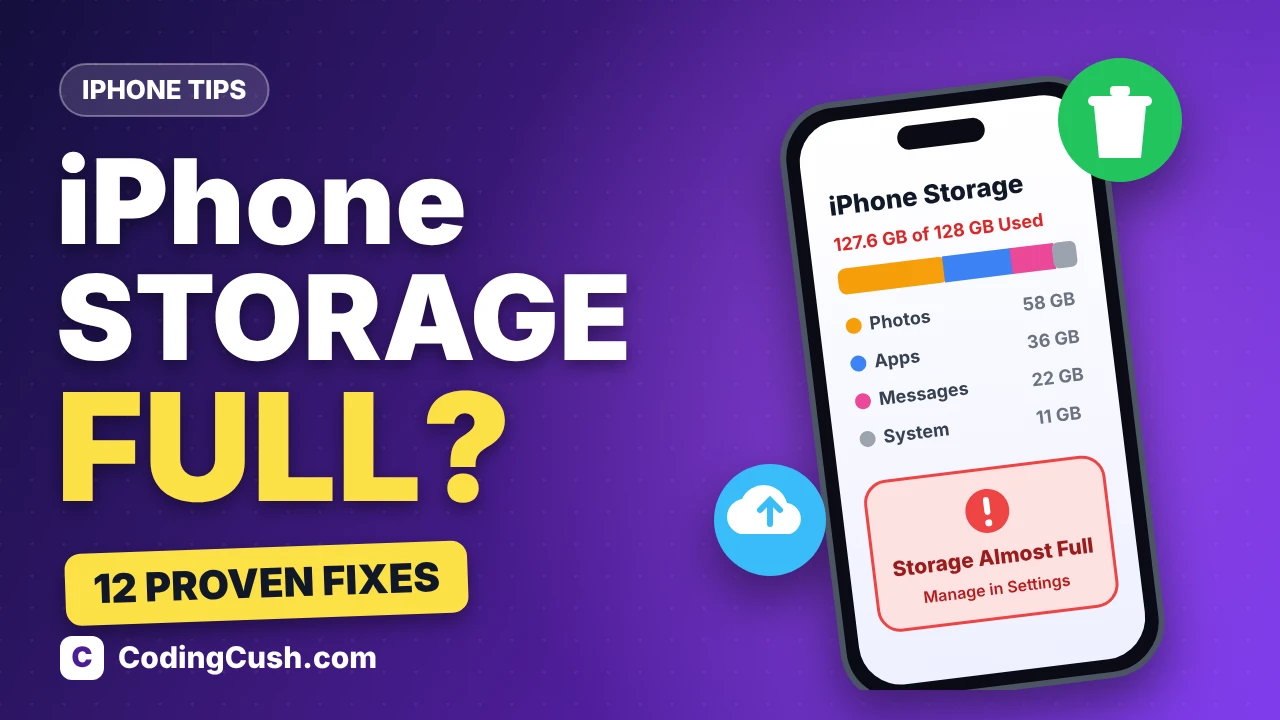
Your iPhone keeps warning you that storage is almost full — usually at the worst moment — right before you record a video. The good news: you rarely need to delete precious photos or buy a new phone. On most iPhones, 5–20 GB hides in app caches, old downloads and apps you never open. Work through the 12 fixes below and you can free up serious space in about 15 minutes, without losing anything important.
1. Check the iPhone Storage Screen First
Never guess what is eating your space — iOS shows you exactly.
- Open the Settings app.
- Tap General.
- Tap iPhone Storage.
- Wait a few seconds for the coloured bar and the app list to load fully.
The bar at the top shows how much space photos, apps, messages and system files use, and below it every app is listed biggest first — your worst offenders sit right at the top. Apple explains this same screen in its own guide to checking storage on iPhone. Almost every fix below starts from this screen, so return to it to watch your free space grow.
2. Offload Apps You Rarely Use
Offloading removes an app but keeps its documents and data. The icon stays on your Home Screen, greyed out, and one tap reinstalls the app with everything as you left it.
- Go to Settings > General > iPhone Storage.
- Turn on Offload Unused Apps if iOS suggests it at the top of the screen.
- Or tap any big app you rarely open and choose Offload App.
Perfect for travel, banking and shopping apps you need only once in a while — and the fastest safe win on this list.
3. Clear the Safari Cache and Website Data
Safari quietly stores images and files from every site you visit; over a year or two, that cache can grow past a gigabyte.
- Open Settings and scroll to Apps, then tap Safari (on older iOS versions, Safari sits directly in Settings).
- Tap Clear History and Website Data.
- Confirm by tapping Clear History.
Your saved passwords live in iCloud Passwords and are not touched. You may be signed out of a few websites — a small price for the space you get back.
4. Clean Out WhatsApp and Other Chat App Caches
For many people, WhatsApp is the single biggest app on the phone. Years of forwarded videos, photos and voice notes add up fast — all stored inside the app, not your Photos library.
- Open WhatsApp and tap Settings.
- Tap Storage and Data, then Manage Storage.
- Open the largest chats and delete big videos and photos you no longer need.
- Check the “Larger than 5 MB” section to remove the worst files first.
Telegram, Messenger and AI apps like ChatGPT build up cached files the same way, so repeat this clean-up inside each one. And if you use ChatGPT beyond simple chat, our guide on how to use ChatGPT for coding shows what else it can do.
5. Optimise Your Photos with iCloud
Photos and videos are usually the biggest category of all. iCloud Photos lets you keep every picture while storing smaller copies on the phone itself.
- Go to Settings and tap your name at the top.
- Tap iCloud, then Photos.
- Turn on iCloud Photos (called “Sync this iPhone” on newer versions).
- Select Optimise iPhone Storage.
Full-resolution originals live in iCloud and download when you open them. The free plan includes only 5 GB, so heavy photo libraries need a paid plan — 50 GB costs $0.99 a month in the US. Apple details the plans in its guide on how to manage your iCloud storage.
6. Shrink the Mysterious “System Data”
System Data (called “Other” on older iOS versions) holds caches, logs, downloaded voices and fonts. On newer iPhones it also includes on-device AI models — Apple Intelligence downloads several gigabytes so features can run offline, part of the bigger shift described in our overview of generative AI and the industries it is reshaping. You cannot delete System Data directly, but you can shrink it:
- Clear the Safari data from step 3, which removes a chunk of cached files.
- Restart your iPhone (step 9 below) — this clears temporary system caches.
- Update iOS (step 10), which rebuilds system files more efficiently.
- Stream music and video instead of downloading, so caches stay small.
7. Delete Old Messages and Giant Attachments
Message threads quietly collect years of photos, GIFs and videos that friends have sent you.
- Go to Settings > General > iPhone Storage > Messages.
- Tap Review Large Attachments and delete the biggest videos and images.
- Then open Settings > Messages, scroll to Keep Messages and choose 1 Year instead of Forever.
Old conversations now delete themselves, so this never builds up again.
8. Remove Downloaded Netflix, Spotify and YouTube Content
Downloads made for one flight or road trip often sit on the phone for months — a single season of a TV show can take 5 GB or more.
- In Netflix, open Downloads and delete watched episodes.
- In Spotify, go to Settings > Storage and tap Remove all downloads.
- In YouTube, open Library > Downloads and clear old offline videos.
- Check podcast and audiobook apps too — downloaded episodes pile up silently.
9. Restart Your iPhone (the Re-Index Trick)
A simple restart clears temporary files and forces iOS to recount storage — System Data often drops noticeably a few minutes later.
- Hold the side button and either volume button until the power slider appears (on older models, hold the top or side button).
- Slide to power off and wait 30 seconds.
- Hold the side button again until the Apple logo appears.
- Leave the phone locked, on charge and on Wi-Fi for 10 minutes to finish tidying up.
10. Update iOS
Updates fix storage bugs, remove leftover installation files and re-optimise system data — if your storage graph never adds up, an update often corrects it.
- Back up first: Settings > your name > iCloud > iCloud Backup > Back Up Now.
- Go to Settings > General > Software Update.
- Tap Download and Install.
Updates need a few free gigabytes themselves, so do the earlier steps first if the install refuses to start.
11. Empty “Recently Deleted” and Merge Duplicates
Deleted photos are not really gone — they sit in a Recently Deleted album for 30 days, still using space.
- Open Photos > Albums and scroll to Recently Deleted.
- Tap Delete All and confirm.
- Back in Albums, open Duplicates and tap Merge to combine copy photos.
- Do the same in Files > Recently Deleted for documents.
One minute of 4K video takes around 400 MB, so trimming long screen recordings and burst shots pays off quickly.
12. Reset Only as a Last Resort
If the numbers still make no sense — storage shows full but the app list adds up to far less — a clean reset can fix a corrupted storage index.
- Make a full backup to iCloud or a computer and confirm it finished.
- Go to Settings > General > Transfer or Reset iPhone.
- Tap Erase All Content and Settings.
- Set the phone up again and restore your backup.
Never skip the backup step. A reset wipes everything on the device, so treat it as the final option, not the first.
Where Your Space Usually Hides
| What fills up | Typical size | Best fix |
|---|---|---|
| Photos and videos | 20–60 GB | iCloud optimisation (step 5) |
| WhatsApp and chat media | 2–15 GB | Manage Storage (step 4) |
| System Data | 5–30 GB | Restart and update (steps 9–10) |
| Downloaded shows and music | 1–10 GB | Remove downloads (step 8) |
| Unused apps and games | 1–20 GB | Offload (step 2) |
The Bottom Line
Most people free up 10 GB or more with just the first six steps — none of which delete anything precious. Make the iPhone Storage screen a habit: check it monthly, offload what you stop using, and let iCloud carry your photos. And when you buy your next phone, choosing 256 GB over 128 GB costs far less than the stress of a full phone.
Frequently Asked Questions
Why is my iPhone storage full when I already pay for iCloud?
iCloud mirrors your data; it does not automatically remove it from the phone. App caches, WhatsApp media, downloads and System Data all live on the device itself. Turning on Optimise iPhone Storage and cleaning the apps above is what actually frees local space.
What is System Data, and can I delete it?
System Data is a bucket for caches, logs, fonts, voices and AI models that iOS manages itself — there is no delete button. Clearing Safari data, restarting and installing iOS updates are the reliable ways to shrink it.
Does offloading an app delete my data?
No. Offloading removes only the app file; your documents, settings and progress stay on the phone, and tapping the greyed-out icon reinstalls the app as you left it. Deleting an app, by contrast, removes its data too.
How much free space should I keep on my iPhone?
Aim for at least 5 GB free — roughly 5–10% of total storage. iOS needs breathing room for updates, photo processing and caches; below that, expect slowdowns and failed updates.
Will clearing Safari data delete my saved passwords?
No. Passwords saved in iCloud Passwords (Keychain) are stored separately and stay safe. Clearing history and website data removes cookies and cached files, so some websites will just ask you to sign in again.


Leave a Comment