 Lavkush
If your Windows 11 laptop or PC has become slow, the fix is usually simple: restart it properly, install pending updates, stop apps from loading at startup, and free up space on the C: drive. Most slow Windows 11 machines are not broken — they are overloaded. Work through the 12 fixes in order, testing your PC after each one. Most people feel a real difference within the first four steps — and every fix is free.
Quick Reference: The 12 Fixes at a Glance
The table shows how hard each fix is and the difference it usually makes — jump straight to the high-impact ones if you are short on time.
| Fix | Difficulty | Typical impact |
|---|---|---|
| 1. Restart properly | Very easy | Medium |
| 2. Run Windows Update | Very easy | Medium |
| 3. Find the culprit in Task Manager | Easy | High |
| 4. Disable startup apps | Easy | High |
| 5. Free up space on C: | Easy | High |
| 6. Uninstall bloatware | Easy | Medium |
| 7. Turn off background apps | Easy | Medium |
| 8. Adjust visual effects | Easy | Medium |
| 9. Use the Best performance power mode | Very easy | Medium |
| 10. Scan for malware | Easy | High |
| 11. Update drivers and check drive health | Medium | Medium |
| 12. Upgrade RAM or switch to an SSD | Medium | Very high |
Fix 1 and 2: Restart Properly and Run Windows Update
A proper restart clears memory, stops stuck processes, and finishes half-installed updates — yet many people never truly restart, because closing the lid only puts the machine to sleep.
- Save your work and close your apps.
- Click Start, then the Power icon, then Restart — not Shut down, because Windows 11's Fast Startup can keep old problems alive after a shutdown.
- Wait until the desktop has fully loaded before judging the speed.
Next, update Windows itself. Updates bring performance fixes and newer drivers — Microsoft's own tips to improve PC performance in Windows put them near the top of the list.
- Open Settings and go to Windows Update.
- Click Check for updates and install everything offered.
- Restart again if Windows asks, then check for updates once more — updates often arrive in waves.
Fix 3: Find the Culprit in Task Manager
If your PC feels slow right now, Task Manager will usually show you why. A CPU or disk sitting at 100% means one app or process is eating everything.
- Press Ctrl + Shift + Esc to open Task Manager.
- On the Processes tab, click the CPU, Disk, and Memory column headers one by one to sort by each.
- Note any app you do not recognise, or one app using far more than the rest.
- Select a frozen or runaway app and click End task. Common culprits: a browser with dozens of tabs, a stuck update process, or an antivirus scan.
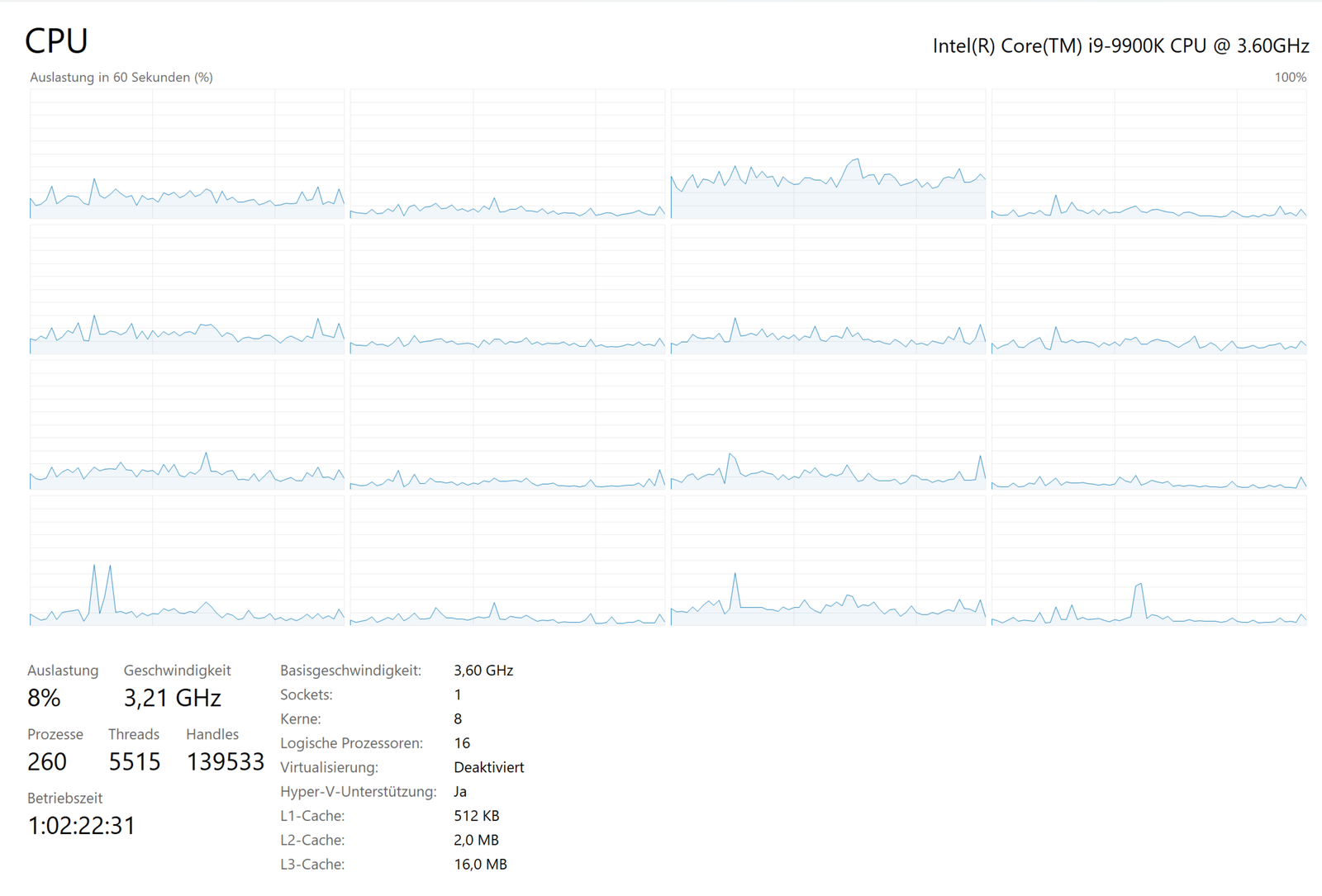
Watch the Performance tab (pictured): if CPU, Memory, or Disk stays near 100% while you do very little, that part is your bottleneck.
Fix 4: Disable Startup Apps
Many apps quietly set themselves to launch at sign-in — chat apps, game launchers, updaters — until your PC spends its first five minutes loading things you never asked for. Microsoft's guide to configure startup applications in Windows covers both routes; Task Manager is clearest.
- Open Task Manager and click the Startup apps tab (the clock-like icon on the left).
- Look at the Startup impact column and find the apps marked High.
- Right-click each app you do not need at sign-in and choose Disable — Spotify, Steam, Adobe updaters, and printer helpers are good candidates.
- Restart and feel the difference at sign-in.
Disabling a startup app does not uninstall it — it simply waits until you open it yourself. Heavy developer tools are a classic example: Docker Desktop can add a full minute to sign-in because, as our guide to what Docker is and how it works explains, it runs a whole Linux environment in the background.
Fix 5 and 6: Free Up Space on C: and Remove Bloatware
Windows needs breathing room: when the C: drive is nearly full, everything slows down. Aim to keep at least 15–20 GB free.
- Open Settings > System > Storage to see what is using space.
- Turn on Storage Sense so Windows cleans temporary files automatically.
- Click Cleanup recommendations and remove temporary files, old downloads, and Recycle Bin contents you don't need.
- Move large videos and photos to an external drive or cloud storage.
Then remove software you never use. New PCs ship with trial antivirus suites, games, and shopping apps that run in the background from day one.
- Go to Settings > Apps > Installed apps.
- Sort by size, and uninstall anything you do not recognise or never open.
- Restart afterwards so background helpers from removed apps stop too.
Fix 7 and 8: Background Apps and Visual Effects
Apps you are not using can still refresh and sync in the background. Turn that off for anything non-essential:
- Go to Settings > Apps > Installed apps.
- Click the three dots beside an app, choose Advanced options, and set Background app permissions to Never.
- Repeat for store apps, news apps, and games; leave messaging apps if you want their notifications.
Windows 11's transparency and animation effects also cost power on older hardware:
- Search the Start menu for Adjust the appearance and performance of Windows and open it.
- Select Adjust for best performance, or tick only the effects you like, such as smooth font edges.
- Click Apply. Windows will look plainer but respond faster.
Fix 9: Switch the Power Mode to Best Performance
- Open Settings > System > Power & battery.
- Set Power mode to Best performance.
On a laptop this drains the battery faster, so use it while plugged in or choose Balanced instead. On a desktop, leave Best performance on permanently.
Fix 10 and 11: Scan for Malware, Update Drivers, Check the Drive
Malware is a common hidden cause of a suddenly slow PC, and Windows Security is already installed and free.
- Open Windows Security and go to Virus & threat protection.
- Click Scan options, choose Full scan, and run it.
- Remove anything it finds, then restart.
Outdated graphics and chipset drivers can also drag performance down. Go to Settings > Windows Update > Advanced options > Optional updates and install what's offered, or get graphics drivers from NVIDIA, AMD, or Intel. Then check the drive itself:
- Go to Settings > System > Storage > Advanced storage settings > Disks & volumes.
- Open your C: drive's Properties to see its reported health and temperature.
- Or open PowerShell from the Start menu and run:
Get-PhysicalDisk | Select-Object FriendlyName, HealthStatus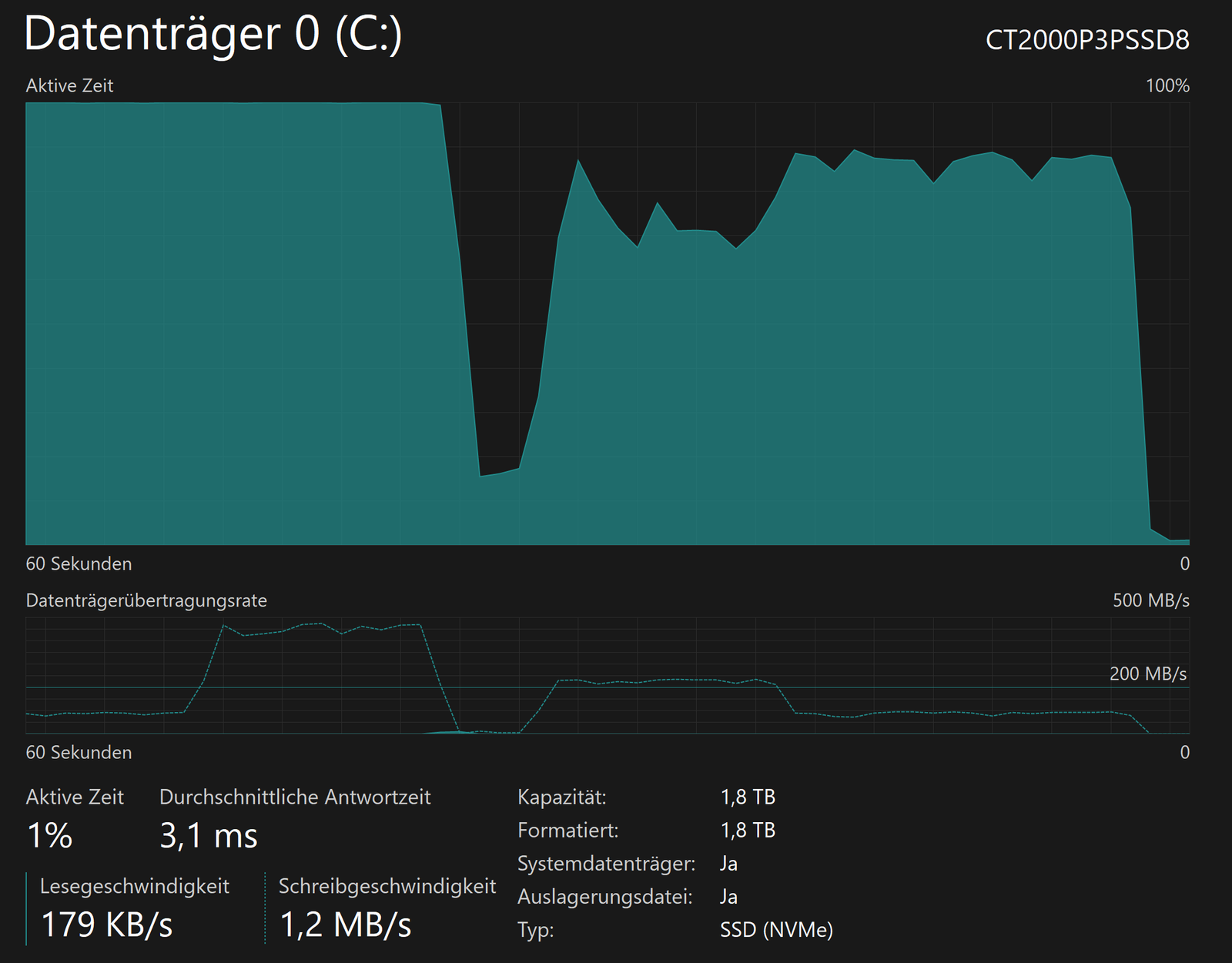
If the status is anything other than Healthy, back up your files immediately — a dying drive makes a PC slow long before it fails completely.
Fix 12: When the Real Answer Is More RAM or an SSD
Sometimes no setting will save a machine that is simply under-equipped — but two upgrades change everything. If your PC still runs on a spinning hard drive (HDD), replacing it with an SSD is the single biggest upgrade there is — boot times drop from minutes to seconds. A 500 GB SSD typically costs $50–$70 in the US, and 1 TB models run about $80–$110. If Task Manager shows Memory near 100% with just a browser and a few apps open, you need more RAM: moving from 8 GB to 16 GB usually costs $35–$55 and makes multitasking smooth again. Both upgrades are cheaper than a new PC and, on most laptops, take under half an hour.
Conclusion
Work from the top: restart, update, watch Task Manager, trim startup apps, free up space. Those five steps fix most slow Windows 11 machines in under an hour, for free. The same thinking applies to your online projects — a slow website loses visitors just as fast, which is why we wrote these proven tips to speed up your WordPress website too.
Frequently Asked Questions
Why is my Windows 11 laptop so slow all of a sudden?
Usually it is a Windows update installing in the background, a new app that added itself to startup, a nearly full C: drive, or malware. Open Task Manager and sort by CPU and Disk — the culprit is normally at the top.
How much free space does Windows 11 need on C:?
Keep at least 15–20 GB free. Windows needs the C: drive for updates, temporary files, and virtual memory, and performance drops sharply when free space gets very low.
Will disabling startup apps break anything?
No. It only stops the app opening automatically at sign-in. You can still launch it from the Start menu, and re-enable it in Task Manager at any time.
Is 8 GB of RAM enough for Windows 11?
It is the bare minimum for light use. With a browser, video calls, and a few apps open together, 8 GB fills quickly and Windows starts swapping to disk — which feels like general slowness. 16 GB is the comfortable standard today.
Should I use a free "PC cleaner" or registry cleaner?
No. Registry cleaners rarely help and can cause real problems. The built-in tools in this guide — Storage Sense, Windows Security, and Task Manager — do the job safely, for free.
Leave a Comment