Introduction
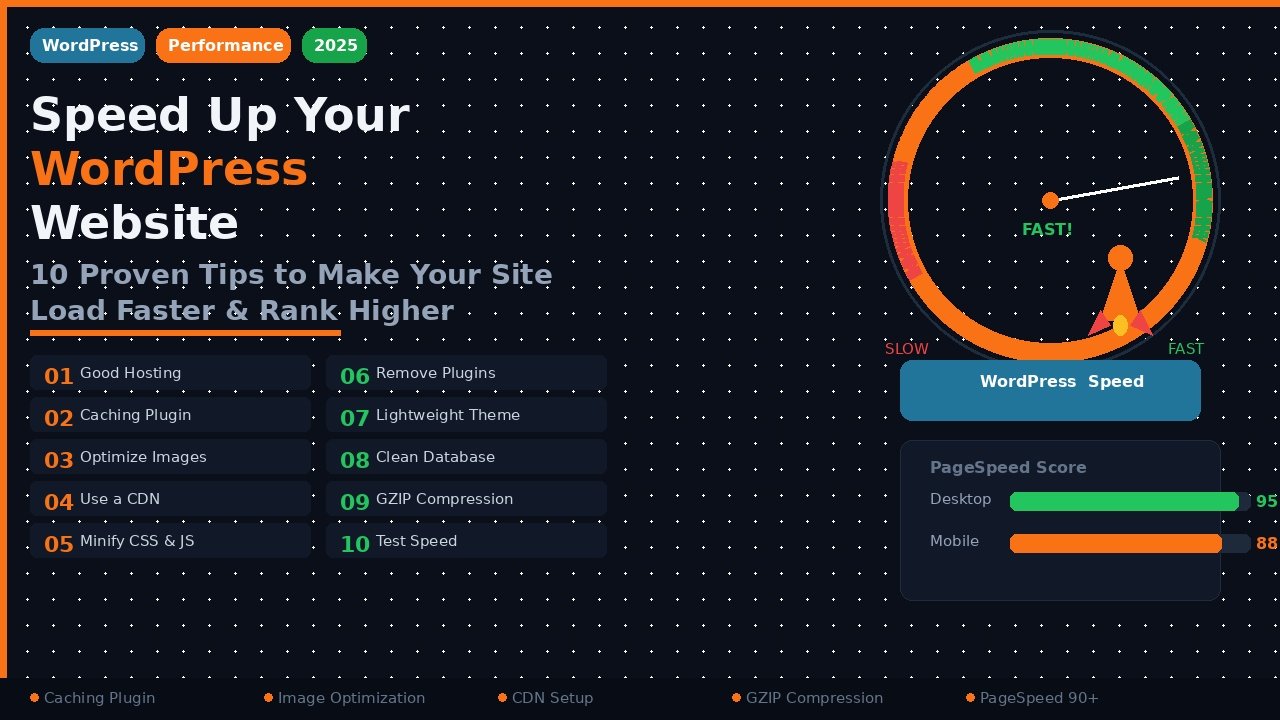
Is your WordPress website loading slowly? You are not alone. A slow website is one of the biggest problems website owners face today.
Studies show that 53% of visitors leave a website if it takes more than 3 seconds to load. That means a slow site costs you traffic, readers, and even sales. On top of that, Google uses page speed as a ranking factor — so a slow website also hurts your SEO.
The good news is that speeding up a WordPress website is not as hard as it sounds. In this guide, you will learn 10 proven tips to speed up your WordPress website — step by step, in simple English.
Let's get started.
Why Website Speed Matters
Before we jump into the tips, let's quickly understand why speed is so important:
-
Better SEO Rankings — Google gives priority to fast-loading websites in search results
-
Better User Experience — Visitors stay longer on fast websites
-
More Conversions — A faster site means more sales, sign-ups, and clicks
-
Lower Bounce Rate — Slow sites make visitors leave immediately
-
Mobile Performance — Most users browse on mobile where speed matters even more
Now let's look at the 10 tips.
Tip 1: Choose a Good Hosting Provider
This is the most important step. Your hosting provider is the foundation of your website speed. If your hosting is slow, nothing else will help much.
What to look for in a good host:
-
SSD storage (faster than traditional HDD)
-
PHP 8.0 or higher support
-
Server locations close to your audience
-
Good uptime guarantee (99.9% or above)
Recommended hosting providers for WordPress:
-
SiteGround — Excellent speed and support
-
Cloudways — Great for developers, very fast
-
Hostinger — Affordable with good performance
-
WP Engine — Premium managed WordPress hosting
If you are on shared hosting with a cheap plan, consider upgrading. It makes a massive difference.
Tip 2: Install a Caching Plugin
Caching is one of the easiest and most effective ways to speed up WordPress. When caching is enabled, your website saves a static version of your pages and serves it to visitors instead of rebuilding the page every time.
How to install WP Rocket or W3 Total Cache:
-
Go to your WordPress Dashboard
-
Click Plugins → Add New
-
Search for LiteSpeed Cache (free) or WP Rocket (paid)
-
Click Install Now and then Activate
-
Go to the plugin settings and enable Page Caching
Best caching plugins:
-
LiteSpeed Cache — Free and very powerful
-
WP Rocket — Best premium caching plugin
-
W3 Total Cache — Free and popular
-
WP Super Cache — Simple and lightweight
After enabling caching, test your site speed — you will notice an immediate improvement.
Tip 3: Optimize and Compress Images
Images are usually the biggest reason for a slow website. Large, uncompressed images take a long time to load and slow down every page.
Step-by-step image optimization:
-
Before uploading, resize images to the correct size (do not upload a 4000px image if you only need 800px)
-
Save images in WebP format instead of PNG or JPG — WebP files are 30% smaller
-
Install the Smush or ShortPixel plugin to compress existing images automatically
-
Go to Smush → Bulk Smush to compress all your uploaded images at once
-
Enable Lazy Loading so images only load when the visitor scrolls to them
Best image optimization plugins:
-
Smush — Free image compression
-
ShortPixel — Excellent quality compression
-
Imagify — Easy to use with good free plan
Tip 4: Use a Content Delivery Network (CDN)
A CDN stores copies of your website files on servers all around the world. When a visitor opens your site, the files are served from the server closest to them — which makes loading much faster.
For example, if your server is in the USA and a visitor is from India, the CDN serves the files from a server in India instead of sending them all the way from the USA.
How to set up Cloudflare CDN (Free):
-
Go to cloudflare.com and create a free account
-
Click Add a Site and enter your domain name
-
Select the Free Plan
-
Cloudflare will scan your DNS records — confirm them
-
Change your domain nameservers to Cloudflare's nameservers (your domain registrar settings)
-
Wait 24 hours for DNS to propagate
Once done, your website traffic will go through Cloudflare's global network, making it faster for visitors worldwide.
Tip 5: Minimize CSS, JavaScript, and HTML Files
Every CSS, JavaScript, and HTML file your website loads adds to the page load time. Minification removes unnecessary spaces, line breaks, and comments from these files to make them smaller and faster to load.
How to minify files in WordPress:
-
Install LiteSpeed Cache or Autoptimize plugin
-
Go to Autoptimize → Settings
-
Check the boxes for:
-
Optimize JavaScript Code
-
Optimize CSS Code
-
Optimize HTML Code
-
Click Save Changes and Empty Cache
Be careful — sometimes minification can break your site's design or functionality. Always test your site after enabling it.
Tip 6: Delete Unused Plugins and Themes
Many WordPress users install plugins they no longer use. Every inactive plugin still adds weight to your website — and some even run code in the background.
Steps to clean up plugins and themes:
-
Go to Plugins → Installed Plugins
-
Look for plugins you have not used in the last 30 days
-
Click Deactivate and then Delete
-
Go to Appearance → Themes
-
Delete all themes you are not using (keep only your active theme and one default theme as backup)
Also avoid installing too many plugins. Try to use one plugin that does multiple things instead of five separate plugins.
Tip 7: Use a Lightweight WordPress Theme
Your theme has a huge impact on speed. Many popular themes are bloated with features, animations, and scripts that slow down your website — even if you are not using those features.
What makes a theme lightweight:
-
Small file size (under 1MB)
-
Minimal CSS and JavaScript
-
No unnecessary page builder dependency
-
Clean, well-written code
Recommended fast WordPress themes:
-
Astra — Very lightweight, under 50KB
-
GeneratePress — Extremely fast and clean
-
Kadence — Modern and performance-focused
-
Hello Elementor — Minimal base theme for Elementor users
-
OceanWP — Popular and lightweight
If you are using a heavy theme like Divi or Avada, consider switching to a lighter alternative.
Tip 8: Optimize Your WordPress Database
Over time, your WordPress database fills up with unnecessary data — post revisions, spam comments, transient options, and deleted items. Cleaning this up can improve your site speed.
How to optimize the WordPress database:
-
Install the WP-Optimize plugin (free)
-
Go to WP-Optimize → Database
-
Select what you want to clean:
-
Post revisions
-
Auto drafts
-
Spam and trashed comments
-
Expired transients
-
Click Run all selected optimizations
-
Schedule automatic optimization weekly
This is a safe process but always take a backup before cleaning your database.
Tip 9: Enable GZIP Compression
GZIP compression reduces the size of your website files before they are sent to the visitor's browser. This can reduce file sizes by up to 70%, which means pages load much faster.
How to enable GZIP compression:
Most caching plugins like LiteSpeed Cache and WP Rocket enable GZIP automatically. If not, you can add this code to your .htaccess file:
apache
# Enable GZIP Compression
<IfModule mod_deflate.c>
  AddOutputFilterByType DEFLATE text/html
  AddOutputFilterByType DEFLATE text/css
  AddOutputFilterByType DEFLATE text/javascript
  AddOutputFilterByType DEFLATE application/javascript
  AddOutputFilterByType DEFLATE application/json
</IfModule>
To check if GZIP is working on your site, use the free tool at gzip compression test.
Tip 10: Test Your Website Speed Regularly
You cannot improve what you do not measure. Use free speed testing tools to check your website performance and see what needs to be fixed.
Best free website speed testing tools:
-
Google PageSpeed Insights — pagespeed.web.dev — Shows Core Web Vitals score
-
GTmetrix — gtmetrix.com — Detailed performance report
-
Pingdom — tools.pingdom.com — Simple and easy to read
-
WebPageTest — webpagetest.org — Advanced testing from different locations
What scores to aim for:
-
Google PageSpeed Score: 90+ on mobile and desktop
-
Largest Contentful Paint (LCP): under 2.5 seconds
-
First Input Delay (FID): under 100ms
-
Cumulative Layout Shift (CLS): under 0.1
Test your site before and after applying each tip so you can see exactly how much improvement each change makes.
Quick Summary: 10 Tips to Speed Up WordPress
|
# |
Tip |
Difficulty |
Impact |
|
1 |
Choose good hosting |
Medium |
Very High |
|
2 |
Install a caching plugin |
Easy |
Very High |
|
3 |
Optimize images |
Easy |
High |
|
4 |
Use a CDN |
Medium |
High |
|
5 |
Minify CSS and JS |
Easy |
Medium |
|
6 |
Delete unused plugins |
Easy |
Medium |
|
7 |
Use a lightweight theme |
Medium |
High |
|
8 |
Optimize the database |
Easy |
Medium |
|
9 |
Enable GZIP compression |
Medium |
High |
|
10 |
Test speed regularly |
Easy |
Ongoing |
Conclusion
A fast WordPress website is not a luxury — it is a necessity. By following these 10 proven tips, you can dramatically improve your site speed, rank higher on Google, and give your visitors a much better experience.
You do not need to do everything at once. Start with the easy wins first — install a caching plugin, compress your images, and delete unused plugins. Then work your way through the rest of the list.
If you have any questions about speeding up your WordPress site, feel free to ask in the comments below. I reply to every comment within 24 hours.

0 Comments
Leave a Comment