

 Lavkush
 A biometric attendance management system is a web app that records when employees arrive and leave using their fingerprint, then works out who was present, late, on a half day, absent or on leave. This free project gives you a complete one in core PHP and MySQL: a full-screen punch kiosk, fingerprint enrolment, employees and departments, leave approvals, a holiday calendar, a monthly attendance register for payroll and a REST API for biometric terminals.
Looking for a college project where teachers mark student attendance? See the student attendance management system instead. This guide is about employee attendance with fingerprints: it explains every feature with screenshots, shows how the fingerprint scanner actually connects to a PHP website, and walks you through the five-minute setup.
Watch the full demo
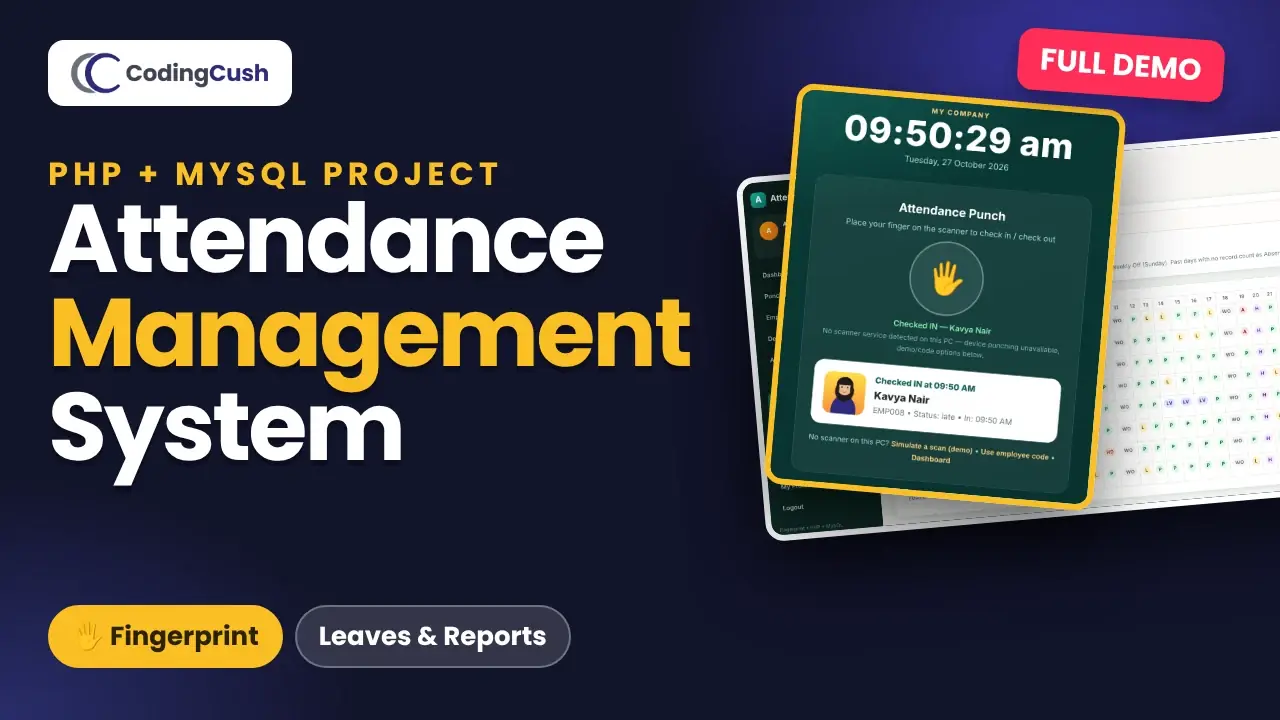
Prefer video? This 11-minute walkthrough shows every feature in action, from enrolling a fingerprint and punching in at the kiosk to approving a leave and exporting the monthly register. Click the thumbnail or watch it on YouTube.
Project at a glance
| Item | Details |
|---|---|
| Language | Core PHP 8 (no framework) |
| Database | MySQL 5.7+ or MariaDB 10.3+, accessed with PDO prepared statements |
| User roles | Admin and HR |
| Database tables | 10 (users, employees, departments, attendance, punches, fingerprint_templates, leave_requests, holidays, devices, settings) |
| Fingerprint support | USB scanners through their local service (e.g. Mantra MFS100 RD Service), standalone terminals through a REST API, and a built-in demo simulator |
| Security | Hashed passwords, CSRF tokens, session regeneration, prepared statements, per-device API keys |
| Setup time | About 5 minutes on XAMPP |
| Price | Free source code |
Key features
- Punch kiosk — a full-screen entrance screen with a live clock. First scan of the day is the check-in, the second is the check-out.
- Fingerprint enrolment — up to four fingers per employee with a quality score. One finger can never be enrolled for two employees.
- Employee-code fallback for anyone without a fingerprint, plus a demo scan simulator so you can test without hardware.
- Smart rules — late detection with grace minutes, a half-day threshold and automatic working hours.
- Sundays, holidays and approved leaves are never counted as absent.
- Daily attendance sheet with manual check-in/out, status corrections and one-click “mark remaining absent”.
- Leave management — approved leave is written into attendance automatically.
- Monthly register — an employee × day matrix with totals and hours, plus CSV export for payroll.
- Biometric device API — punch, enrol and heartbeat endpoints, each device with its own API key.
- Admin and HR roles — devices and settings are admin only, enforced on the server.
How does a fingerprint scanner connect to a PHP website?
A web browser cannot read a USB fingerprint scanner directly, so real systems use one of two paths — and this project supports both:
- USB scanner on a PC. Scanners like the Mantra MFS100 install a small local service (the RD Service on
http://127.0.0.1:11100). The enrolment page and the kiosk detect it automatically, capture the finger through it, and send the fingerprint template to the PHP server. - Standalone terminal or Android device. The device captures the finger itself and calls
api/punch.phpwith its ownX-API-Key.
No scanner? The built-in demo simulator creates a stable test template, so you can try the full enrol → punch → report flow on any computer.
Fingerprint enrolment
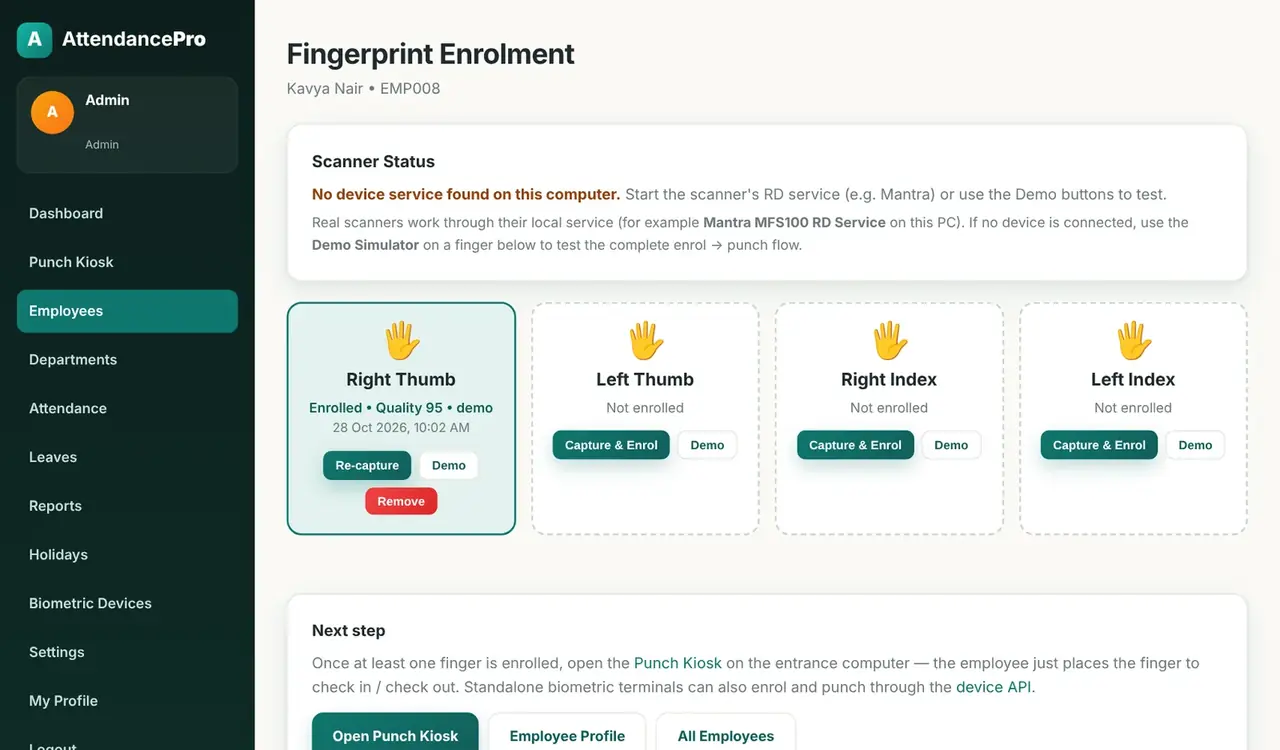
Open an employee and click Fingerprint. The enrolment centre first checks for a scanner service on the computer and tells you plainly if none is running. You can then enrol the right thumb, left thumb, right index and left index. Each enrolled finger shows its quality score, its source and when it was captured, and you can re-capture or remove it.
The punch kiosk
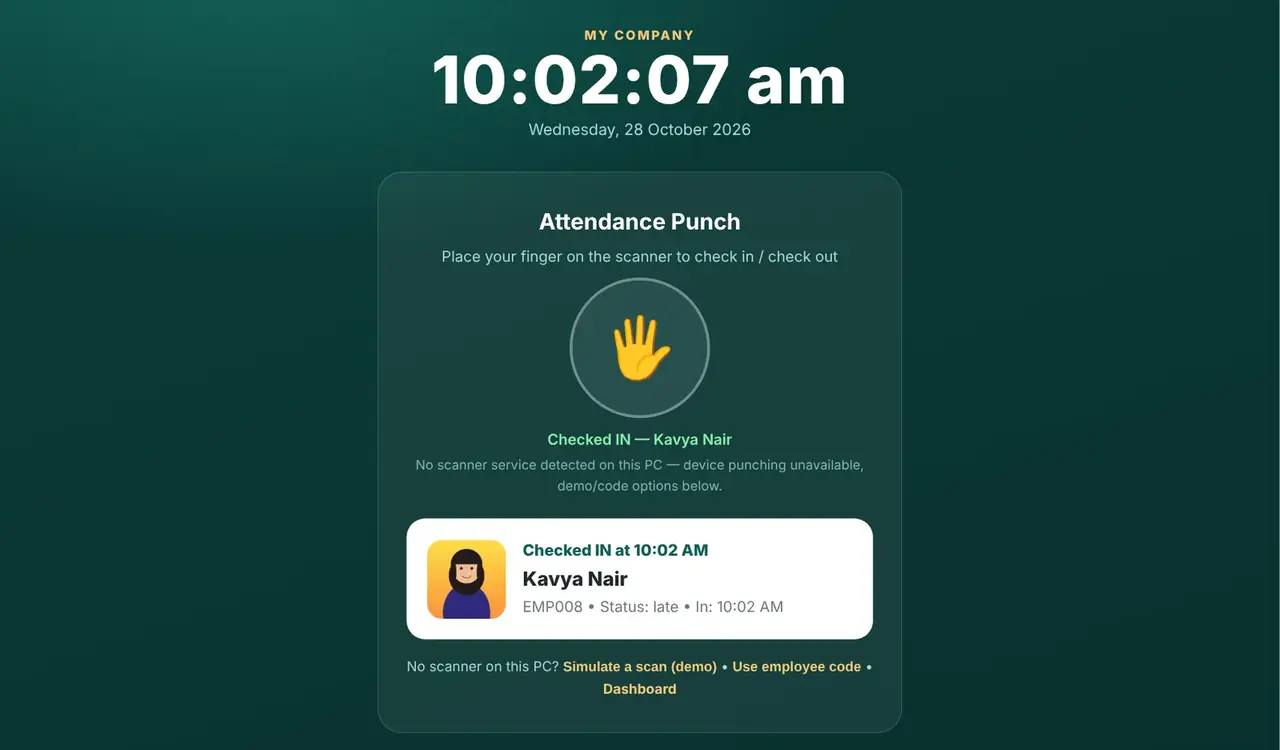
Put the kiosk on the entrance PC or tablet. It shows the company name, a large live clock and one big fingerprint button. When an employee places a finger, the screen shows their photo, name, the time and their status instantly — Checked IN on the first scan and Checked OUT on the second, with the working hours calculated from the two times.
How is late or half day decided?
In Settings you set the shift start and end, the grace minutes and the half-day threshold. With a 09:30 shift and 10 minutes of grace, anyone who checks in after 09:40 is marked late. If the time between check-in and check-out is below the half-day threshold (240 minutes by default), the day becomes a half day.
Dashboard
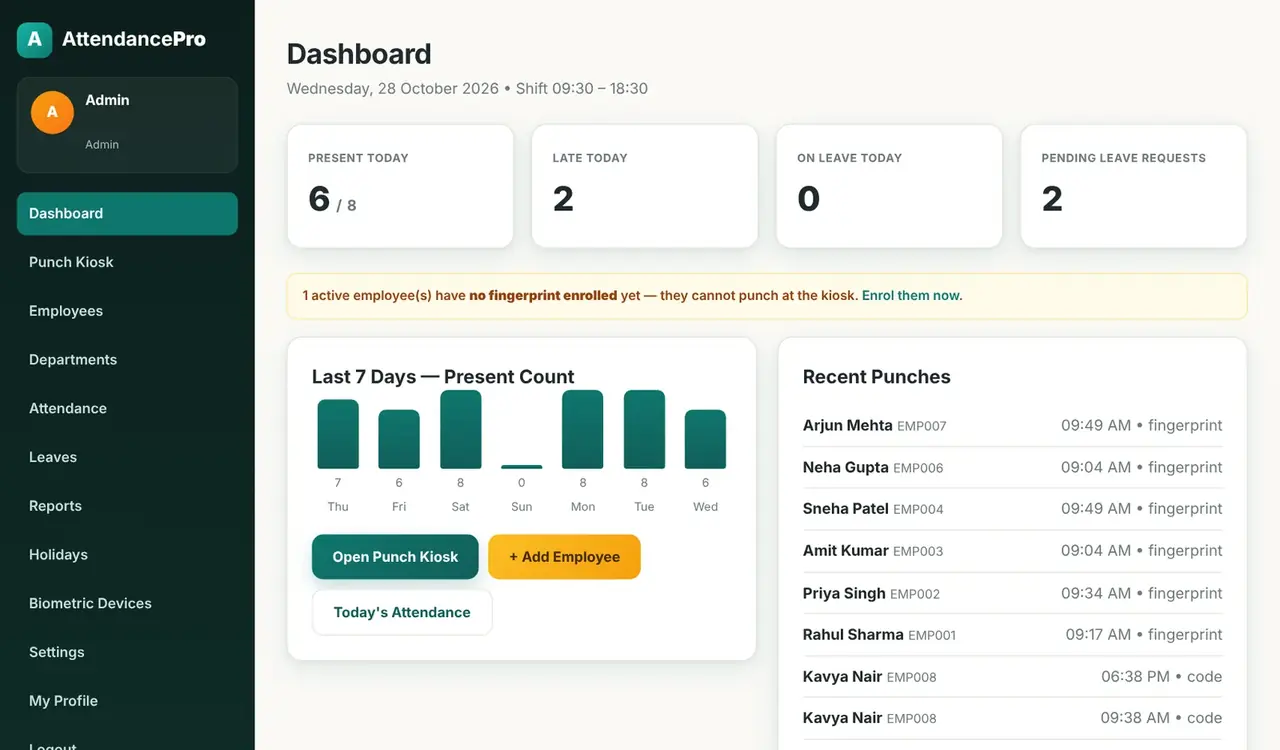
The dashboard shows who is present, late and on leave today, and how many leave requests are waiting. It warns you when an active employee has no fingerprint enrolled — they can't punch at the kiosk until you fix it. A seven-day chart and a list of the latest punches, with the method used, complete the picture.
Daily attendance sheet
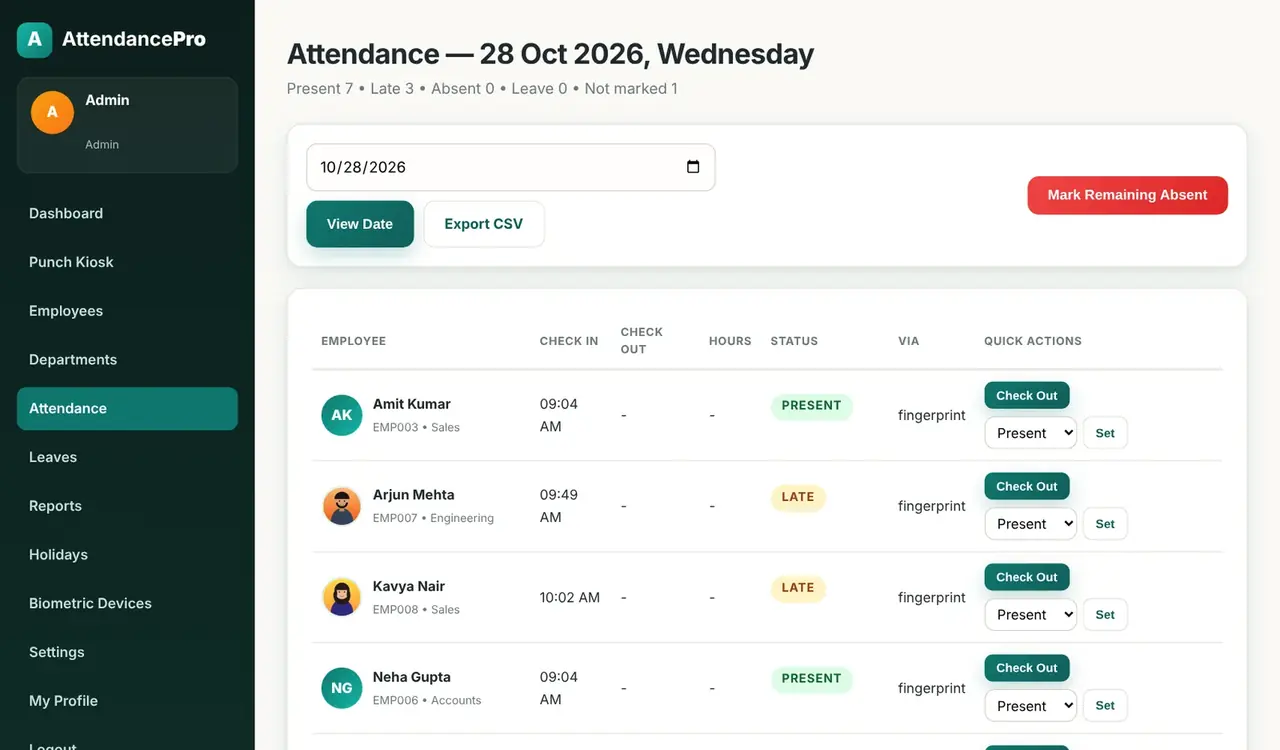
The Attendance page is where HR works every day. It lists every employee with check-in, check-out, hours, status and how the entry was recorded (fingerprint, code, API or manual). HR can punch someone in or out by hand, set any status for any date, and at the end of the day mark everyone who is left over as absent — employees on approved leave are skipped automatically. The day exports to CSV in one click.
Leave management
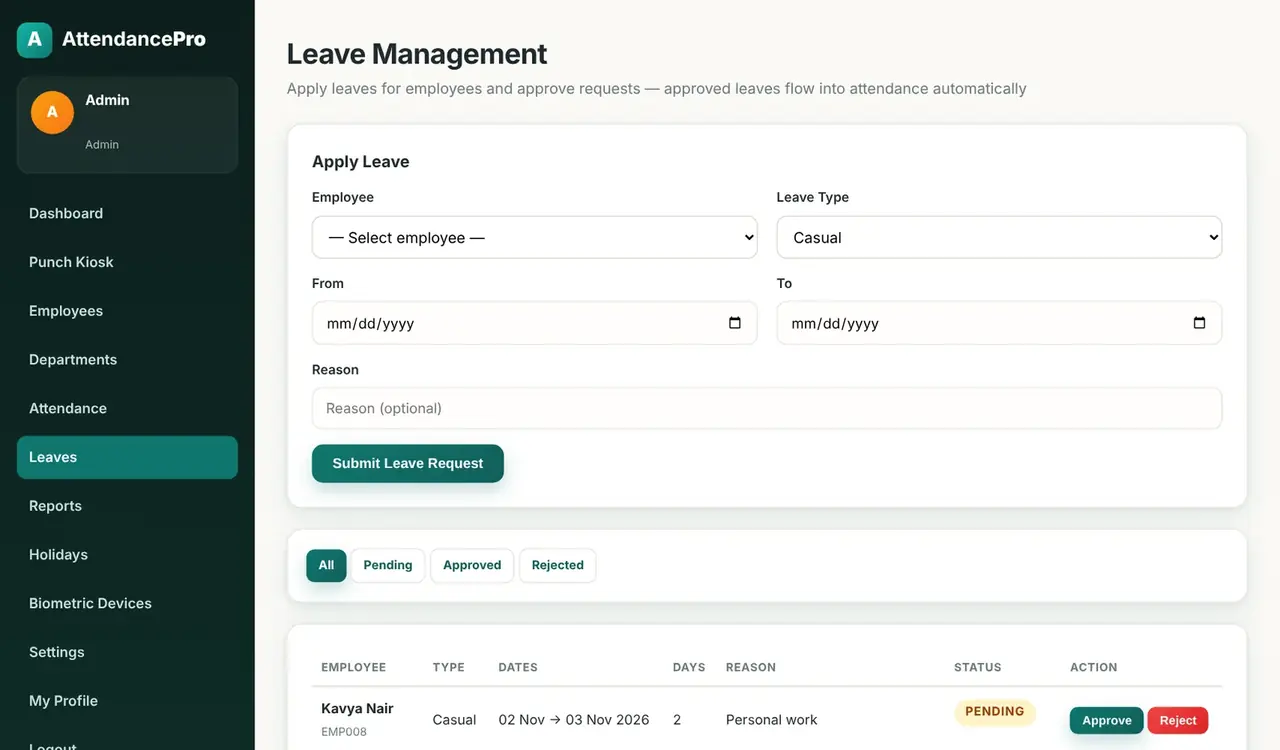
Apply a leave for any employee — Casual, Sick, Earned or Other — and it starts as pending. When you approve it, every working day in the range is written into attendance as leave (Sundays are skipped), so nobody is accidentally marked absent on those days.
Monthly register and CSV export
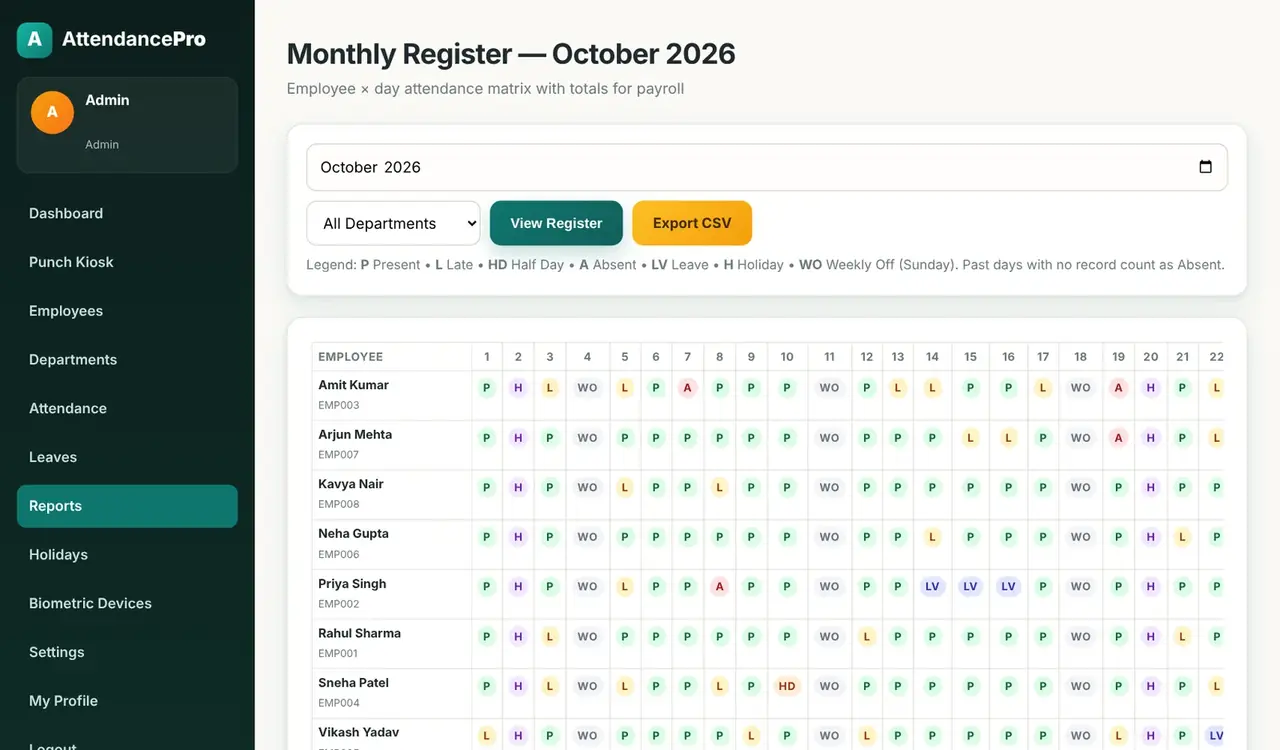
Reports show the monthly register that payroll asks for: every employee against every day of the month, coded P present, L late, HD half day, A absent, LV leave, H holiday and WO weekly off. Totals and hours worked appear on the right. Filter by department, then click Export CSV to open it in Excel.
Biometric device API
Admins can register standalone terminals and Android devices under Biometric Devices. Each device gets its own API key and shows whether it is online (it sent a heartbeat in the last 15 minutes). Devices call three endpoints:
# Punch by fingerprint template (or employee_code for keypad terminals)
curl -X POST https://your-site/attendance/api/punch.php \
  -H "X-API-Key: DEVICE_KEY" \
  -d "template=<template from device>"

# Enrol a finger
curl -X POST https://your-site/attendance/api/enroll.php \
  -H "X-API-Key: DEVICE_KEY" \
  -d "employee_code=EMP001&finger=Right Thumb&template=<...>&quality=88"

# Heartbeat (marks the device online)
curl -X POST https://your-site/attendance/api/heartbeat.php -H "X-API-Key: DEVICE_KEY"
The kiosk, the API and manual entry all use the same record_punch() function, so the attendance rules are identical everywhere.
A note on fingerprint matching
Identifying which employee a finger belongs to among many (1:N matching) needs a matching engine — raw templates from real scanners are not simple hashes. The built-in matcher compares the stable template IDs that devices and the simulator return. For a large workforce with raw scanner templates, plug in a vendor engine such as SecuGen, Mantra MIS or SourceAFIS in includes/biometric.php and switch the matcher in Settings. The code has one clearly marked place for it.
Project structure
attendance-management-system/
├── config/        database.php, app.php
├── includes/      functions.php, biometric.php, report-helper.php
├── api/           punch.php, enroll.php, heartbeat.php (X-API-Key)
├── assets/        css/style.css, js/app.js, js/fingerprint.js
├── uploads/       employee photos
├── kiosk.php, enroll.php
├── employees.php, departments.php, holidays.php
├── attendance.php, leaves.php, reports.php, export.php
├── devices.php, settings.php (admin only)
└── database.sql   all tables, demo accounts and sample data
How to install the Attendance Management System
Step 1: Download and extract the project
Download the source code from the download box at the end of this post and extract it. You get a folder called attendance-management-system.
Step 2: Copy it to htdocs
Put the folder inside htdocs for XAMPP, www for WAMP, or public_html on shared hosting.
Step 3: Import the database
Start Apache and MySQL, open http://localhost/phpmyadmin, click Import, choose database.sql and click Go. It creates the attendance_system database with every table, demo accounts, departments and five sample employees. Import it only once — on an existing install, drop the database first.
Step 4: Check the database settings
If your MySQL user is not root with an empty password, update config/database.php:
define('DB_HOST', 'localhost');
define('DB_NAME', 'attendance_system');
define('DB_USER', 'root');
define('DB_PASS', '');
Step 5: Log in and set your shift
Open http://localhost/attendance-management-system/ and log in:
| Role | Password | |
|---|---|---|
| Admin | admin@example.com | Admin@123 |
| HR | hr@example.com | Hr@12345 |
Go to Settings and set your company name, shift times and grace minutes. Then open an employee, enrol a fingerprint (use Demo if you have no scanner), and open the Punch Kiosk to make your first punch. Change both demo passwords after setup.
Common installation problems
- “Database connection failed” — the SQL file was not imported, or
config/database.phphas the wrong details. - “Duplicate entry” while importing — the database already exists. Drop
attendance_systemand import again. - “No scanner service detected” — the scanner's RD service is not running on that PC. Start it, or use the demo simulator or employee-code punch.
- Times look wrong — set the correct timezone for PHP (for India,
date.timezone = Asia/Kolkatainphp.ini).
Frequently Asked Questions
Is this attendance management system free?
Yes. The complete source code is free to download, learn from and use in your own projects.
Does it work with a real fingerprint scanner?
Yes. USB scanners like the Mantra MFS100 work through their local RD service on the kiosk PC, and standalone terminals or Android devices use the REST API. Without a scanner, test everything with the demo simulator.
Can employees without a fingerprint still punch?
Yes. The kiosk has an employee-code fallback, and HR can always check someone in or out from the Attendance page.
Can I use it as a final year project?
Yes. It covers authentication, roles, CRUD, file uploads, a REST API, business rules and reporting, which makes it a strong BCA, MCA or BTech project. Make sure you understand the code and can explain it in your viva.
Can I run it on shared hosting like Hostinger?
Yes. The web app runs on any PHP 8 hosting with MySQL. The USB scanner path needs the kiosk PC to run the scanner's local service; terminals using the API work from anywhere.
What are the default login details?
Admin: admin@example.com / Admin@123. HR: hr@example.com / Hr@12345.
Download the source code
Download the complete Attendance Management System from the download box below, follow the five installation steps, and make your first fingerprint punch in minutes. If you get stuck, leave a comment with the error message and I will help you fix it.
Looking for more projects? Try the advanced student management system in PHP and MySQL, the online examination system in PHP and MySQL, or learn the basics with the free PHP & MySQL course.


Leave a Comment