 Lavkush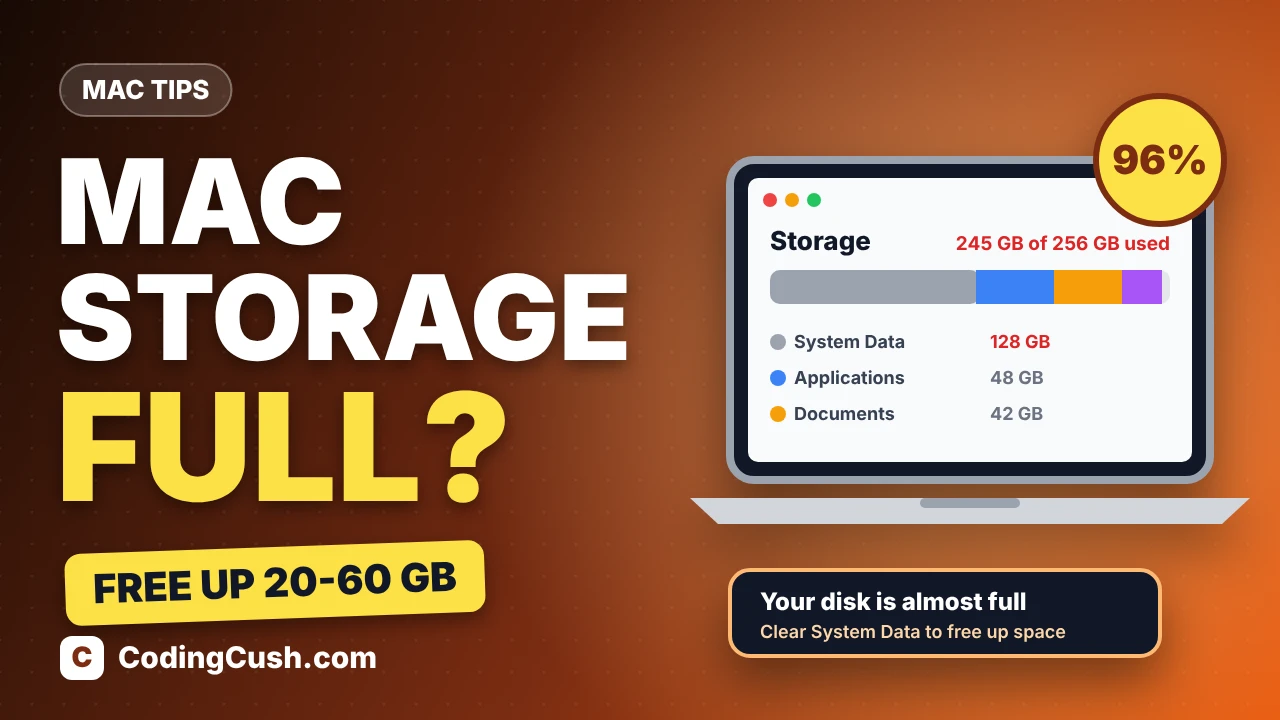
If your Mac keeps warning you that the disk is almost full, and a grey block called System Data is quietly eating 50 GB or more, you are not alone. It is one of the most common complaints from Mac owners in the US, UK, Australia and Canada. The good news: you can usually free up 20 to 60 GB in about half an hour, without deleting your photos or documents. System Data is mostly caches, old device backups, local Time Machine snapshots and leftover files — and macOS has built-in tools to clear nearly all of it safely. Follow the steps below in order.
Step 1: See what is actually filling your Mac
Before deleting anything, look at the breakdown — the Storage page tells you exactly where the space went.
- Click the Apple menu in the top-left corner of the screen and choose System Settings.
- Click General in the sidebar, then click Storage.
- Wait a few seconds while macOS calculates. A colour bar shows how your disk is split between Applications, Documents, iOS Files, macOS, System Data and other categories.
- Scroll down the list. Each category shows its size, and clicking the small info button next to one lets you review and delete items inside it.
If System Data is the biggest block, do not panic. It is a catch-all category: caches, temporary files, old iPhone or iPad backups, local snapshots and disk images all land there. The steps below shrink it piece by piece.
Step 2: Use Apple's built-in storage recommendations
At the top of the Storage page, macOS lists personalised Recommendations — the safest wins, so apply them first.
- Store in iCloud: keeps only recent files on the Mac and the rest in iCloud. Useful if you already pay for iCloud storage.
- Optimise Storage: automatically removes films and TV shows you have already watched from the Apple TV app.
- Empty Trash Automatically: deletes anything that has sat in the Trash for over 30 days.
- Reduce Clutter: opens a review of your largest files and downloads so you can delete them with one click.
Apple explains each option in its own guide to freeing up storage space on a Mac, if you want the official wording for any setting.
Step 3: Empty the Trash and clean out Downloads
It sounds obvious, yet Trash and Downloads together often hold 10 GB or more — files you deleted weeks ago still occupy space until the Trash is emptied.
- Right-click the Trash icon in the Dock and choose Empty Trash.
- Open Finder, click Downloads in the sidebar, and switch to list view.
- Click the Size column to sort largest first.
- Delete old .dmg and .pkg installers — the app is already installed, so the installer is just a duplicate. Do the same with old ZIP files and duplicate videos.
Step 4: Clear the caches folder — safely
Caches are temporary files apps build to run faster. They grow quietly for months, and "System Data" includes them. Deleting cache contents is safe: apps simply rebuild what they need.
- Open Finder and choose Go > Go to Folder from the menu bar.
- Type ~/Library/Caches and press Return.
- Select everything inside the folder (Command + A) and move it to the Trash. If an item refuses because the app is open, skip it.
- Empty the Trash, then restart your Mac (Step 10 below).
Only clear the contents of the Caches folder — do not delete the folder itself, and do not delete other Library items you do not recognise.
Step 5: Delete old iPhone and iPad backups
Every time you back up an iPhone or iPad to your Mac, the backup stays — even after you sell the phone. One backup can be 10 to 40 GB, and they hide under "iOS Files".
- Go back to System Settings > General > Storage and click the info button next to iOS Files.
- Select any backup from a device you no longer own, or a very old backup, and click Delete.
- Alternatively, connect your device, open it in Finder, and click Manage Backups to see the same list with dates.
Step 6: Remove Time Machine local snapshots
When your backup drive is not connected, Time Machine saves "local snapshots" on the internal disk. macOS should delete them when space runs low, but sometimes they linger and inflate System Data. To see how many you have, open Terminal (Applications > Utilities) and run:
tmutil listlocalsnapshots /- Connect your Time Machine backup drive and let a full backup finish — snapshots are then transferred and cleared.
- If snapshots remain and space is critical, restart the Mac; macOS purges stale snapshots during start-up.
- Never delete files from the backup drive itself — only the local snapshots on your internal disk are fair game.
Step 7: Clear your browser caches
Chrome alone can hold several gigabytes of cached images and files.
- In Chrome, open Settings > Privacy and security > Delete browsing data, tick Cached images and files, and clear it. Keep "Passwords" unticked.
- In Safari, open Settings > Privacy > Manage Website Data, then click Remove All. You may be signed out of some websites, but bookmarks and passwords are safe.
- Repeat for Firefox or Edge if you use them.
Step 8: Remove unused apps and their leftovers
Games and creative apps can be 5 to 30 GB each. On the Storage page, click the info button next to Applications, sort by size, and delete anything you have not opened in months. Removing an app also removes the dozens of language files many apps carry for languages you never use. App Store apps can also be deleted by long-pressing their icon in Launchpad and clicking the X. Empty the Trash again afterwards so the space is actually returned.
Step 9: Check Docker and Xcode data (if you use them)
Developers have two extra hiding places. Docker stores every image and container inside one virtual disk file that grows but rarely shrinks on its own — if you are new to it, our explainer on what Docker is and how it works covers the basics. Remove stopped containers and unused images in Docker Desktop and the file can drop by tens of gigabytes. For Xcode, the folder ~/Library/Developer/Xcode/DerivedData holds rebuildable project data and is safe to empty, and old simulators can be removed in Xcode's Settings > Platforms.
Step 10: Restart your Mac
Finally, restart. macOS clears swap files (virtual memory stored on disk), temporary files and stale caches during start-up, and the Storage bar recalculates honestly. System Data often drops by several gigabytes from the restart alone. Check the Storage page again afterwards to see your total savings.
What is safe to delete — and what is not
| Safe to delete | Do not delete |
|---|---|
| Contents of the Trash | Files inside /System or the main /Library folder |
| Contents of ~/Library/Caches | Folders in ~/Library you do not recognise |
| Old iPhone/iPad backups | Your only copy of photos or documents |
| Downloaded .dmg / .pkg installers | Files on your Time Machine backup drive |
| Browser caches | macOS itself or anything labelled "system" in Finder |
| Unused apps and Xcode DerivedData | An app you still use, just to save space |
Apple's support pages also walk through optimising storage space on your Mac, if you want the official checklist.
Conclusion
A full Mac is rarely full of things you need. Work through the Storage page, empty the Trash and Downloads, clear caches, remove old backups and snapshots, and restart — most people recover 20 to 60 GB in one sitting. Keeping a Mac lean is a habit, not a one-off job: the same "remove what you no longer use" thinking keeps a website quick too, which is why we apply it in our guide on how to speed up your WordPress website. Keep at least 10–15% of your disk free and macOS will stay fast.
Frequently asked questions
Why is System Data so big on my Mac?
System Data is a catch-all for caches, logs, temporary files, local Time Machine snapshots, old iOS backups and disk images. It grows over time and often shrinks after a restart. If it stays huge, work through the caches, backups and snapshots steps above — those three are the usual culprits.
Is it safe to delete everything in ~/Library/Caches?
Yes. Those files are temporary and every app rebuilds what it needs; an app may load slightly slower the first time afterwards. Only delete the contents of the folder, not the folder itself, and leave the rest of the Library alone unless you know exactly what an item is.
How much free space should I keep on my Mac?
Aim for at least 10–15% of your total disk — roughly 20 to 35 GB on a 256 GB Mac. macOS needs room for swap files, updates and caches. Below about 10 GB free, expect slowdowns and failed updates.
Will deleting local snapshots erase my Time Machine backups?
No. Local snapshots live on your Mac's internal disk; your real backups live on the external Time Machine drive and are untouched. Deleting snapshots only removes the temporary on-disk copies, and Time Machine keeps working as long as the drive connects regularly.
Do I need to buy a cleaner app for Mac?
Almost certainly not. Every fix in this guide uses tools already built into macOS and costs nothing. Be wary of apps that flash "your Mac is infected" warnings — many are scareware. Check the Storage page you already have before spending a single dollar.



Leave a Comment