 Lavkush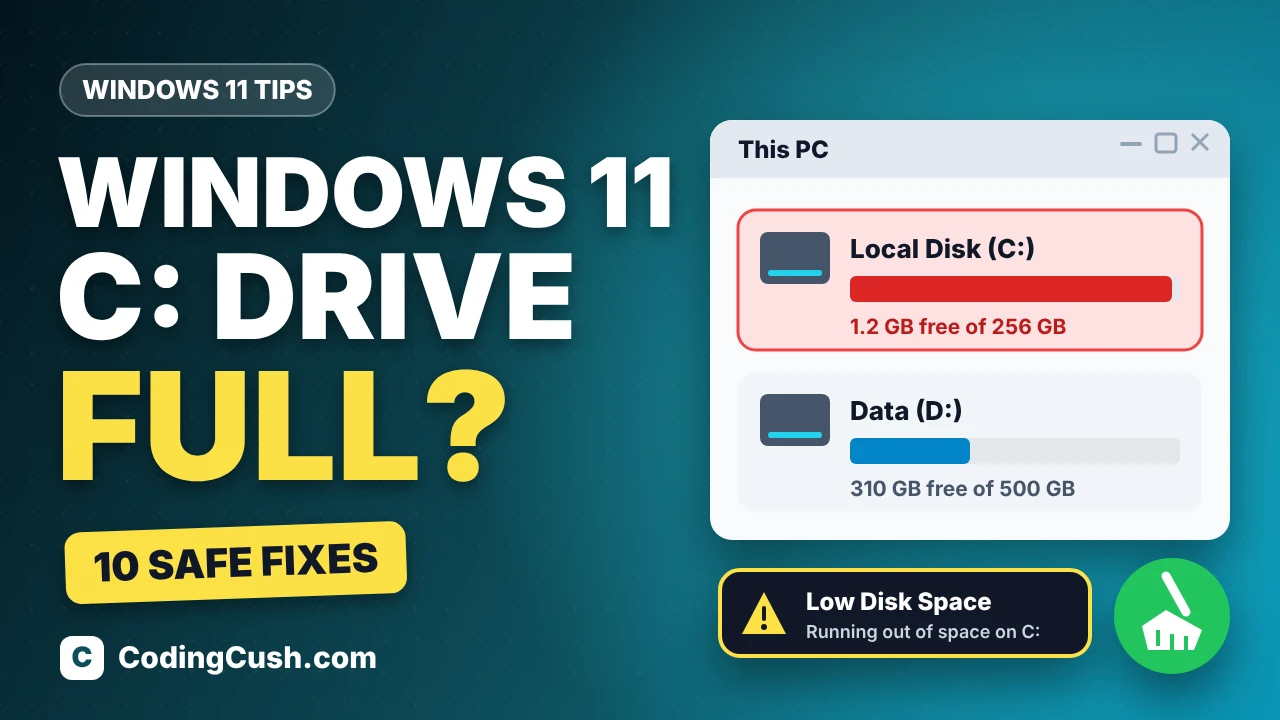
If your C: drive is full on Windows 11, you can safely free up space without deleting personal files and without installing any "PC cleaner" software. Start with the Storage page in Settings, which shows exactly what is using the space, then work through built-in tools: Storage Sense, temporary file cleanup, Disk Cleanup, and uninstalling unused apps. Most people recover 10 to 30 GB in under an hour. Here are 10 safe methods, in order, from quick wins to the biggest space hogs.
First, See What Is Filling Your C: Drive
Do not delete anything blindly — Windows 11 already shows you where the space went:
- Press Windows key + I for Settings, then go to System > Storage. Windows scans your C: drive for a few seconds.
- Read the breakdown: categories such as Installed apps, Temporary files, System & reserved, and personal folders like Documents and Pictures, each with its size.
- Click Show more categories if any are hidden.
- Open Cleanup recommendations on the same page — Windows lists the exact files it considers safe to remove.
If the storage bar has turned red, your drive is critically low and updates may fail. Leave System & reserved alone — Windows manages it. Microsoft's guide to freeing up drive space in Windows covers the same page.
10 Safe Ways to Free Up Space on C:
Work through these in order. The first few take minutes; the later ones free up more space but have small trade-offs, explained as we go.
1. Turn On Storage Sense
Storage Sense is the built-in automatic cleaner. Once on, it quietly removes temporary files and old Recycle Bin items when your drive runs low, so the problem does not keep coming back.
- Open Settings > System > Storage.
- Turn the Storage Sense toggle to On.
- Click Storage Sense itself to open its options. Set it to run every month, or whenever space is low, and to clear Recycle Bin items older than 30 days.
- Click Run Storage Sense now at the bottom for an immediate clean.
Microsoft explains every option in its guide to managing drive space with Storage Sense.
2. Delete Temporary Files
Temporary files are leftovers from apps, updates, and error reports — safe to delete, because Windows recreates any it still needs.
- Go to Settings > System > Storage > Temporary files.
- Review the list — Windows Update Cleanup, Temporary files, Thumbnails, Delivery Optimization Files — and tick what to remove. Leave Downloads unticked unless you have checked that folder yourself (method 5).
- Click Remove files.
3. Run Disk Cleanup for System Files
Disk Cleanup can remove one item Settings sometimes misses: the backup of your previous Windows version, in a folder called Windows.old — often 15 to 25 GB on its own.
- Press the Windows key, type Disk Cleanup, open the app, select drive C:, and click OK.
- Click Clean up system files, select C: again, and after the deeper scan tick Windows Update Cleanup, Previous Windows installation(s) if listed, and Temporary files.
- Click OK, then Delete Files to confirm.
One warning: afterwards you cannot roll back to the older version — only do this if Windows 11 runs well.
4. Empty the Recycle Bin
Deleted files are not really gone until the Recycle Bin is emptied — they still sit on C:. Right-click the Recycle Bin icon on your desktop and choose Empty Recycle Bin, after a quick glance at the contents. On a busy PC this alone can return several gigabytes.
5. Sort Out the Downloads Folder
Downloads is where old installers, ZIP files, and videos pile up. Open File Explorer > Downloads, sort by the Size column, biggest first, and delete installers you have already used. Move anything you still want to Documents or another drive — cleanup tools treat Downloads as disposable.
6. Uninstall Large Apps and Games
Modern games often take 50 to 150 GB each. Windows can rank everything by size:
- Open Settings > Apps > Installed apps and set Sort by to Size (Large to small).
- For anything you have not opened in months, click the three dots next to it and choose Uninstall.
- For games from Steam, Xbox, or Epic, uninstall inside that app instead, so no leftovers remain.
7. Remove the Hibernation File
Windows keeps a hidden file, hiberfil.sys, for hibernation. It is roughly 40% of your RAM — about 6 GB on a 16 GB machine. Never use Hibernate? Switch it off and reclaim the space:
- Press the Windows key, type Terminal, right-click it, and choose Run as administrator.
- Run this command:
powercfg /hibernate offThe trade-off: you lose Hibernate, and Fast Startup (which uses part of the same file) turns off too, so booting from a full shutdown may take a few seconds longer. Sleep still works. Undo it any time by running the same command with on instead of off.
8. Move Big Files to OneDrive or Another Drive
Videos, photos, and project folders sit on C: mostly because it is the default. Moving them is safer than deleting:
- In OneDrive, right-click a large folder and choose Free up space. Files stay visible in File Explorer but live in the cloud (OneDrive includes 5 GB free) and download when opened.
- If your PC has a second drive (often D:), move Videos and Pictures there: right-click the folder in File Explorer, open Properties > Location, and choose Move.
- An external USB drive suits files you rarely open, like old phone backups.
9. Hunt Down Hidden Space Hogs
Sometimes the Storage page shows a large "Other" category. For developers, the usual suspects are virtual disks: Docker Desktop and WSL store entire Linux systems inside one growing file on C:, as our guide to what Docker is and how it works explains. Local stacks eat space too — if you followed a tutorial to install WordPress on localhost with XAMPP, its folder, databases, and backups all sit on C:. Be careful with third-party "disk analyzer" tools: the built-in Storage page and app list already show the biggest items, and a random cleaner from an ad can be malware.
10. Compact the Windows Installation
As a last resort, Windows can compress its own system files, typically freeing 2 to 3 GB. Open Terminal as administrator (as in method 7) and run:
compact.exe /CompactOS:alwaysVery old PCs may see a tiny performance cost, as files are decompressed when read; on a modern SSD you will not notice it. Reverse it any time with compact.exe /CompactOS:never.
How Much Space Each Method Saves
Typical results on a Windows 11 PC that has not been cleaned for a year or more:
| Method | Typical space saved | Safe for beginners? |
|---|---|---|
| Storage Sense (first run) | 1–5 GB | Yes — fully automatic |
| Delete temporary files | 2–10 GB | Yes |
| Disk Cleanup (system files) | 5–25 GB | Yes — rollback is lost |
| Empty Recycle Bin | 1–10 GB | Yes — check contents first |
| Clear Downloads | 1–20 GB | Yes — your choice of files |
| Uninstall apps and games | 5–150 GB | Yes |
| Remove hibernation file | About 40% of your RAM | Yes, if you never hibernate |
| Move files to cloud/another drive | As much as you move | Yes |
| Compact OS | 2–3 GB | Mostly — small speed trade-off |
What You Should Never Delete
Never delete files by hand from the C:\Windows folder, the WinSxS component store, or Program Files — dragging app folders to the Recycle Bin does not uninstall them properly and can break Windows. Always remove apps through Settings (method 6) and let the built-in tools handle system files. If a website tells you to delete the page file (pagefile.sys) or registry keys to "free space," close it: that advice causes crashes.
Conclusion
A full C: drive on Windows 11 is rarely a reason to panic or to buy cleaner software. Check the Storage breakdown, switch on Storage Sense, clear temporary files and old update backups, and remove apps you no longer use. Most PCs get back 15 GB or more, with hibernation removal and file moves in reserve for really tight drives. Repeat the quick steps every few months — or let Storage Sense handle it — and the red bar should not come back.
Frequently Asked Questions
Is it safe to delete temporary files in Windows 11?
Yes — they are working leftovers, and anything still needed is recreated automatically. Use Settings > System > Storage > Temporary files, leaving Downloads unticked unless you checked it first.
Why does my C: drive keep filling up on its own?
Usually: Windows update leftovers, growing app caches, a Recycle Bin never emptied, and large apps installing to C: by default. Storage Sense (method 1) stops most of the build-up automatically.
How much free space should I keep on my C: drive?
Keep at least 10 to 15 percent free — roughly 25 GB on a 256 GB drive. Windows needs that room for updates and temporary files; below it, updates can fail.
Can I delete the Windows.old folder?
Yes, if Windows 11 is working well. Windows deletes it after about 10 days anyway, or remove it sooner with Disk Cleanup (method 3) — afterwards you cannot go back.
Will freeing up space make my PC faster?
It can. A nearly full SSD slows down because the drive has too few empty blocks to work with, and a very full C: drive can block Windows updates. Getting back above 15 percent free removes both problems.

Leave a Comment