

 Lavkush
 To read and write files in Python, use the built-in open() function: open a file in read mode "r" and call read() to get its contents, or open it in write mode "w" and call write() to save new text. The safest and most common pattern is the with statement, which closes the file automatically when you are done. With just these few tools, your scripts can save notes, process data files, write logs, and remember information between runs instead of forgetting everything the moment the program ends.
The open() Function and File Modes
Every file operation in Python starts with open(). It takes the file name as its first argument and a mode as its second argument. The mode is a short string that tells Python what you plan to do, a bit like telling a librarian whether you want to read a book, write in a fresh notebook, or add a page to an existing one.
The official documentation lists every argument and option, and the Python reference for the open function is the page worth bookmarking for the exact details. For daily work, the four modes in the table below cover almost everything you will ever need.
| Mode | Meaning | Creates the file? | Erases existing content? |
|---|---|---|---|
"r" |
Read only (the default) | No — error if missing | No |
"w" |
Write only | Yes | Yes, completely |
"a" |
Append — add at the end | Yes | No |
"x" |
Create a new file only | Yes | No — error if it already exists |
"r+" |
Read and write | No — error if missing | No |
Add the letter "b" to any mode, such as "rb" or "wb", when you work with binary files like images or PDFs instead of text. And always pass an encoding for text files, usually encoding="utf-8", so that special characters behave the same on every computer. That one small habit prevents a whole category of mysterious character bugs later.
Always Use the with Statement
A file you open must also be closed, so that Python saves everything properly and frees the file for other programs. Beginners often call close() by hand and then forget it the one time it matters. The professional habit is the with statement, which closes the file automatically when the indented block ends, even if an error happens in the middle.
with open("notes.txt", "r", encoding="utf-8") as file:
    content = file.read()

print(content)
# The file is already closed here, guaranteed
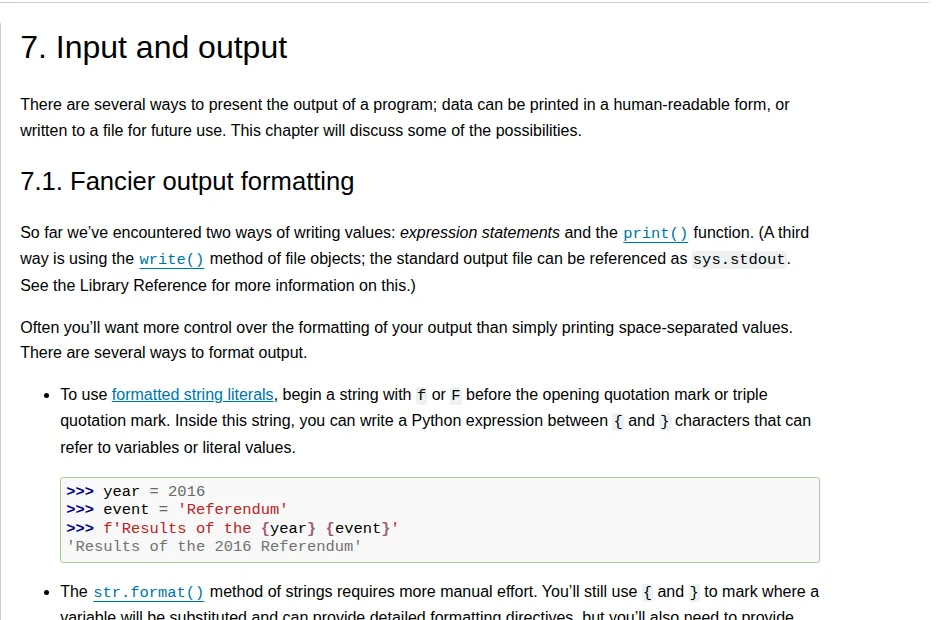
Think of with as a responsible friend who always locks the door on the way out. The broader Python tutorial on input and output uses the same pattern throughout its file examples.
How to Read a File in Python
Python gives you three friendly ways to read a text file, and choosing between them depends on the size of the file and what you plan to do with the text. For small files, reading everything at once is perfectly fine and wonderfully simple.
Read the whole file with read()
with open("notes.txt", "r", encoding="utf-8") as file:
    content = file.read()

print(content)
print("Characters:", len(content))
The read() method returns the entire file as one big string. That is ideal for short notes, settings files, and templates. Just be careful with very large files, because the whole content lands in memory at once. A two-gigabyte log file read this way will make your program, and possibly your whole laptop, rather unhappy.
Read line by line
For anything long, read one line at a time. Iterating over the file object directly is the cleanest style, and readlines() is there when you genuinely need all the lines stored together for later sorting or indexing.
with open("notes.txt", "r", encoding="utf-8") as file:
    for line in file:
        print(line.strip())   # strip() removes the newline at the end

# Or collect all lines in a list:
with open("notes.txt", "r", encoding="utf-8") as file:
    lines = file.readlines()
print("Total lines:", len(lines))
Notice the list that readlines() gives you. If handling lists still feels new, our guide on Python list vs tuple explains how lists work with the same kind of small, honest examples.
How to Write a File in Python
Writing is just as friendly. Open the file in write mode, call write() with a string, and remember one important detail: write() does not add a newline for you. If you want separate lines, include \n yourself, otherwise your sentences will run together like one very long, breathless thought.
with open("shopping.txt", "w", encoding="utf-8") as file:
    file.write("Milk\n")
    file.write("Eggs\n")
    file.write("Bread\n")

# shopping.txt now contains three tidy lines
Be careful with write mode, because it empties the file before writing. Opening an existing file with "w" and then changing your mind does not undo the damage — the old content is already gone. When you only want to add new content at the end, append mode is your safer friend.
with open("shopping.txt", "a", encoding="utf-8") as file:
    file.write("Coffee\n")   # added after Bread, nothing is erased

# Writing many lines at once:
items = ["Tea\n", "Rice\n", "Fruit\n"]
with open("shopping.txt", "a", encoding="utf-8") as file:
    file.writelines(items)
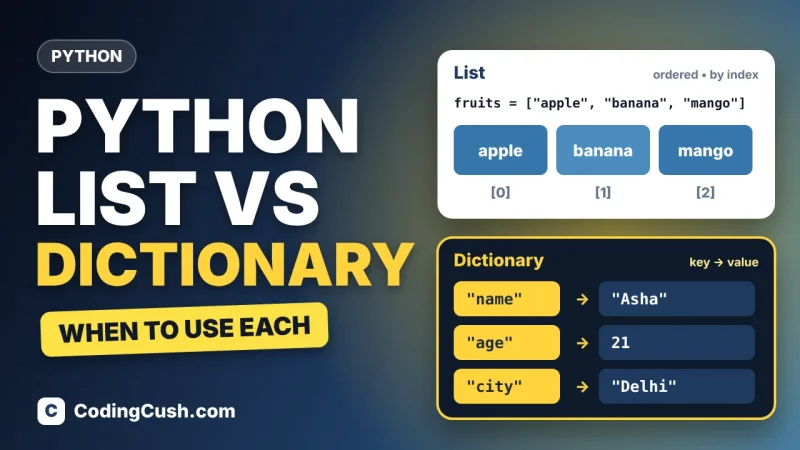
Storing related values together like this is also where structured data starts to help. Once your files hold keys and values instead of plain lines, the ideas in our Python list vs dictionary comparison will make saving and loading that data much easier to plan.
A Complete Example: A Tiny Notes App
Let us combine reading, writing, and appending into one small program that actually does something useful. This script adds a note with today's entry and then prints every note saved so far. It is short enough to type yourself, which is honestly the best way to learn it.
def add_note(text):
    with open("diary.txt", "a", encoding="utf-8") as file:
        file.write(text + "\n")

def show_notes():
    try:
        with open("diary.txt", "r", encoding="utf-8") as file:
            print(file.read())
    except FileNotFoundError:
        print("No notes yet. Add your first one!")

add_note("Learned Python file handling today.")
show_notes()
The try and except block deserves attention. Reading a file that does not exist raises FileNotFoundError, and catching it lets your program respond politely instead of crashing with a wall of red text. Checking with the os.path.exists() function first is another valid approach, but catching the error is the style Python programmers usually prefer.
Common Mistakes to Avoid
First, forgetting the encoding: without it, Python uses a system default that differs between computers, and your file can turn into strange symbols elsewhere. Second, using write mode when you meant append, which quietly deletes work you cared about. Third, reading a huge file all at once. Fourth, forgetting that write() only accepts strings, so convert numbers first with str(). Every Python developer has made at least two of these, usually in the same week.
Frequently Asked Questions
What happens if I open a file that does not exist?
In read mode, Python raises a FileNotFoundError and stops that part of the program. In write or append mode, Python simply creates the new file for you. So the same missing file is an error in one mode and a fresh start in another.
What is the difference between write and append in Python?
Write mode, "w", empties the file first and then writes from the beginning. Append mode, "a", keeps all existing content and adds new text only at the end. Use append for logs, diaries, and any file that should grow over time.
Do I always need to close a file in Python?
Yes, files should always be closed, but with the with statement you never need to call close() yourself. Python closes the file automatically when the block ends, even if an error occurs inside it.
How do I read a file line by line in Python?
Open the file and loop directly over it with for line in file:. Each step gives you one line, including its newline character, which you can remove with strip(). This style uses very little memory, so it suits large files.
Can Python read and write images or PDFs?
Yes, by adding the binary flag, for example opening with "rb" to read or "wb" to write. In binary mode Python works with bytes instead of strings, which is exactly what image, audio, and PDF data needs.
Conclusion
File handling in Python really comes down to three habits: choose the right mode, open files with the with statement, and read large files line by line instead of all at once. With open(), read(), write(), and append mode in your toolbox, your scripts can save notes, write logs, and process real data files confidently. Start with the tiny notes app above, change it, break it, fix it — that small loop is where this skill quietly becomes permanent.



Leave a Comment