

 Lavkush
 You can build a complete, good-looking website in Webflow without writing a single line of code. Webflow is a visual website builder: you place sections, headings, images and buttons on a canvas, style them with clicks, and Webflow quietly writes clean HTML, CSS and JavaScript behind the scenes. In this guide, we will go from a free account to a published website in seven simple steps.
What Is Webflow, in Simple Words?
Webflow is three tools in one: a visual designer, a CMS (content management system) and fast hosting. You design pages by dragging elements and adjusting settings, much like a design tool — except the result is a real, working website, not just a picture of one. Think of it as a design tool's smarter cousin who actually knows how to code, so you don't have to.
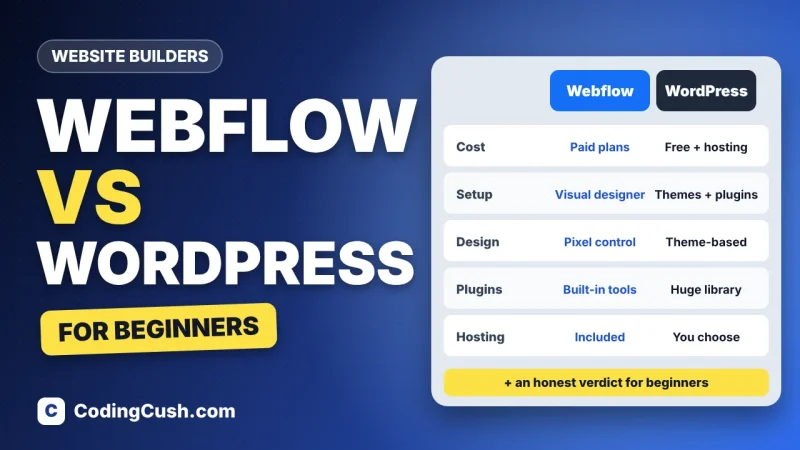
It is popular with freelancers, small businesses, startups and portfolio owners who want full design control without maintaining servers or plugins. If you are still choosing a platform, our Webflow vs WordPress comparison will help you decide before you invest time in either.
What You Need Before You Start
Good news: the shopping list is very short.
- A free Webflow account (just an email address)
- Your content ready — headings, a few paragraphs, images and a logo if you have one
- A rough plan of your pages, for example Home, About, Services and Contact
- About an hour of patience — the first session feels slow for everyone, honestly
Webflow runs fully in your browser, so there is nothing to install, no localhost setup and no hosting to buy before you begin.
Step 1: Create Your Account and Start a New Site
Go to Webflow's official website and sign up for the free plan. From your dashboard, click New Site. You can start from a template, but for learning, choose a blank site — building the page yourself teaches you ten times more than editing someone else's design. Give your site a name (you can change it later) and Webflow will drop you straight into the Designer.
Step 2: Meet the Designer
The Designer is where you will spend almost all your time — and yes, it looks a little scary for the first ten minutes. Completely normal.
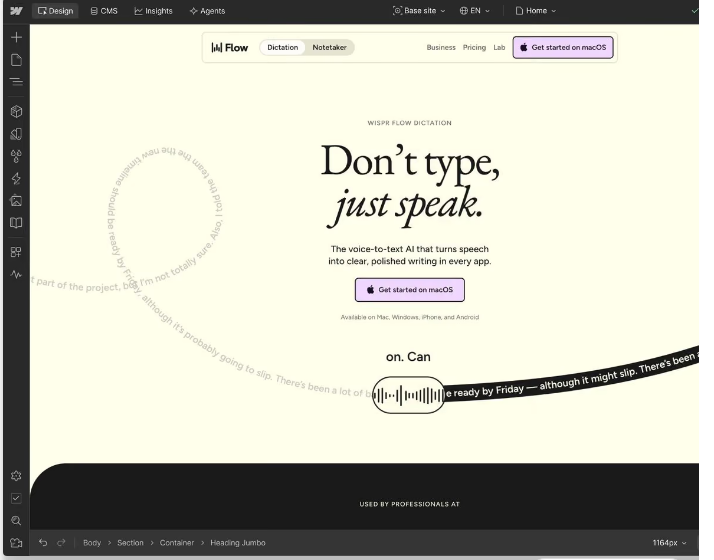
Here is the simple map. The big area in the middle is the canvas — your page, exactly as visitors will see it. The left side holds your tools: add elements, manage pages and open the CMS. The right side is the Style panel, where you change sizes, colours, fonts and spacing for whatever you have selected. Along the top you will find the device icons for responsive design and the Publish button. At the bottom, the breadcrumb bar shows where the selected element sits in the page structure, like Body › Section › Container › Heading.
Step 3: Build the Page Structure
Every Webflow page is built from boxes inside boxes. That sounds like a puzzle, but the routine is always the same:
- Add a Section — one horizontal band of your page, like the hero or the footer.
- Drop a Container inside it to keep your content centred and tidy.
- Add elements: a Heading, a Paragraph, a Button and an Image.
- Repeat for each part of the page — hero, features, about, testimonials, contact.
Use the Navigator panel to see your structure as a tree. If the tree looks messy, the page probably is too. Clean structure, clean page — it really is that simple.
Step 4: Style It with Classes
Click any element and the Style panel on the right lets you set its spacing, size, typography, background and borders. The magic word here is class. A class is a reusable style label: style one button, save the look as a class called main-button, and every other button with that class copies the same style instantly. Change the class once, and all of them update together. It is like find-and-replace for design, and it will save you hours.
Two beginner tips: give your classes clear names (hero-heading beats heading-27), and set your main font and text colour on the Body first, so the whole site inherits a sensible base.
Step 5: Make It Mobile-Friendly
Most of your visitors will arrive on a phone, so this step is not decoration — it is survival. At the top of the Designer, switch between Desktop, Tablet, Mobile landscape and Mobile portrait using the device icons. Styles flow downwards: what you set on desktop carries to smaller screens, where you can adjust it — stack columns vertically, shrink the heading a little and give buttons some breathing room. Check every section on the smallest view before you call the page done.
Step 6: Add Content with the CMS
If your site has content that repeats — blog posts, projects, products, team members — the Webflow CMS will feel like magic. You create a Collection once, with fields like title, image and description. Then you add items the easy way, by filling a simple form. Best of all, you design just one template page, and Webflow automatically builds a matching page for every item in the collection. Add a blog post in two minutes, and it appears on your site with the same design as all the others. That is the moment most beginners say, "Ohh, now I get it."
Step 7: Preview, Publish and Go Live
Click the eye icon at the top to preview your site and click around like a visitor. Happy with it? Press Publish and your site goes live on a free address like yoursite.webflow.io — perfect for sharing and testing. When you are ready for your own domain (like yoursite.com), you will need a paid Site plan; you connect the domain from your site settings, and Webflow guides you through the DNS steps. Also fill in each page's title and meta description under Page Settings — two minutes of work that helps Google understand your pages.
Free vs Paid: What Beginners Actually Need
| What you want to do | Free plan | Site plan (paid) |
|---|---|---|
| Learn and practise in the Designer | Yes | Yes |
| Publish a site | Yes, on a webflow.io address | Yes |
| Use your own custom domain | No | Yes |
| Run a blog or other CMS content | Limited items | Full CMS limits |
| More pages and form submissions | Limited | Higher limits |
Plan limits and prices change from time to time, so check the current details on the official pricing page before you pay for anything.
Common Beginner Mistakes
- Styling without classes — styling every element one by one becomes a mess by page three. Classes first, always.
- Skipping the mobile view — the desktop design looks great, the phone view looks like a traffic accident. Check both.
- Uploading giant images — a 6 MB photo slows everything down. Resize and compress images before uploading.
- Putting everything in one section — sections keep the page organised and much easier to edit later.
- Forgetting page titles — an untitled page is nearly invisible to Google. Fill the SEO settings for every page.
Where to Learn More (Free)
The fastest shortcut we know is Webflow University, Webflow's own free learning platform. Its beginner course walks you through the Designer with short videos and small exercises, and it is genuinely fun — the jokes in those lessons are better than ours, we admit it.
Frequently Asked Questions
Is Webflow free for beginners?
Yes. The free plan lets you learn the Designer and publish sites on a webflow.io address at no cost. You only need a paid Site plan when you want a custom domain and higher limits.
Do I need to know coding to use Webflow?
No. Drag, drop and click is enough for a complete website. Knowing a little HTML and CSS later will help you understand why things behave the way they do, but it is not required to start.
Is Webflow good for SEO?
Yes. Webflow produces clean code, loads fast on its hosting, and gives you control over page titles, meta descriptions, image alt text and redirects — the essentials are all built in.
How long does it take to build a first Webflow site?
A simple one-page site takes most beginners an afternoon. A small business site with four or five pages usually takes a few days of relaxed work, including the "why is this button floating?" moments.
Conclusion
The Webflow loop is simple: structure first, style with classes, check it on mobile, then publish. Your first site will not be perfect — nobody's is — but it will be live, and a live site teaches you more than ten tutorials. Once the basics feel easy, read our guide to the key skills of a Webflow developer to see what to learn next. Now go build something and put it on the internet — it is more fun than reading about it, we promise.


Leave a Comment