

 Lavkush
 To fix a full MacBook storage, you first need to see what is actually eating the space — and that is exactly what GrandPerspective shows you. This free macOS app scans your drive and draws every file as a rectangle: the bigger the file, the bigger the rectangle. In one picture you can spot the forgotten movie folder, the stack of old installers and the backup you no longer need, then delete them safely and watch the free space come back.
macOS tells you that your disk is full. GrandPerspective shows you why. Follow the eight steps below and you will go from "Storage Almost Full" warnings to a tidy drive in about fifteen minutes.
What Is GrandPerspective?
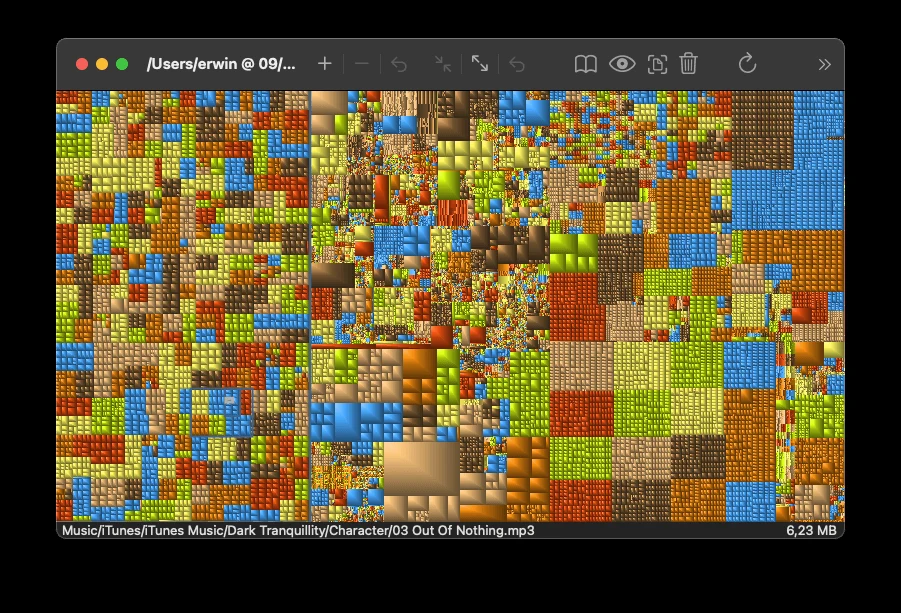
GrandPerspective is a small, free utility for macOS that displays disk usage as a "treemap". Each file becomes a coloured rectangle sized in proportion to how much space it takes, and files from the same folder sit together. It has been maintained for years by its developer, Erwin Bonsma, and the current version (3.8.1) works on Apple silicon and Intel Macs running macOS 14 or newer. Older Macs are covered too — version 3.7.2 still supports macOS 11, 12 and 13. You can read more on the official GrandPerspective website.
Step 1: See How Full Your Disk Really Is
Start with the built-in picture so you have a "before" number. Click the Apple menu, open System Settings, then go to General and Storage. macOS shows a coloured bar of categories — Apps, Documents, System Data and so on — and the total free space. Note the free space figure. Apple's own guide to freeing up storage on a Mac explains these categories, but it cannot show you individual files. That is the gap GrandPerspective fills in the next steps.
Step 2: Download and Install GrandPerspective
Download the app from the official download link given at the end of this post — it is free from SourceForge. (The same app is also on the Mac App Store for a small price, which mainly supports the developer; the features are identical.) Open the downloaded .dmg file and drag the GrandPerspective icon into your Applications folder, just like any other Mac app. The first time you open it, macOS may warn that it was downloaded from the internet — that is normal for apps installed outside the App Store; confirm Open and continue.
Step 3: Give GrandPerspective Full Disk Access
This step matters. Without permission, macOS hides parts of the system from the scan and your picture will have blind spots. Open System Settings, go to Privacy & Security, then Full Disk Access, and add GrandPerspective to the list with its switch turned on. You may need to unlock the settings with your password or Touch ID. Once granted, the app can see your whole drive — it only reads file sizes, it never sends your data anywhere.
Step 4: Scan Your MacBook's Drive
Open GrandPerspective and choose the folder to scan. For a full clear-out, scan your entire startup disk (usually called Macintosh HD) or, if that feels slow the first time, start with your home folder, which is where personal files live. Click Scan and wait — a nearly full drive can take a few minutes. When the scan finishes, the treemap appears, and the fun part begins.
Step 5: Read the Treemap
Do not panic at the wall of coloured blocks. Read it like a map: big rectangles are big files, and neighbouring rectangles belong to the same folder. Move your mouse over any block and the bar at the bottom of the window shows the file's full path and its size. Double-click a folder's area to zoom into it, and zoom back out when you want the whole picture again. You can also change the colour scheme so files are coloured by type — handy when one colour (say, video files) is clearly taking over your disk.
Step 6: Hunt the Usual Space Hogs
On most MacBooks the same culprits appear again and again. Look for these big rectangles first:
Downloads folder leftovers — old .dmg installers, zip files and duplicate downloads you opened once and forgot. Videos and screen recordings — a few 4K clips can outweigh everything else on the drive. Old iPhone and iPad backups — each one can be tens of gigabytes. Virtual machines and disk images — Windows VMs and Linux images are single enormous files. App caches and old app data — especially inside the Library folder of apps you no longer use. Work through the biggest blocks first; deleting five huge files frees more space than deleting five hundred small ones.
Step 7: Delete Safely — Check Before You Remove
Found a giant file? Right-click its rectangle and choose the option to reveal it in Finder, so you can confirm what it really is before removing it. Delete only files you recognise as yours: your downloads, your media, your old backups. If a file belongs to macOS or an app you still use and you do not know what it does, leave it alone — no cleanup is worth a broken system. GrandPerspective can delete directly from the app, but the Finder route is safer for beginners because you see the file in its real home first. And if the big mystery on your disk turns out to be the giant "System Data" category instead of personal files, our separate guide on how to clear System Data on a Mac covers that case step by step.
Step 8: Empty the Trash and Scan Again
Deleting a file only moves it to the Trash — the space is not free until you empty it. Right-click the Trash in the Dock, choose Empty Trash, and confirm. Then run a fresh GrandPerspective scan and compare it with your first picture: the big blocks you removed should be gone, and a check of System Settings, General, Storage should show your free space has grown. That before-and-after scan is also a nice habit to repeat every few months, before the warnings return. The same "find the hogs first" approach works on your phone too — see our guide to freeing up space when iPhone storage is full.
Frequently Asked Questions
Is GrandPerspective really free?
Yes. The SourceForge download is completely free. The Mac App Store version costs a small amount and is the same app — buying it simply supports the developer and gives you automatic updates.
Is it safe to delete files using GrandPerspective?
The app itself is safe and only shows you your files. The risk is deleting something important, so reveal each big file in Finder first, delete only personal files you recognise, and never remove system files you cannot identify.
Does GrandPerspective work on Apple silicon Macs?
Yes. The current version runs on both Apple silicon and Intel processors. It needs macOS 14 or newer; if your Mac runs macOS 11, 12 or 13, download version 3.7.2 instead.
Why does my scan show less space than my full disk?
Usually because Full Disk Access is not granted, so protected areas are hidden from the scan. Allow GrandPerspective under Privacy & Security, Full Disk Access, then scan again.
Can GrandPerspective clear "System Data" for me?
It can show you which files inside that grey category are large, such as caches and old backups, but it will not judge them for you. Delete only the ones you recognise, and leave macOS's own files untouched.
Conclusion
A full MacBook disk stops being mysterious the moment you can see it. GrandPerspective turns your storage into one honest picture: scan, spot the biggest rectangles, check them in Finder, delete what is genuinely yours, and empty the Trash. Fifteen minutes of that beats an hour of guessing — and the next time the "storage almost full" warning appears, you will know exactly where to look first.
Download GrandPerspective (Free)
Ready to try it? Get the app from its official home:
Download GrandPerspective for Mac (free, official SourceForge link)
Project page: grandperspectiv.sourceforge.net — the latest version is 3.8.1 for macOS 14 and newer; version 3.7.2 covers macOS 11 to 13. It is also available on the Mac App Store if you prefer automatic updates.



Leave a Comment