

 Lavkush
 To install Python on Windows, download the installer from python.org, run it with the "Add python.exe to PATH" box ticked on the very first screen, and confirm the setup by running python --version in a terminal. After that, install Visual Studio Code, add Microsoft's Python extension, and you can write and run your first Python file in about fifteen minutes. That one PATH checkbox is where most beginners get stuck, so we will give it the attention it deserves.
Every Python journey starts with this unglamorous setup step, and almost everyone hits the same small pothole on the way. The good news: once it is done properly, it is done for good, and every tutorial, project and course you touch afterwards simply starts working.
Step 1: Download Python from the Official Site
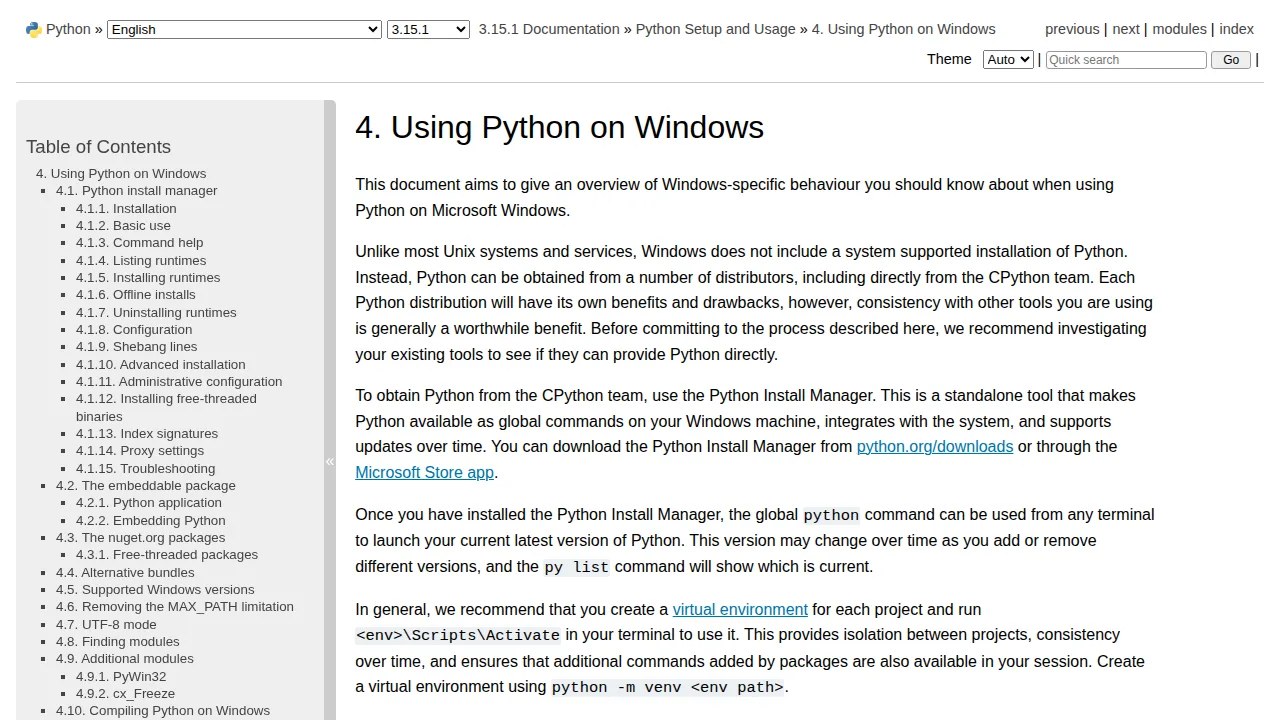
Open the official Python guide for Windows in the Python documentation, or go straight to python.org and open the Downloads page. The site detects Windows and offers the current stable installer, a file named something like python-3.x.x-amd64.exe. Always download from python.org itself rather than a random software mirror — the official installer is free, clean, and is the one every tutorial assumes you used.
Avoid the Microsoft Store version for learning purposes. It works, but its file locations and permissions behave a little differently, which makes following tutorials and fixing small problems harder than they need to be. The python.org installer is the standard route.
Step 2: Run the Installer — and Tick the PATH Box
Double-click the downloaded installer. The very first screen has two checkboxes at the bottom, and one of them decides your whole afternoon: "Add python.exe to PATH". Tick it before you click Install Now.
PATH is the list of folders Windows searches when you type a command. If Python is not on that list, your terminal answers every python command with a polite but useless "not recognised" error, or quietly opens the Microsoft Store instead. That single unticked box is responsible for a truly impressive percentage of "Python is broken" posts on the internet.
| Installer choice | What it does | Pick it? |
|---|---|---|
| Install Now | Installs Python for your user with standard settings | Yes — the right choice for most learners |
| Add python.exe to PATH | Lets terminals find Python from any folder | Yes — always tick this |
| Install launcher for all users | Installs the py launcher Windows-wide | Fine either way; the default is OK |
| Customise installation | Advanced paths and extra components | Skip it on your first install |
Click Install Now and let it finish. If you realise afterwards that you missed the PATH box, do not panic and do not reinstall three times: run the same installer again, choose Modify, and enable the PATH option there. Five calm minutes beats an hour of reinstall roulette.
Step 3: Verify the Installation in a Terminal
Open a fresh terminal — open it after the install finishes, because terminals already open cannot see the new PATH. On Windows, open the Start menu, type "Terminal" or "Command Prompt", and run these two commands:
python --version
py --version
Both should answer with something like Python 3.13.x. The py command is the Python launcher that ships with the Windows installer; it is handy later if you ever keep two Python versions side by side. Also check the package tool while you are here:
pip --versionIf that prints a version too, your foundation is complete: Python runs, and pip can install extra libraries when your projects grow into them.
Step 4: Install Visual Studio Code
Next, the editor. Download Visual Studio Code from its official site and install it with the default options. VS Code is free, starts fast, and is the editor most Python tutorials and courses use on screen, which makes following along much easier. During setup, tick the option to add VS Code to PATH as well — the same idea as before, so you can open it from a terminal with the code command.
Step 5: Add the Python Extension
Open VS Code, click the Extensions icon in the left sidebar, search for "Python", and install the extension published by Microsoft. Microsoft's own Python in VS Code tutorial walks through the same steps and confirms this is the official extension to use. It adds the important comforts: correct colouring for Python code, a Run button, help while you type, and a debugger for when a program does something mysterious — which, let us be honest, will happen by day two.
After installing it, open Settings if you like and set your default Python interpreter once: press Ctrl+Shift+P, type "Python: Select Interpreter", and choose the Python version you just installed. VS Code remembers it, and the version shown in the bottom bar tells you exactly which Python will run your file.
Step 6: Write and Run Your First Python File
Create a folder for your practice work, for example C:\python-practice, and open that folder in VS Code with File → Open Folder. Create a new file named hello.py and type:
name = input("What is your name? ")
print("Hello, " + name + "! Python is working.")
Click the triangular Run button at the top right, or open the integrated terminal with Ctrl+` and run:
python hello.pyType your name, press Enter, and read the greeting. That little exchange — the program asked, you answered, it replied — means your whole setup is healthy: Python found, editor connected, file running. Everything else in Python is variations on this moment.
Common Problems and Their Quick Fixes
| Problem | Likely cause | Fix |
|---|---|---|
| "python is not recognised" | PATH box was not ticked | Re-run installer → Modify → enable PATH, then open a new terminal |
| Microsoft Store opens when you type python | Windows app alias is intercepting | Settings → Apps → App execution aliases → turn off the Python aliases |
| VS Code runs a different Python version | Wrong interpreter selected | Ctrl+Shift+P → Python: Select Interpreter → pick your new install |
| pip is not recognised | Scripts folder is not on PATH | Re-run the Modify step, or use py -m pip instead |
One habit saves more time than any single fix: always test in a brand-new terminal window after changing PATH or reinstalling. Old terminals keep the old settings, and many a "still broken" report is just a stubborn old window.
What to Learn Next
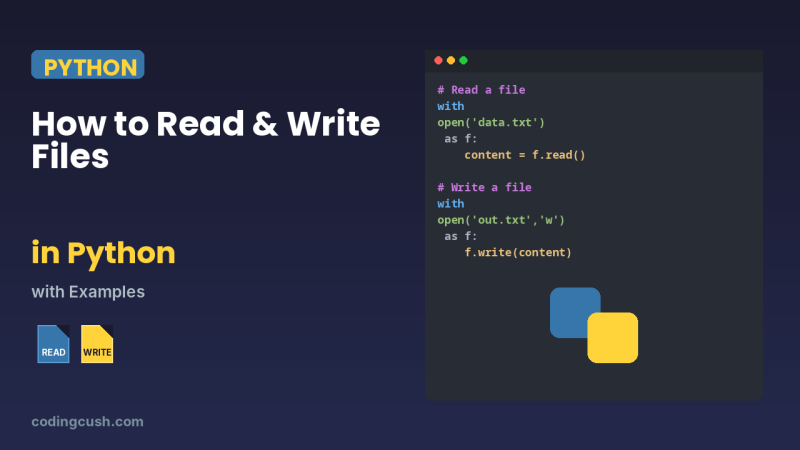
With setup done, the friendliest next steps are the core building blocks. Our guide on how to read and write files in Python gives you a tiny notes-saving program to aim at, and our Python list vs tuple explainer covers the first data choice every beginner meets. You will also meet the same VS Code setup again if you follow PHP tutorials — our XAMPP and VS Code first-page guide uses the editor in nearly the same way.
Frequently Asked Questions
Which Python version should a beginner install?
The current stable release offered on python.org's Downloads page. You do not need a beta or an older version; tutorials, libraries and courses all target the current stable line first.
I forgot to tick "Add to PATH". Must I reinstall?
No. Run the same installer again and choose Modify, then enable the PATH option and finish. Open a new terminal afterwards and check with python --version.
What is the difference between python and py?
python runs the Python found on your PATH. py is the Windows launcher installed alongside Python, which can pick between several installed versions, for example with py -3.12. For everyday learning, both run the same Python.
Do I need VS Code, or can I use another editor?
Any editor works, including the IDLE editor bundled with Python. VS Code is recommended here because most tutorials use it and its Python extension adds running, completion and debugging in one place.
Conclusion
Installing Python on Windows is really three promises you make to your future self: download from the official site, tick the PATH box, and verify with python --version before moving on. Add VS Code and its Python extension, run one small hello file, and the setup chapter is closed for good. Now the interesting part — actually learning Python — can begin without a single "not recognised" standing in the way.


Leave a Comment