

 Lavkush
 You can move a WordPress site to a new host without downtime by preparing everything on the new host first, copying your files and database there, testing the site privately, and only then changing your DNS to point visitors to the new server. Because the old host keeps serving your site until the very last step, visitors never see a broken page — the switch happens quietly in the background.
Moving hosts sounds scary, mostly because of one fear: "What if I break my live site?" The trick is simple. You never touch the live site until its full copy is already working somewhere else — like building the new house completely before changing your address on the last day.
The Zero-Downtime Plan in One Minute
Before we start clicking buttons, here is the whole plan, so nothing later feels random:
- Back up your files and database on the old host.
- Create an empty WordPress-ready account on the new host.
- Copy the files and import the database on the new host.
- Test the new copy using a temporary URL or your computer's hosts file.
- Fix anything that looks wrong — while the old site is still live.
- Change DNS to point your domain to the new host.
- Check URLs, permalinks and SSL on the new host, and keep the old host for a few days as a safety net.
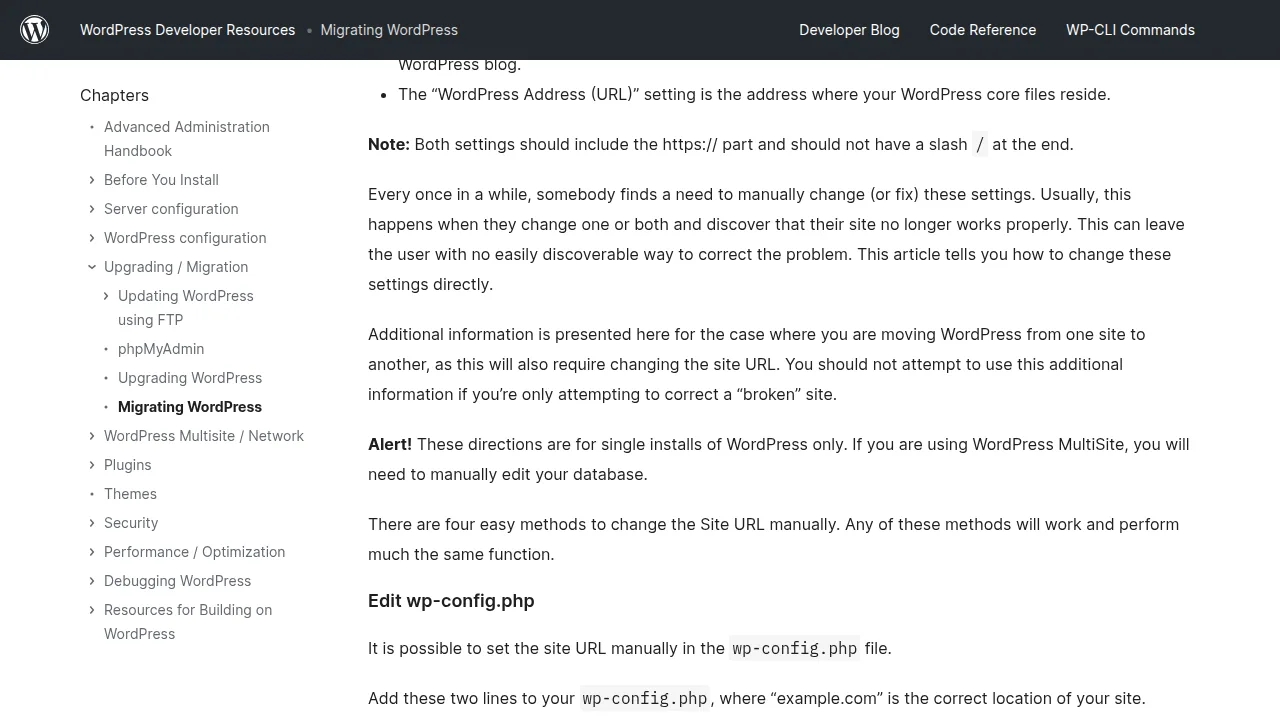
The official Moving WordPress guide on WordPress.org describes the same basic idea: a site is just files plus a database, and if both arrive safely, WordPress is happy.
Step 1: Back Up Everything on the Old Host
Never move without a backup. If anything goes wrong, this backup is your time machine. You need two things: your site files and your database.
For the files, open your old host's file manager or an FTP tool and download the whole public_html folder. For the database, open phpMyAdmin, select your WordPress database, click Export, choose SQL format, and save the file. The official steps for backing up your WordPress database walk through this export in detail if phpMyAdmin looks unfamiliar. Save both somewhere safe, and check the file sizes — a 2 KB database export for a busy blog usually means the export failed halfway.
Step 2: Prepare the New Host First
On the new host, create your account and add your domain name — but do not change any DNS yet. Your domain still points to the old host, and that is exactly what we want. Then create a fresh empty MySQL database and a database user, and note down the database name, username and password. You will need them in about two minutes.
Most new hosts also give you a temporary URL, something like http://server123.hosting.com/~yourname. Keep it handy — it is how you will visit your copied site before the rest of the internet can.
Step 3: Copy the Files and Import the Database
Upload all your WordPress files into the new host's public_html folder using the file manager or FTP. Then open phpMyAdmin on the new host, select your new empty database, click Import, and upload the SQL file you exported earlier. If the file is large, ask support to raise the upload limit.
Now tell WordPress about its new database. Open wp-config.php on the new host and update these four lines with the new details:
define( 'DB_NAME', 'new_database_name' );
define( 'DB_USER', 'new_database_user' );
define( 'DB_PASSWORD', 'new_database_password' );
define( 'DB_HOST', 'localhost' );
DB_HOST is localhost on most hosts, but a few use a separate database server address — your new host's welcome email or support page will say so. Save the file. Your copied site now exists. It just has no visitors yet, which is perfect for testing.
Step 4: Test the New Copy Before Anyone Sees It
Visit your site through the temporary URL your host gave you. If the homepage loads and looks like your site, you are most of the way there. Click a few posts, open an image, and try logging in to the WordPress dashboard.
No temporary URL? You can point only your own computer at the new host by editing your hosts file. Add one line with the new server's IP address and your domain:
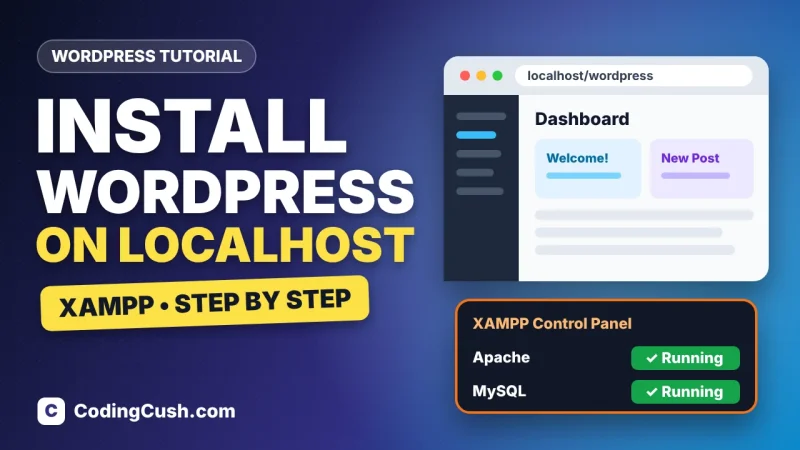
203.0.113.45 yourdomain.com www.yourdomain.comOn Windows this file lives at C:\Windows\System32\drivers\etc\hosts, and on Mac and Linux at /etc/hosts. After saving, your browser visits the new server when you type your domain, while everyone else still sees the old site. Remember to remove this line after the move. The same test-first habit is worth learning locally too — our guide on how to install WordPress on localhost with XAMPP shows that setup.
Step 5: Check URLs, Settings and Content
Because your domain name is not changing, most URLs inside WordPress stay correct automatically. Still, check these items on the new copy:
- In Settings > General, confirm the WordPress Address and Site Address show your real domain.
- Open a few posts and confirm images load from your domain, not from the temporary URL.
- Submit a test comment or contact form to confirm forms work.
- Check that your theme, menus and widgets look exactly as they did before.
If you ever change your domain during a move, you must also update the old domain inside the database with a proper search-and-replace tool that handles serialised data safely. For a same-domain host move like this one, you can happily skip that whole adventure.
Step 6: Change DNS — the Actual Switch
Happy with the new copy? Now change where your domain points. At your domain registrar (or wherever your DNS is managed), update the A record for your domain and for www to the new host's IP address, or change the nameservers to the new host's nameservers if they asked you to. This is the only step visitors are affected by — and even here, there is no gap: until the change reaches a visitor's network, they keep seeing the old host; afterwards, they see the new one. Both work.
DNS changes usually spread within a few hours, though they can take up to 24–48 hours in rare cases. A small pro tip: a day before moving, lower your DNS TTL to 300 seconds so the switch spreads faster. During the wait, avoid publishing posts or approving comments — changes made on the old copy after your backup will not appear on the new one.
Step 7: Final Checks — Permalinks, SSL and Errors
Once your domain loads from the new host, run through this final checklist:
| Check | What to do | Good sign |
|---|---|---|
| Permalinks | Go to Settings > Permalinks and click Save Changes once | Post URLs open without 404 errors |
| SSL certificate | Issue a free Let's Encrypt certificate on the new host, then force HTTPS | Padlock shows and no mixed-content warnings |
| Homepage and posts | Open the homepage, three posts and one page | Everything loads with images and styling |
| Dashboard login | Log in at /wp-admin and edit a draft | Login and saving both work normally |
| Forms and email | Send a test contact form message | The email arrives in your inbox |
| Search engines | Check Settings > Reading | "Discourage search engines" stays unticked |
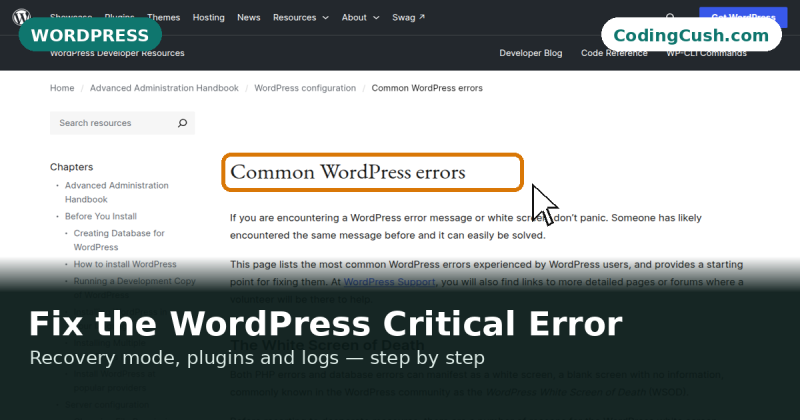
Saving the permalink settings once rewrites the .htaccess rules on the new server, which quietly fixes most "homepage works but every post is a 404" problems. And if you land on a scary error screen instead, do not panic — our guide to fix a critical error in WordPress covers the recovery. Keep the old hosting active for at least a week, and only cancel it when the new home is fully stable.
Frequently Asked Questions
How long does it take to move a WordPress site to a new host?
The copying itself usually takes 30 minutes to a couple of hours, depending on your site's size. DNS propagation can take a few more hours, but your site stays online the whole time.
Will I lose any posts or comments during the move?
Not if you move a fresh backup and avoid making changes on the old site after you export it. Anything added to the old copy after the backup will not exist on the new copy.
Do I need a migration plugin instead of the manual method?
Plugins are convenient for small sites, but the manual files-plus-database method works on any host, handles large sites better, and teaches you how WordPress actually fits together. It is worth knowing.
Why does my site show the old host even after changing DNS?
That is normal DNS propagation, or your own hosts-file line is still in place. Remove the hosts entry, clear your browser cache, and give it a few hours before worrying.
Conclusion
Moving WordPress without downtime is mostly about order: back up, prepare the new host, copy files and database, test privately, then switch DNS last. Your visitors never notice a thing.


Leave a Comment