

 Lavkush
 To create your first WordPress plugin, make a new folder inside wp-content/plugins, add one PHP file with a special comment block called the plugin header at the top, write a small function, connect it to WordPress with a hook, and activate the plugin from your dashboard. In this guide you will build a real, working plugin that adds a shortcode showing a friendly notice box — small, useful, and yours from start to finish.
Plugins sound like advanced territory, the sort of thing with settings pages and support forums. But at heart, a WordPress plugin is just a PHP file WordPress agrees to load. Once you see how small the smallest plugin is, the mystery disappears, and a lot of WordPress suddenly makes more sense.
What a WordPress Plugin Actually Is
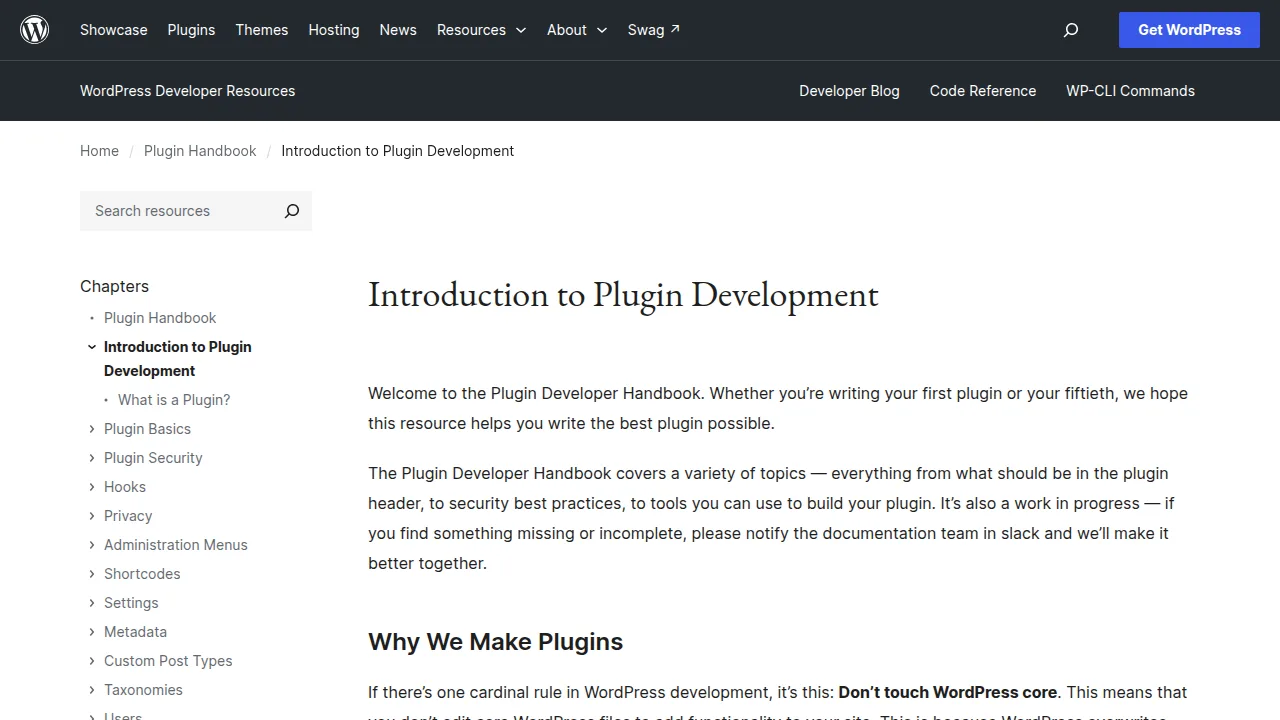
WordPress loads your active theme and your active plugins on every page. A plugin is PHP code that runs inside that process and changes behaviour: adding a shortcode, a widget, a settings screen, or a whole shop. The official WordPress developer handbook's introduction to plugins puts it simply: a plugin is a way to extend WordPress without editing WordPress itself.
That last part matters. Editing core files is a bad idea because the next update quietly erases your work. Code in a plugin survives updates, can be switched off in one click, and can be carried from one site to another. It is the grown-up place for your custom code.
Step 1: Create the Plugin Folder and File
On your local site or server, open wp-content/plugins and create a folder named notice-box. Inside it, create a file named notice-box.php. Keeping the folder and the main file on the same name is the standard habit, and it keeps things tidy when your plugins list grows.
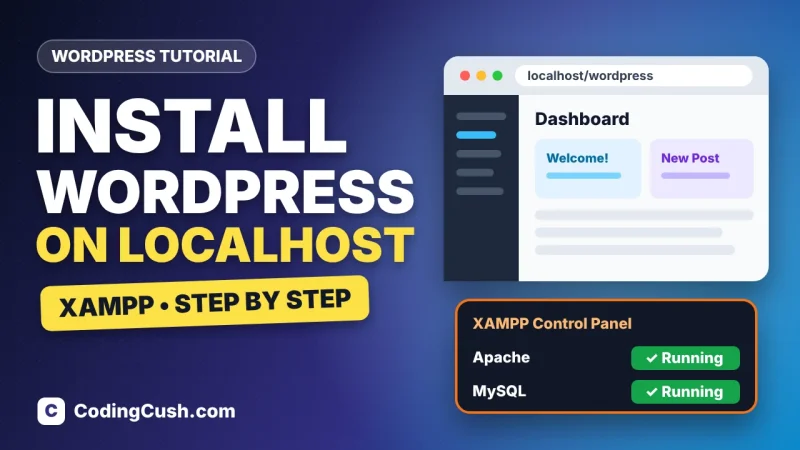
If you do not have a practice site yet, build this on a local install rather than a live site. Our step-by-step guide to installing WordPress on localhost with XAMPP, linked further down, takes about ten minutes and gives you a safe playground where nothing can break in public.
Step 2: Add the Plugin Header
At the very top of your PHP file, add a comment block with the plugin's name and details. This is not decoration — WordPress reads this block to show your plugin in the dashboard list, and without a Plugin Name line your file is invisible. The handbook page on plugin header requirements lists every field you can use.
<?php
/*
Plugin Name:       Notice Box
Plugin URI:        https://codingcush.com
Description:       Adds a [notice] shortcode that shows a friendly notice box.
Version:           1.0.0
Author:            Your Name
License:           GPL-2.0-or-later
*/
Save the file, go to Plugins in your WordPress dashboard, and you should already see "Notice Box" in the list, even though it does nothing yet. That tiny moment — your own name in the plugins list — is oddly satisfying. Go ahead and enjoy it for a second.
Step 3: Write the Feature Using a Shortcode
Now give the plugin a job. We will register a shortcode, [notice], that wraps any text in a styled box. Shortcodes are a friendly first feature because the result is visible immediately inside any post or page.
function cc_notice_box($atts, $content = '') {
    $text = do_shortcode($content);
    return '<div class="cc-notice">' . $text . '</div>';
}
add_shortcode('notice', 'cc_notice_box');
Two rules hide in this small block, and both matter. First, a shortcode function must return its HTML, never echo it — echoing prints the box in the wrong place on the page, usually right at the top, which looks very strange. Second, add_shortcode() is how we register the feature with WordPress, the same hook-based pattern plugins use everywhere. If hooks are still fuzzy, our explainer on the difference between action hooks and filter hooks walks through them with examples.
Step 4: Add a Little Style
A grey unstyled box is technically working, but let us make it look intentional. Add a small stylesheet file, notice-box.css, in the same folder, and load it properly with wp_enqueue_style() instead of hard-coding a link tag.
.cc-notice {
    border-left: 4px solid #0f766e;
    background: #f0fdfa;
    padding: 12px 16px;
    margin: 16px 0;
    border-radius: 6px;
}
function cc_notice_box_styles() {
wp_enqueue_style(
'notice-box',
plugin_dir_url(__FILE__) . 'notice-box.css',
array(),
'1.0.0'
);
}
add_action('wp_enqueue_scripts', 'cc_notice_box_styles');Notice the pattern again: our function does the work, and add_action() tells WordPress when to run it. That rhythm — function plus hook — is honestly most of plugin development. Fancy plugins just have more verses of the same song.
Step 5: Activate and Test It
Back in the dashboard, click Activate under Notice Box. Create a new post, type a normal paragraph, and add this line where you want the box:
[notice]Remember: our sale ends on Friday at midnight.[/notice]Preview the post. Your text should appear inside a soft green box with a teal edge. You have just written, packaged and activated a real WordPress plugin. If the box appears at the very top of the page instead, you echoed instead of returning — the classic first-plugin bug, and now you know its name.
| Problem | Likely cause | Fix |
|---|---|---|
| Plugin not in the dashboard list | Missing or broken plugin header | Check the comment block starts the file, with a Plugin Name line |
| Shortcode shows as plain [notice] text | Plugin not activated, or add_shortcode missing | Activate the plugin and check the function name matches |
| Box appears at the top of the page | echo used inside the shortcode | Return the HTML string instead |
| Styles do not load | Wrong CSS path | Use plugin_dir_url(__FILE__) and confirm the file name |
| White screen after activation | A PHP syntax error | Check brackets and quotes; read the error log |
Where to Practise and What to Build Next
Set this up locally if you have not already — our guide on how to install WordPress on localhost using XAMPP gets you a safe test site in minutes. From here, natural next steps are: add a shortcode attribute like [notice type="warning"], build a tiny settings page, or try a filter hook that changes existing content instead of adding new content.
If you have been customising themes until now, plugins pair nicely with that skill set — our guide to creating a WordPress child theme covers the theme side of the same idea: extend WordPress in the place designed for it, never by editing originals. The Learn WordPress hub collects more of our WordPress guides in learning order.
Frequently Asked Questions
Do I need strong PHP skills to write a WordPress plugin?
No. Basic PHP — functions, strings and arrays — is enough for a first plugin like this one. You will learn the WordPress-specific parts (hooks, shortcodes, enqueueing) as you build small features.
What is the difference between a plugin and theme functions?
Code in a theme's functions.php only runs while that theme is active and disappears when you switch themes. A plugin keeps working across theme changes, which is why features belong in plugins and design belongs in themes.
Can my plugin break my site?
A PHP syntax error can stop a page loading, which is why you test on a local or staging site first. If it happens on a live site, renaming the plugin's folder by FTP disables it and usually brings the site straight back.
How do I share or sell my plugin later?
Zip the plugin folder, keep the header complete with a version number, and add a readme file. That is genuinely the same package shape used by plugins in the official directory.
Conclusion
Your first WordPress plugin is one folder, one header comment, one small function and one hook. Everything bigger — settings screens, blocks, entire shops — is built from those same bricks, just more of them. Build this tiny notice box today, activate it, see your name in the plugins list, and you will never find the word "plugin" intimidating again.


Leave a Comment