

 Lavkush
 You can fix the WordPress message "There has been a critical error on this website" by finding which plugin, theme or PHP problem crashed your site, then disabling that one thing. Start by checking the recovery email WordPress sent you, turn on debug mode to see the real error, rename your plugins folder to switch all plugins off at once, and switch to a default theme if that does not help. In most cases the site comes back within ten to twenty minutes, with no content lost.
What This Message Actually Means
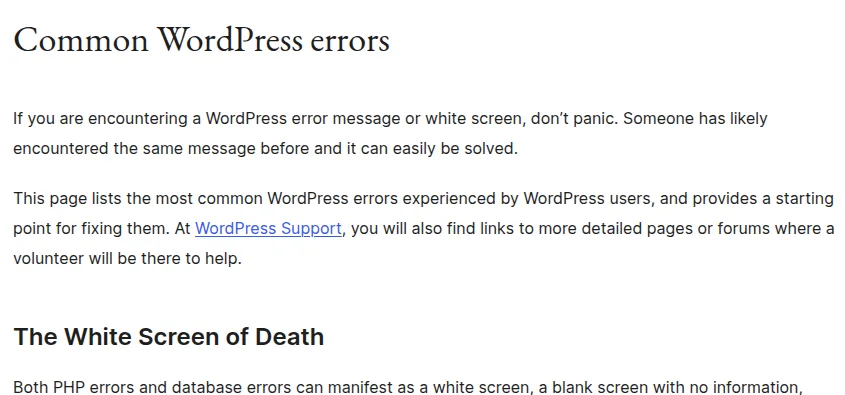
Older versions of WordPress showed the famous white screen of death, a blank page with no explanation, which was about as helpful as a shrug. Modern WordPress is kinder. When a fatal PHP error stops your site loading, it catches the crash and shows this message instead of broken code.
Underneath, something ran code that PHP could not complete. Common triggers are a plugin update that went wrong, a theme problem, two plugins fighting, code pasted into the wrong place, or an unsupported PHP version. The WordPress support guide to common WordPress errors covers this message, and the method is always the same: find the real error, then remove the cause, one test at a time.
One reassurance: your posts, pages and media almost always survive untouched, because they live in the database and uploads folder, not in the code that crashed. Take a breath. This is normally very fixable.
Before You Touch Anything: A Calm Checklist
| Step | What to do | Why it helps |
|---|---|---|
| 1 | Check your admin email inbox | WordPress sends a recovery link and names the faulty plugin or theme |
| 2 | Note what changed last | A recent update or install is the prime suspect |
| 3 | Take a backup if you still can | Your host's backup tool may still work |
| 4 | Get FTP or file manager access ready | Most fixes happen outside the dashboard |
| 5 | Change one thing, then test | You learn exactly which change fixed it |
That last rule matters more than any single fix here. Methodical beats fast. Disabling one thing at a time tells you exactly what broke. Deleting half the installation in a panic creates a second, much bigger problem.
Step 1: Use the Recovery Email WordPress Sent You
When this error happens, WordPress usually emails the administrator with the subject line "Your Site is Experiencing a Technical Issue". That email is gold. It often names the exact plugin or theme at fault, and includes a recovery mode link that lets you log in even while the public site is down.
Click that link, sign in, and you will see which extension is paused because it caused the crash. Often you can update, replace or delete that one plugin and be done. If the email never arrived, do not worry. The manual steps below achieve the same result, with a little more detective work.
Step 2: Turn On Debug Mode to See the Real Error
The public message hides details on purpose, so visitors never see file paths or code. Debug mode reveals them to you. Open wp-config.php in your site's main folder, using your host's file manager or FTP, find the line that says define( 'WP_DEBUG', false );, and change it like this:
define( 'WP_DEBUG', true );
define( 'WP_DEBUG_LOG', true );
define( 'WP_DEBUG_DISPLAY', false );
Add those lines just above the comment that says "That's all, stop editing!" if the setting is missing. The official WordPress guide to debugging in WordPress explains each setting in full. Now reload your site once, then open wp-content/debug.log. The last fatal error there usually names the plugin, theme and line of code involved, turning an hour of guessing into a two-minute fix.
When your site is healthy again, set WP_DEBUG back to false. Debug mode is a workshop tool, not something to leave running live.
Step 3: Disable All Plugins Without the Dashboard
If a plugin is the culprit, switching every plugin off should bring the site back, without logging in. In your file manager or FTP program, open wp-content and rename the plugins folder to something like plugins-off. WordPress cannot find its plugins, so it deactivates them all automatically. Renaming deletes no settings or data, so do not delete anything at this stage.
Reload your site. If it loads now, a plugin caused the crash. Rename the folder back to plugins, then activate plugins one by one, refreshing after each one. The moment the error returns, you have found your culprit. Keep it off, check for a newer version, and contact its support team with the debug log line. If the site still fails, move on to the theme.
Step 4: Switch to a Default Theme
Themes can crash a site too, especially after an update or custom code added to the wrong file. This is the kind of moment our guide on how to create a WordPress child theme protects you from, because child theme edits survive updates and are easier to undo.
To test the theme, open wp-content/themes and rename your active theme's folder by adding -off to its name. If a default theme such as Twenty Twenty-Four is installed, WordPress falls back to it and your site should load, looking plain but alive. Plain and alive is a wonderful combination at this point. If it recovers, your theme needs an update, a reinstall, or a review of recent changes. If no default theme exists, upload one from WordPress.org first.
Step 5: Check PHP Version, Memory and Permalinks
If plugins and the theme are both cleared, look at the server basics. An outdated PHP version is a frequent hidden cause, because new plugins quietly require PHP 8 or higher. In your hosting panel, check your site's PHP version and switch to a supported one if it is very old. A low memory limit can also trigger fatal errors during updates. Raise it by adding this line to wp-config.php:
define( 'WP_MEMORY_LIMIT', '256M' );Finally, if the front page loads but inner pages error after your fix, visit Settings, then Permalinks and click Save Changes. That rebuilds the .htaccess rules and quietly repairs many "half-fixed" sites, like a polite restart for your page addresses.
Step 6: Restore a Backup Only If You Must
If nothing above revives the site, restoring the last backup from before the problem is a perfectly respectable answer, not a defeat. Most good hosts keep daily backups with one-click restore. Restore the files first, test, and only restore the database if files alone do not help, because that also rolls back newer posts, orders and comments.
Prevention is far cheaper. Keep plugins, themes and WordPress updated, remove plugins you no longer use, test big changes on a staging copy, and keep automatic backups running. Good maintenance also helps performance, as our guide on how to speed up your WordPress website explains: a lean, updated site is faster and far less likely to fall over.
Frequently Asked Questions
Will I lose my posts and pages because of this error?
Almost certainly not. This error comes from code in a plugin, theme or configuration file. Your content lives safely in the database, and images in the uploads folder. Once the faulty code is disabled, everything reappears as it was.
How do I log in when the dashboard shows the same error?
Use the recovery mode link in the email WordPress sent the admin. It opens a special login that works while the faulty extension is paused. If it has expired, disable plugins via FTP or file manager, which normally restores access.
What is the most common cause of a critical error?
A plugin problem is the most common cause, especially after an update or a new install that conflicts with something else. The plugins folder test in Step 3 answers the plugin question in a couple of minutes.
I changed nothing, so why did my site break on its own?
Sites change even when you do not touch them. Plugins and themes can auto-update, and your host may upgrade PHP in the background. A plugin fine last month can fail on a newer PHP version today, which is why the debug log matters.
Should I just delete and reinstall WordPress?
No, that is the last resort. Deleting files before you know the cause can destroy uploads and configuration while fixing nothing. Work through recovery mode, debugging, plugins and theme first; most sites are repaired at those steps.
Conclusion
The WordPress critical error message is frightening mainly because it says so little. Behind it sits one ordinary, findable fault: a plugin, a theme, or a PHP setting. Use the recovery email, let the debug log name the culprit, disable things one at a time, and your site will likely be back today, content intact. Once it is alive again, take that backup. Future you says thanks.


Leave a Comment