Build & Publish a Complete Website in Webflow
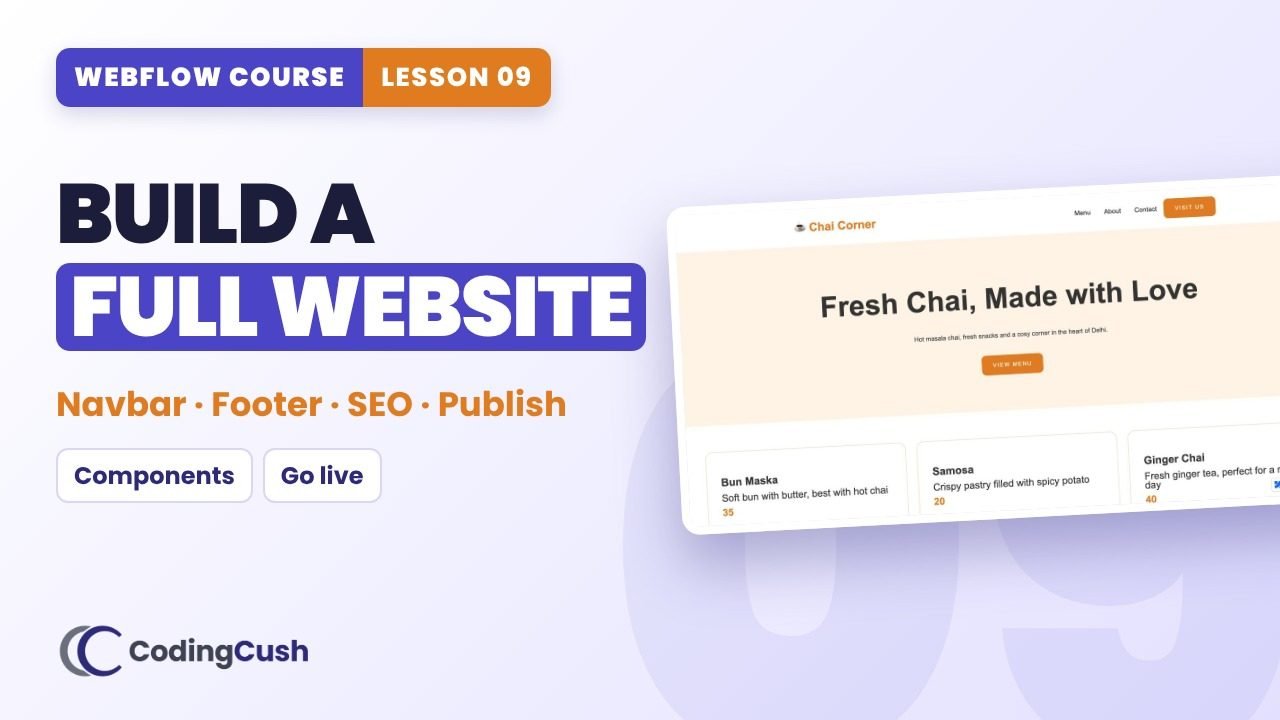
Add a navbar, about section and footer, link everything, turn navbar and footer into components, write SEO, check mobile and publish Chai Corner live.
💡Key ideas
Add a navbar, about section and footer, link everything, turn navbar and footer into components, write SEO, check mobile and publish Chai Corner live.
A site is a restaurant
The navbar is the signboard and the door, sections are rooms, the footer is the address card on the counter. Build the door and card once, use them everywhere.
IDs and anchor links
An ID is a room number. A link to #about jumps straight to that room on the same page.
Components
Build once, use on many pages. Edit the component and every copy updates, like fixing a rubber stamp.
SEO per page
Every page gets its own title tag and meta description. That is your Google search result.
⏱️Chapters
Click a chapter to jump to that moment in the video.
📋Step-by-step
Tick each step as you build it in your own site. Your ticks are saved.
Structure
Links
Components, SEO, publish
⚙️Link types
| Need | Link type | Example |
|---|---|---|
| Jump to a section on the same page | URL with # | #about |
| Open another page of the site | Page | Contact |
| Open another website | URL | https://… |
| Email / phone | Email / Phone | hello@… |
⚠️Common mistakes
🧠Recap & quiz
First the recap question from the video, then the quiz. Your best score is saved.
Recap: Why did we make the navbar and footer into components?
Q1 of 4 · You want the About link to scroll to the about section on the same page. What do you do?
Q2 of 4 · Safest way to link to the Contact page?
Q3 of 4 · What happens when you edit a component?
Q4 of 4 · On the free plan you publish to…
🏠Homework
Do this on your own site before the next lesson.
❓FAQ & key terms
How do I publish a Webflow site for free?
Click Publish, tick the webflow.io domain and publish to selected domains.
What are components in Webflow?
Reusable elements. Edit once, update everywhere.
How do I add SEO titles?
Open Page settings, write a title tag and meta description, and check the Google preview.
Lesson 09 of 11 · All cheat sheets · Watch on YouTube
Save your progress
Enter your name and email once. We'll remember your ticked steps, quiz scores and completed lessons, so you can continue on any device.
No spam. Only course updates, and you can unsubscribe any time.