

 Lavkush
 To deploy a website on a VPS server, you rent the VPS, connect to it securely with SSH, install a web server like Nginx, upload your website files, and point your domain name at the server's IP address so visitors reach it. This guide walks through each of those steps in order, in plain language, so you can put a real website live on your own server for the first time.
Shared hosting is like renting a room in a big hostel: cheap, friendly, and you follow house rules. A VPS — a Virtual Private Server — is like renting your own small flat. It is still inside a bigger building (one powerful physical machine, split into virtual servers), but inside your flat, you decide everything. That freedom is exciting and slightly terrifying, rather like being handed the keys and realising nobody else is going to fix the plumbing.
What You Need Before You Start
Gather four things first: a VPS plan from a provider such as DigitalOcean, Hetzner, Linode or Hostinger (the smallest plan, usually 1 CPU and 1–2 GB RAM, is plenty for a first site); a domain name you own; your website files ready on your computer; and about an hour of unhurried time. The DigitalOcean Droplets documentation describes what a VPS includes and how Droplets are created and managed, and most providers work in a very similar way.
Step 1: Create the VPS and Note Its IP Address
In your provider's dashboard, create a new server. Choose a recent Ubuntu version (Ubuntu 24.04 LTS is a safe pick) and the data centre region closest to most of your visitors. Choose password login for your very first time if SSH keys feel intimidating, but set a long, unique password — or better, add your SSH key during setup if the provider offers it. When creation finishes, the dashboard shows your server's public IP address, something like 203.0.113.42. Keep it handy; nearly every later step uses it.
Step 2: Connect with SSH
SSH is the secure remote-control connection to your server. On Windows, macOS and Linux, open a terminal and type:
ssh root@203.0.113.42Replace the IP with your own. The first time, your computer asks whether you trust this server — type yes — then enter the password from your provider. If the screen fills with a welcome message ending in a prompt like root@server:~#, congratulations: you are now standing inside your server. Everything from here happens by typing commands into this window.
Step 3: Update the Server and Install Nginx
Fresh servers arrive with out-of-date software lists, so update first, then install the Nginx web server:
apt update && apt upgrade -y
apt install nginx -y
systemctl status nginx
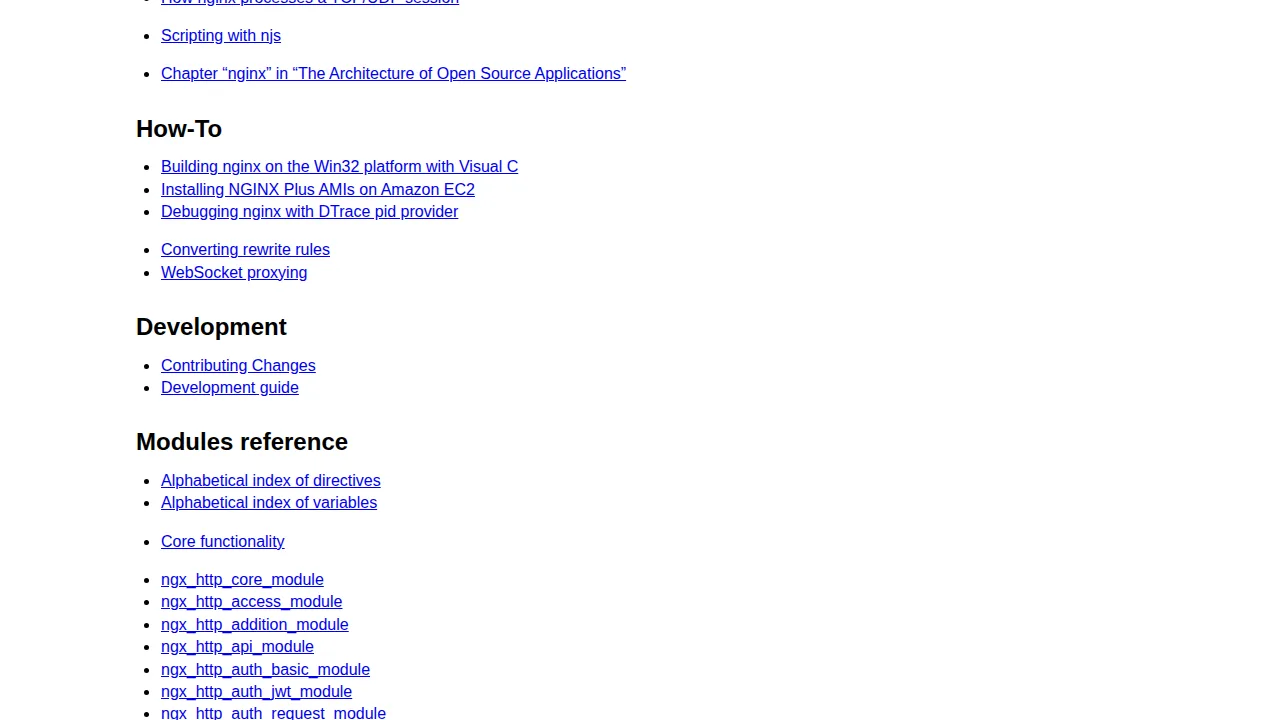
Nginx is the program that will answer visitors' browsers and hand them your pages. The official Nginx documentation covers every setting when you are ready to go deeper, but the defaults are fine today. Visit http://203.0.113.42 in your browser now — you should see the "Welcome to nginx!" page. That plain little page is a big moment: your server is officially talking to the internet.
Step 4: Upload Your Website Files
Nginx serves files from /var/www/html by default. The simplest upload tool is scp, which copies files over the same secure SSH connection. Run this from a terminal on your own computer (not the SSH window):
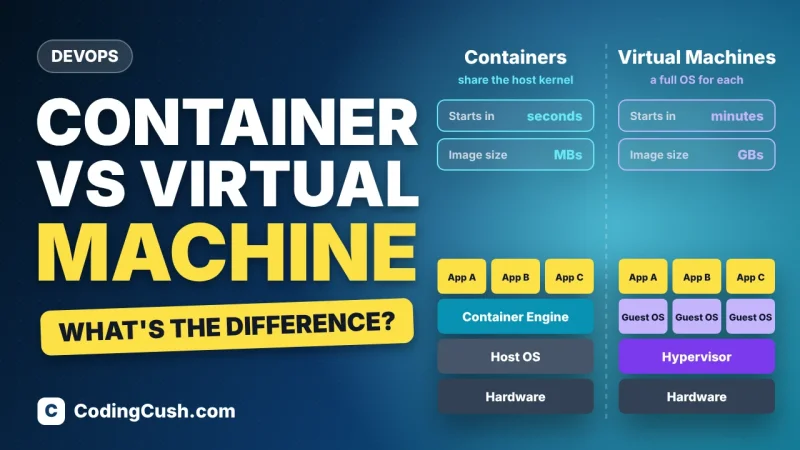
scp -r my-website/* root@203.0.113.42:/var/www/html/For a dynamic site, the pattern is the same idea with extra steps: a PHP site also needs PHP and MySQL installed on the server, and a Node or Python app usually runs behind Nginx as a reverse proxy. If terms like containers are floating around your plans, our explainers on what Docker is and how it works and the difference between a Docker container and a virtual machine will help you decide whether to deploy with containers later — for a first static or simple site, plain files are perfect.
Step 5: Point Your Domain at the Server
A server IP works, but nobody wants to memorise numbers. At your domain registrar, open the DNS settings and add an A record: host @, value = your server's IP address. Add a second A record for host www with the same IP if you want the www version to work too. DNS changes spread across the internet slowly — usually minutes, occasionally a few hours — so make a cup of tea and check again shortly. When it works, your domain shows the same nginx page your IP did.
Step 6: Add Free HTTPS with Let's Encrypt
Modern browsers warn visitors about plain HTTP sites, so finish with a free SSL certificate. Install Certbot and let it configure Nginx for you:
apt install certbot python3-certbot-nginx -y
certbot --nginx -d yourdomain.com -d www.yourdomain.com
Answer the prompts with your email, agree to the terms, and Certbot fetches the certificate, installs it, and sets up automatic renewal. Reload your site with https:// and look for the padlock. Your beginner deployment is now genuinely complete: live, on your domain, over HTTPS.
A Quick Safety Checklist Before You Celebrate
| Task | Why it matters | Command or action |
|---|---|---|
| Create a non-root user | Working as root daily is risky | adduser, then grant sudo |
| Enable the firewall | Blocks ports you are not using | ufw allow OpenSSH && ufw allow 'Nginx Full' && ufw enable |
| Keep the system updated | Security fixes arrive as updates | apt update && apt upgrade regularly |
| Back up your files | Servers fail; copies save tears | Provider snapshots + your own copy |
When Something Goes Wrong: Three Common First-Day Problems
Almost every beginner hits one of these three, so do not panic when you do. First, SSH refuses your connection: check you typed the IP exactly, that the server finished creating, and that you are using the username your provider gave you — usually root at first. Second, the website times out in the browser: the server may be running but the provider's own firewall (a separate setting in the dashboard, often called "cloud firewall") may be blocking port 80 and 443; open those two ports there as well as in ufw. Third, Certbot says it cannot verify your domain: your DNS change probably has not spread yet, or the A record points at an old IP. Wait a little, confirm the record value matches the dashboard, and run Certbot again. Notice the pattern in all three fixes: read the error slowly, check the one setting it names, change only that, and test again. That calm little loop is honestly most of server administration — the rest is just vocabulary.
Frequently Asked Questions
How much does a beginner VPS cost?
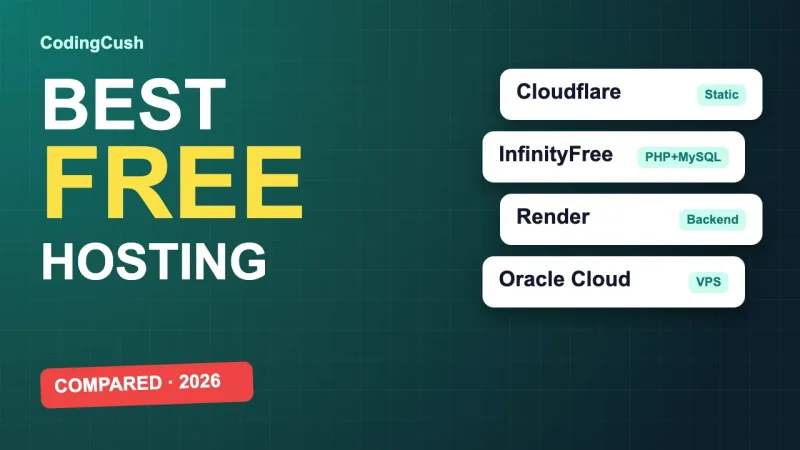
Small VPS plans commonly start around $4–6 per month. That is enough for a portfolio, a blog or several small static sites while you learn.
Is a VPS better than shared hosting?
It gives you more control, consistent performance and root access, but you also become the system administrator. Shared hosting is easier; a VPS teaches you far more.
Can I host more than one website on one VPS?
Yes. Nginx supports multiple "server blocks", one per domain, so a single small VPS can happily host several low-traffic sites.
My site shows the nginx welcome page, not my files. What went wrong?
Usually the files landed in the wrong folder, or an old index file is still winning. Check that your index.html is directly inside /var/www/html and remove the default welcome file if it shadows yours.
Conclusion
Deploying on a VPS follows a simple rhythm: create the server, connect with SSH, install Nginx, upload your files, point the domain, and lock it down with HTTPS and a firewall. Do it once slowly, take notes as you go, and the second deployment — there is always a second one — will take you fifteen minutes instead of an afternoon.


Leave a Comment