

 Lavkush
You fix a Git merge conflict by opening the conflicted file, reading the markers Git left inside it, editing the file so only the correct final text remains with no markers left, then running git add and git commit to finish the merge. You have not broken anything. A conflict means Git found two different changes to the same lines and refuses to guess which one you want. This guide creates a tiny real conflict on purpose, then fixes it by hand.
What a Merge Conflict Actually Is
Git merges branches by comparing changes. If one branch edits the top of a file and the other edits the bottom, Git can combine them on its own. A conflict appears when both branches change the same line, or nearby lines, in different ways. Git has two good answers and no safe way to pick between them, so it stops the merge halfway, marks the file, and asks you to decide.
Think of two friends editing the same sentence at once. A computer should not silently throw either version away. That pause is a feature, not a failure, even if the warning makes your stomach drop the first time.
If branch work is still new, our guide to Git branches explained, including how to create, switch, merge and delete branches, fills in the background. The official git merge documentation states the same rule: resolve a conflict and commit, or abort the merge.
Step 1: Create a Tiny Conflict on Purpose
Practice in a throwaway folder first. Run these commands, tested for this article with Git 2.43:
git init -b main
printf 'Hello, friend!\n' > greeting.txt
git add greeting.txt
git commit -m "Add greeting file"
git checkout -b feature-greeting
printf 'Hello from the feature branch!\n' > greeting.txt
git commit -am "Change greeting on feature branch"
git checkout main
printf 'Hello from the main branch!\n' > greeting.txt
git commit -am "Change greeting on main"
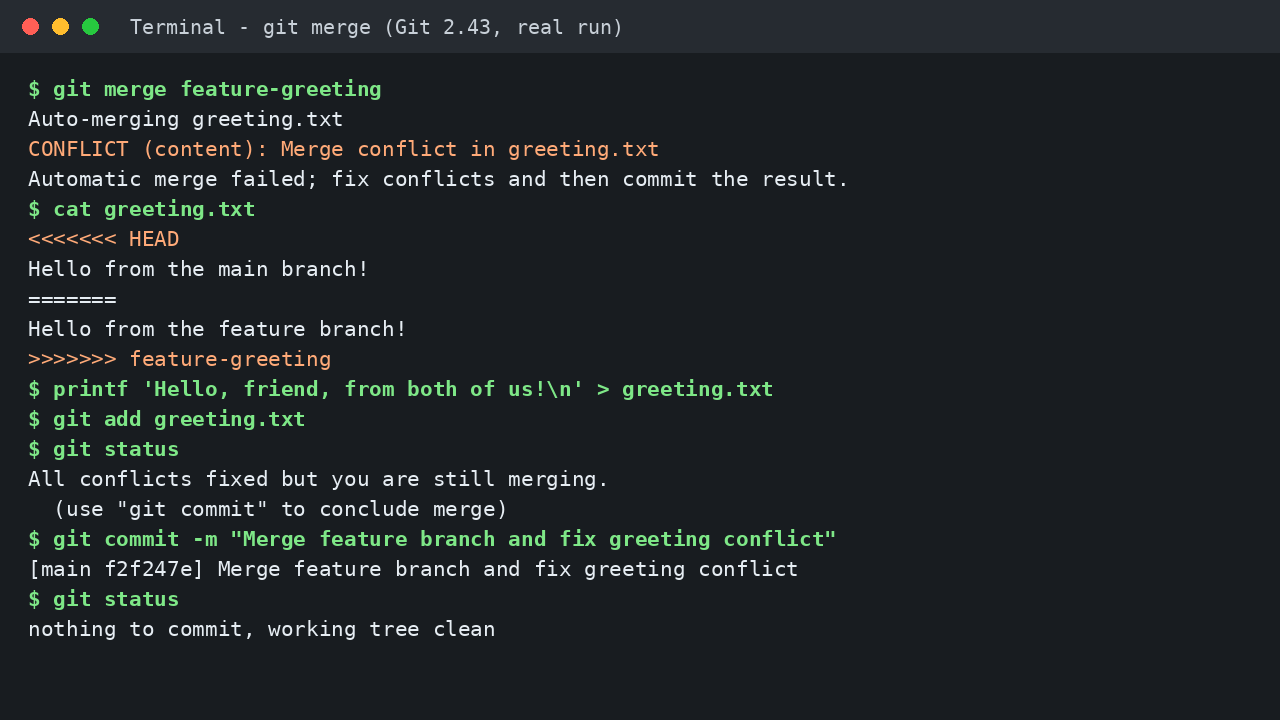
git merge feature-greeting
Both branches started from Hello, friend! and each rewrote that one line differently. That is the exact recipe for a conflict. The merge prints this real output:
Auto-merging greeting.txt
CONFLICT (content): Merge conflict in greeting.txt
Automatic merge failed; fix conflicts and then commit the result.
Read the last line slowly. Git is giving you the plan: fix the conflicts, then commit. Nothing is lost and neither branch is damaged.
Step 2: Read the Conflict Markers
Open greeting.txt in any editor. During the conflict it contains exactly this:
<<<<<<< HEAD
Hello from the main branch!
=======
Hello from the feature branch!
>>>>>>> feature-greeting
The markers are signposts, not code, and they must never survive into your final file. <<<<<<< HEAD starts your current branch version, so the text below it is what your current branch has. The line ======= separates the two versions. Below it sits the incoming version. >>>>>>> feature-greeting ends the conflict and names the branch you are merging in.
A bigger file can hold several such blocks. Fix them one at a time, and search for <<<<<<< afterwards to be sure none remain.
Step 3: Fix the File by Hand, Step by Step
Decide what the final line should say. You can keep the current version only, keep the incoming version only, or combine them into something new. Combining is best for learning, because it proves the choice is yours. Follow these steps:
First, delete the marker line <<<<<<< HEAD. Second, delete the separator =======. Third, delete the closing marker >>>>>>> feature-greeting. Fourth, edit what remains into one clean final line. In our tested session we replaced the whole file with a combined greeting:
printf 'Hello, friend, from both of us!\n' > greeting.txt
cat greeting.txt
Expected output:
Hello, friend, from both of us!In an editor you would type that same line and save. Open the file once more before moving on. It should read like a normal file, with no markers and no leftover duplicate. Yes, Git makes everyone read their own greeting file three times. That is the job.
Step 4: Finish with git add and git commit
Editing alone is not enough, because Git does not yet know you are done. Tell it in two steps:
git add greeting.txt
git status
git commit -m "Merge feature branch and fix greeting conflict"
After git add, our real git status said All conflicts fixed but you are still merging. That message is your green light. The commit then printed:
[main f2f247e] Merge feature branch and fix greeting conflictA final git status reported a clean working tree, so the merge is fully finished. The chapter on basic branching and merging in the Pro Git book shows the same flow on a larger example. Once your project is merged and clean, you can push it using our guide to how to create a GitHub repository and push your project.
How to Abort Safely with git merge --abort
Sometimes the right move is to stop and ask a teammate what their change meant. If a merge is still in progress and not yet committed, run:
git merge --abortThis returns your files to the state just before you ran git merge. We tested it too: after a second conflict, git status --short showed UU greeting.txt, we ran the abort command, and git status immediately reported a clean tree with the pre merge content back. Aborting is not failure. It is a safe undo for one merge attempt, and you can retry whenever you are ready.
Helpers: git status and git log --merge
Run git status at every stage. During a conflict it lists files under Unmerged paths and reminds you of both exits: commit when fixed, or abort. After git add it confirms that all conflicts are fixed. When in doubt, ask status first instead of guessing.
During an open conflict, git log --merge --oneline lists the commits on both sides that touched the conflicted files, helping you see why each side changed the line. It only works while a merge is in progress. For daily reference, keep our Git commands cheat sheet for beginners with 20 everyday commands nearby.
Edit by Hand, Merge Tool, or Abort: Which Should You Choose?
| Approach | Best for | Watch out for |
|---|---|---|
| Edit by hand | Small conflicts, learning, full control | You must remove every marker yourself |
Merge tool such as git mergetool |
Large files, many conflict blocks | Still review the final file before committing |
| Abort and retry | Wrong branch, missing context, need advice | Only works before you commit the merge |
For beginners, editing by hand wins most of the time, because the markers teach you exactly what Git is asking.
Common Mistakes and Troubleshooting
Committing the markers. If <<<<<<< or ======= lines reach a commit, the file is broken. Search every fixed file for <<<<<<< before you add it.
Forgetting git add. Editing alone does not mark a conflict as resolved. Until you add the file, git status keeps listing it as unmerged and the merge will not conclude.
Choosing a side without reading it. Picking your version just because it is yours can silently delete a teammate's fix. Read both versions first.
Deleting the folder in panic. Never delete the project or its .git folder to escape a conflict. Use git merge --abort instead. It is safe and keeps all history intact.
The merge will not abort. Abort expects an unfinished merge. If you already committed it, abort no longer applies; get help with undoing a commit instead of trying random reset commands.
Frequently Asked Questions
Does a merge conflict mean I broke the project?
No. It means two branches changed the same lines differently and Git needs your decision. Your commits and both branches are still safe.
Can I keep both versions of the line?
Yes. Delete the markers and keep both lines in a sensible order, or combine them into one new line, as this guide did.
What if there are conflicts in many files?
Fix one file at a time. Use git status to see what remains, resolve and add each file, and commit only when all conflicts are fixed.
Is git merge --abort always safe?
It safely cancels an unfinished merge and restores the pre merge state. It cannot be used after the merge has been committed.
Conclusion
A merge conflict is Git asking a question it cannot answer alone. Find the markers, choose or combine the lines, remove every marker, then add and commit. When you need time to think, abort and retry later. Practise once on a tiny greeting file, as we did here, and the next real conflict will feel like a small task instead of a disaster.


Leave a Comment