

 Lavkush
Your phone holds your bank, your photos, your messages and the keys to almost every account you own, which makes it the single most valuable target a hacker can pick. The good news: phones are genuinely hard to break into when their built-in protections are switched on. These 10 simple steps, most of them one-time settings, turn your phone from an easy target into a frustrating one.
Why Phones Get Hacked (It Is Rarely Magic)
Real phone hacks usually begin with something ordinary: a fake app, a tricked permission, a password reused from an old leak, or a system update ignored for months. Remote super-hacks that take over a phone from thin air exist, but they are rare and expensive, aimed at very specific people. For the rest of us, boring habits beat exotic attacks. Here is the routine that covers you.
The 10 Steps
Step 1: Use a strong screen lock, and your face or finger
Set a PIN of at least six digits, or a proper passphrase, and turn on fingerprint or face unlock so you actually use the lock every time. A phone that locks in 30 seconds is a phone a thief cannot browse.
Step 2: Install updates the day they arrive
Updates are not feature adverts; they are repairs for holes that criminals actively use. Turn on automatic updates for the system and your apps, and let the phone do its quiet night-time patching.
Step 3: Only install apps from the official store
The Play Store and App Store are not perfect, but they check apps in a way random download sites never will. Most phone infections arrive dressed as a free game, a video downloader or a cracked app from outside the store. Our guide on what malware is and its main types shows the costumes these programs wear.
Step 4: Review app permissions like a strict landlord
Once a month, open the permissions screen and ask hard questions. Why does a torch app need your contacts? Why does a game need your location at all times? Revoke what makes no sense; honest apps keep working.
Step 5: Turn on two-factor authentication for your main accounts
Email first, then banking, then social media. If your Google, Apple or email account falls, password resets for everything else follow it down like dominoes. Protect the account that protects the others.
Step 6: Upgrade your logins to passkeys where offered
A passkey replaces the password with a cryptographic key stored on your phone, unlocked by your face or finger, and it cannot be phished or reused. Our guide on what a passkey is and how to set it up takes you through it in minutes.
Step 7: Turn on Find My Device and remote wipe
Google and Apple both offer free tools to locate a lost phone, lock it, show a contact message on its screen, or erase it completely. Set this up while the phone is still safely in your hand, not after it vanishes into a taxi.
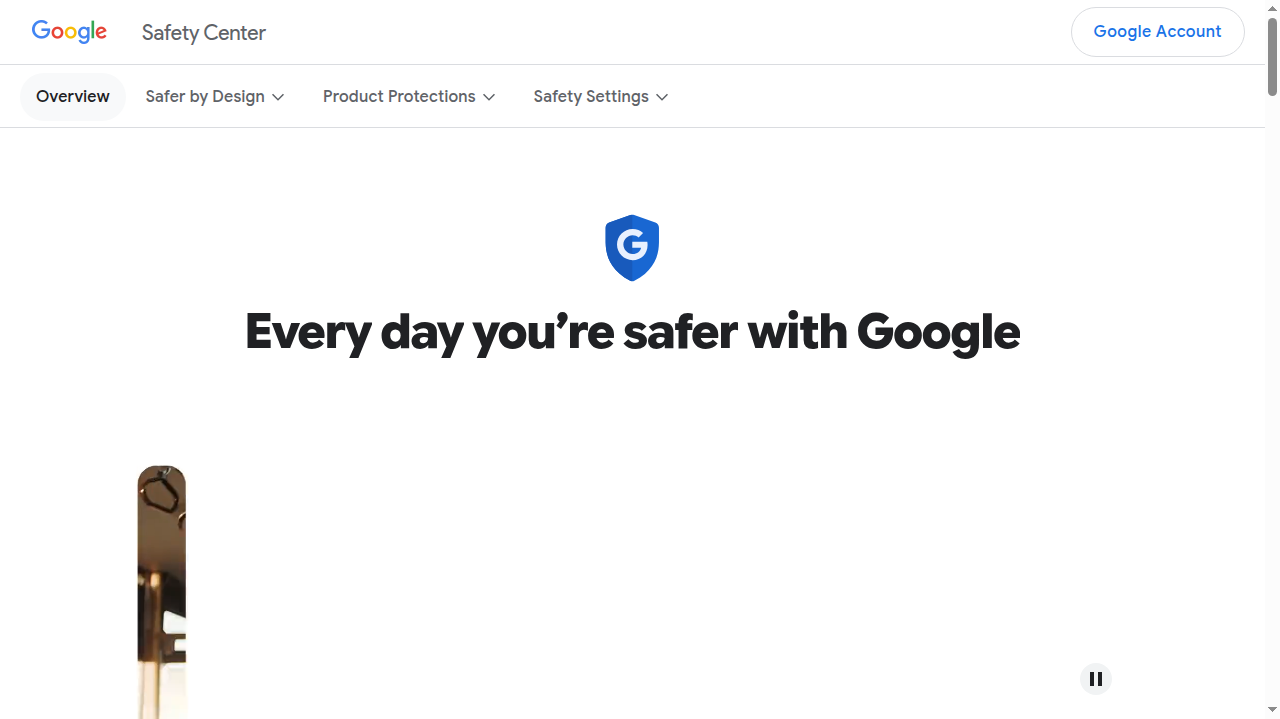
Google collects its account and device protections in the Google Safety Center at safety.google, a useful page to browse once with a cup of tea. Apple publishes its side of the story on its official privacy pages at apple.com, including how iPhone permissions and tracking controls work. Ten minutes on your own platform's page teaches you where every switch lives.
Step 8: Be suspicious of links in messages
Delivery scams, bank warnings and prize messages all want one tap. The rules are simple: unexpected link plus urgency equals delete. Open your bank's app directly instead of following any link a message gives you.
Step 9: Treat public Wi-Fi and charging points with care
On shared networks, keep money matters for your mobile data, and carry your own charger and cable rather than trusting a stranger's USB port. Our 9 rules for how to stay safe on public Wi-Fi cover the network side in full.
Step 10: Back up your phone, automatically
A backup turns a lost, stolen or broken phone from a catastrophe into an inconvenience. Turn on automatic cloud backup for photos and app data, and check once that it really is running.
Signs Your Phone May Already Have a Problem
Most compromises whisper rather than shout. Watch for a battery that suddenly drains by lunch, a phone that runs hot while doing nothing, data usage you cannot explain, apps you do not remember installing, or friends receiving strange messages from your accounts. Any one of these can have an innocent cause, but two or three together deserve action: update everything, uninstall unfamiliar apps, change your main account passwords from a clean device, and run the built-in security check your phone offers. If money apps are involved, call the bank and tell them plainly what you found.
A special word for work phones and phones that double as work phones: if your employer manages the device, tell IT early rather than quietly trying fixes yourself. They have tools to see what happened across the whole system, and a fast report protects your colleagues as well as you. There is no shame in being tricked; the only real mistake is staying silent while the problem grows.
A Five-Minute Weekly Habit
| Quick check | Where | Time needed |
|---|---|---|
| Any updates waiting? | Settings, system update | 1 minute |
| Any new apps you do not remember? | App drawer or library | 1 minute |
| Permissions still sensible? | Settings, privacy, permissions | 2 minutes |
| Backup ran recently? | Settings, backup | 1 minute |
A Note on Second-Hand and Handed-Down Phones
Buying a used phone, or passing yours to a family member, deserves five careful minutes. The previous owner's accounts, backups and Find My Device links must be fully removed, ideally with a factory reset done together at the time of sale. A phone still signed into a stranger's account can be tracked, locked or wiped by that person, and a phone you sell without resetting it hands your photos and logins to its new owner. When you receive a used phone, reset it yourself before adding anything, install the latest update it supports, and only then make it yours.
Frequently Asked Questions
Do I need an antivirus app on my phone?
On iPhone, no; the system does not allow traditional antivirus and does not need it. On Android, the built-in Play Protect plus the habits above are enough for most people. A reputable security app is optional, never a substitute for updates and careful installs.
Can someone hack my phone just by calling me?
For ordinary users, no. A call alone cannot install anything. What calls can do is trick you into sharing codes or details, which is a scam, not a hack, and the defence is to never share a code with anyone, ever.
My phone is old and no longer gets updates. Is it still safe?
Honestly, its risk grows every month, because new holes stop being repaired. If it holds your banking and email, plan an upgrade to a model still receiving updates, and until then avoid installing new apps from anywhere but the official store.
Someone sent me a strange configuration profile or app link. What should I do?
Do not install it. Profiles and apps sent by message, however official the message looks, are a classic route in. If your bank or employer genuinely needs you to install something, they will happily confirm it through their official app or website.
The Short Version
Lock the screen properly, update on day one, install only from the official store, and keep permissions on a short leash. Add two-factor authentication, passkeys, Find My Device and an automatic backup, and your phone becomes a hard, unrewarding target. None of this costs money, and most of it is set once and forgotten, which is exactly how good security should feel.



Leave a Comment