

 Lavkush
A firewall is a security guard for your computer and your network. It watches every connection coming in and going out, checks it against a set of rules, and lets the good traffic pass while blocking the suspicious traffic. Every Windows PC, Mac and home router already has one built in, and it works quietly in the background, asking for nothing except that you leave it switched on.
A Simple Picture: the Guard at the Gate
Imagine your home has a gate, and a guard stands there all day. Friends and the postman get waved through. A stranger who wants to wander into your house looking for open windows gets stopped and sent away. A firewall does the same job for data. Your computer is constantly exchanging data with the internet: web pages coming in, messages going out, apps checking for updates. The firewall inspects this traffic and decides, for every single connection, allow or block.
The name is borrowed from construction, where a firewall is a wall built to stop fire spreading between buildings. In computing, it stops digital fires: hackers probing your computer, worms trying to spread from machine to machine, and shady programs trying to phone home with your data.
How a Firewall Actually Decides
The firewall follows rules. Some rules are simple: traffic that answers a request you made (you clicked a link, the page loads) is welcome. Traffic that arrives uninvited, from a stranger who wants to open a connection to your computer out of nowhere, is blocked by default. Other rules are about programs: your browser is allowed to use the internet, but an unknown program you have never seen should ask first.
Firewalls judge traffic using details like these:
- The address it comes from and goes to (the IP address).
- The door it knocks on (the port number; different services use different doors).
- The program that wants to send or receive the data.
- The direction: incoming traffic is treated with much more suspicion than outgoing traffic.
Modern firewalls are also stateful, which is a technical word for having a memory. They remember that you started a conversation, so the replies are allowed back in, while random knocks from strangers are not.
The Three Places Your Firewall Lives
You probably have more firewalls than you realise. Most people are protected by three layers without buying anything:
| Firewall | Where it lives | What it protects |
|---|---|---|
| Router firewall | Inside your home Wi-Fi router | Every device in your home, all at once |
| Operating system firewall | Built into Windows and macOS | That one computer, wherever it goes |
| Network firewall | Run by your office, school or a company | Whole organisations and their servers |
The router layer is why our guide on how to secure your home Wi-Fi router matters so much: the router is the front gate for your whole home, and its firewall is the first guard every visitor meets.
Hardware Firewall vs Software Firewall
A hardware firewall is a physical box, or a feature inside your router, that filters traffic before it even reaches your devices. A software firewall is a program running on your computer itself, like Microsoft Defender Firewall inside Windows. Businesses often use both. At home, the combination of your router firewall plus the built-in Windows or Mac firewall is exactly what you want, and it costs nothing.
Software firewalls have one extra talent: they watch outgoing traffic too. If a malicious program slips in and tries to send your files to a stranger, the software firewall can spot the strange outgoing connection and block it. This is also where a firewall differs from a VPN. A firewall controls who can connect; a VPN hides what you send. Our explainer on what a VPN is and whether you need one covers that second tool in simple words, and the two work happily together.
How to Check Your Firewall Is On (Windows and Mac)
Checking takes less than a minute, and it is worth doing today:
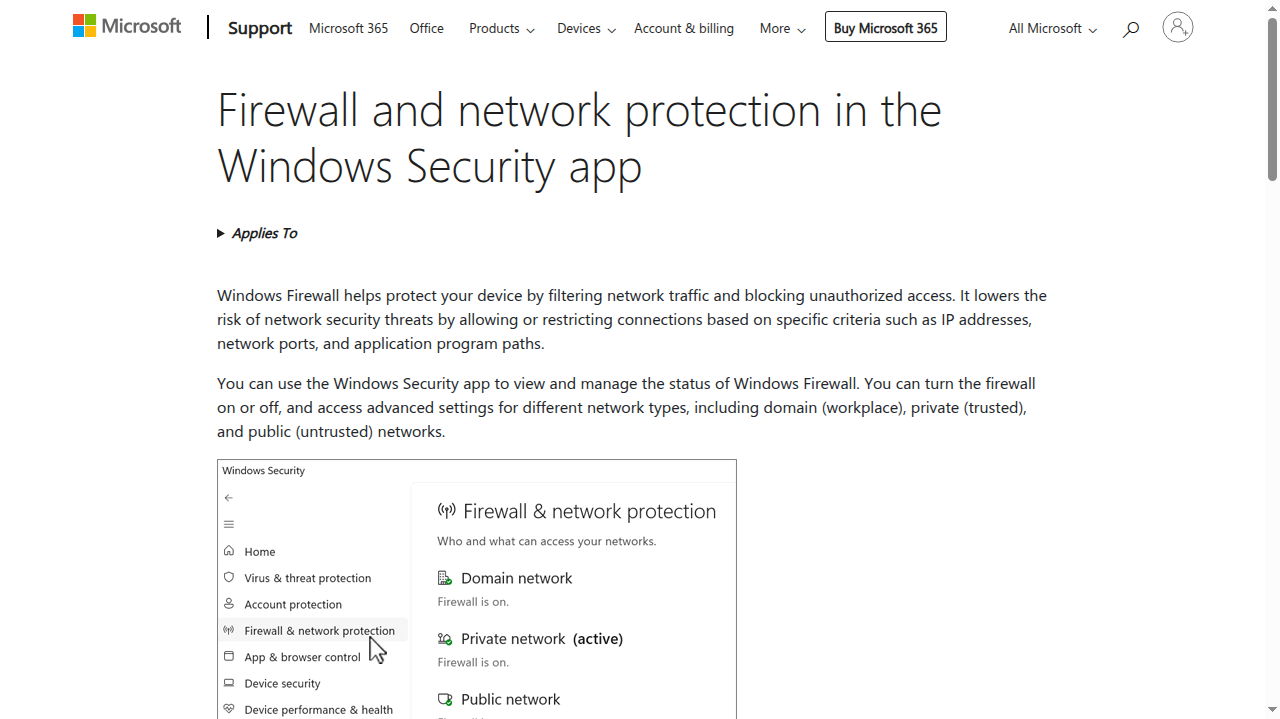
- Windows: open the Windows Security app, choose Firewall and network protection, and confirm that the domain, private and public profiles all say the firewall is on. Microsoft's own steps for turning Microsoft Defender Firewall on or off walk you through the same screens.
- Mac: open System Settings, go to Network, then Firewall, and make sure it is turned on.
- Router: sign in to your router's admin page and look for a firewall setting, usually under Security or Advanced. On a home router it is on by default; just confirm nobody switched it off.
One warning that saves people real trouble: when a program asks to come through the firewall, read the request before you allow it. Microsoft explains the risks of allowing apps through Windows Firewall in plain words: every app you allow opens a door, so only allow programs you recognise and actually use.
What a Firewall Cannot Do
A firewall is a guard at the gate, not a doctor. It cannot remove a virus that is already inside, it cannot stop you from downloading a fake file, and it cannot spot a phishing email. If you click a bad link and invite the trouble in yourself, the firewall politely holds the door, because you asked it to. That is why security works in layers: the firewall watches connections, while antivirus software watches files and behaviour. Our honest guide on whether you still need antivirus software in 2026 explains that second layer, and together the two cover most everyday attacks.
Three Firewall Myths Worth Retiring
Myth 1: "A firewall makes me invisible and untouchable." A firewall filters connections; it does not hide your existence or protect the things you deliberately download and open. It is a strong layer, not a force field.
Myth 2: "I have a Mac, so I do not need to think about this." macOS has a good firewall, but it is not always switched on by default in every setup, and your router's firewall matters just as much. Two minutes in System Settings settles the question for good.
Myth 3: "More firewall software means more safety." Running two software firewalls at once mostly creates confusion and popups, as both try to manage the same traffic. One well configured firewall, kept on and kept updated, beats a pile of overlapping tools every time.
Frequently Asked Questions
Is the built-in Windows firewall good enough?
For most home users, yes. Microsoft Defender Firewall is a mature, well maintained firewall that blocks unwanted incoming traffic and watches outgoing connections. Paid firewall products mostly add convenience features and nicer dashboards, not a different level of basic protection.
Should I ever turn my firewall off?
Only for a few minutes while testing a connection problem, and turn it straight back on afterwards. Running without a firewall on a network you do not control, like cafe Wi-Fi, is asking strangers to knock on every door your computer has.
Does a firewall slow down my internet?
No, not in any way you would notice. Checking traffic against rules takes tiny fractions of a second. If your internet feels slow, the cause is almost always the connection, the router or too many devices, not the firewall.
Do phones have firewalls?
Android and iPhone handle this differently: the systems themselves tightly control how apps communicate, and the network side is protected by your router and mobile carrier. There is no firewall switch to manage on a phone, which is one less thing to worry about.
The Short Version
A firewall is the security guard between your devices and the internet, checking every connection against clear rules and blocking the ones that look wrong. You already own several: in your router, in Windows, and in macOS. Your only jobs are to keep them switched on, think before allowing new apps through, and remember that a firewall is one layer of a team, working alongside updates, strong passwords and antivirus. Sixty seconds of checking today buys you quiet protection every day after.




Leave a Comment