

 Lavkush
 To back up a WordPress site safely, copy both parts of your site — all of its files and its complete database — save that copy somewhere away from your own server, and check that you can restore it. A plugin such as UpdraftPlus does this in a few clicks, and a manual backup using your hosting file manager and phpMyAdmin does the same job without a plugin. Do one full backup before every update, and keep at least one copy in cloud storage. That is honestly the whole secret; everything below is simply those steps in plain English.
What Does a Full WordPress Backup Include?
WordPress is really two things living together, and beginners often back up only one of them. That is like saving a photo of your house but forgetting the address. You need both halves, every time.
Your files are everything in your WordPress folder: WordPress itself, your theme, plugins, and the uploads folder with your images and documents. The most important file is wp-config.php, which holds your database login details.
Your database is where the actual content lives. Your posts, pages, comments, users, settings, menus and plugin options are all stored there as rows in tables. If you copy only the files, you get empty shelves. If you copy only the database, you get the books but no shelves and no front door. A safe backup always contains both.
public_html/
  wp-admin/
  wp-content/
    themes/
    plugins/
    uploads/
  wp-includes/
  wp-config.php   <-- never skip this file
Plugin vs Manual: Which Method Should You Choose?
Most beginners should start with a plugin because it is faster and harder to get wrong. The manual method is still worth learning, because it works even when your dashboard will not load — like knowing where the stairs are when the lift stops.
| Feature | Plugin Method | Manual Method |
|---|---|---|
| Time needed | About 5-10 minutes | About 15-30 minutes |
| Difficulty | Very easy, guided buttons | Moderate, more careful steps |
| Scheduled backups | Yes, automatic | No, you must remember |
| Cloud storage | Built in on most plugins | You upload the copy yourself |
| Works if dashboard is broken | Sometimes not | Yes, via hosting panel |
| Best for | Beginners and busy site owners | Learning and emergencies |
Method 1: Back Up With a Plugin, Step by Step
The well-known free option is UpdraftPlus, and you can read what it offers on the official UpdraftPlus plugin page before installing anything.
Step 1: Install and activate the plugin. In your dashboard, go to Plugins, then Add New. Search for the plugin name, click Install Now, then Activate.
Step 2: Choose where the backup will go. Open the plugin settings, pick remote storage such as Google Drive or Dropbox, then sign in and allow the connection. This is what makes plugin backups genuinely safe: the copy leaves your server automatically.
Step 3: Set a schedule. Choose daily database backups for an active site, and weekly file backups if you rarely change themes or plugins.
Step 4: Run your first backup now. Click Back Up Now, tick both include files and include database, and wait until it finishes. Do not close the tab halfway through and hope for the best. Hope is lovely, but it is not a backup strategy.
Step 5: Check the copy exists. Open your cloud storage folder and confirm you can see new files with today's date. If they are not there, the backup did not really happen, whatever the success message said.
Method 2: Back Up Manually, Step by Step
The manual method has two halves, matching the two halves of your site. Download everything into a clearly named folder on your computer first, for example mysite-backup-2026-10-31.
Part A: Download Your Files
Log in to your hosting control panel and open the File Manager, or connect with an FTP programme such as FileZilla. Open the folder where WordPress is installed, usually public_html. Select everything inside it, compress it into a single zip file if your file manager offers that option, and download the zip. A zip is far quicker than dragging hundreds of loose files across, and fewer things get lost.
Part B: Export Your Database
In your hosting panel, open phpMyAdmin and click your site's database name in the left-hand list. If you are unsure which database is yours, look for the name in wp-config.php next to DB_NAME. Click the Export tab, choose the Quick method, keep the format as SQL, and click Export. Save the downloaded .sql file in the same dated folder as your files.
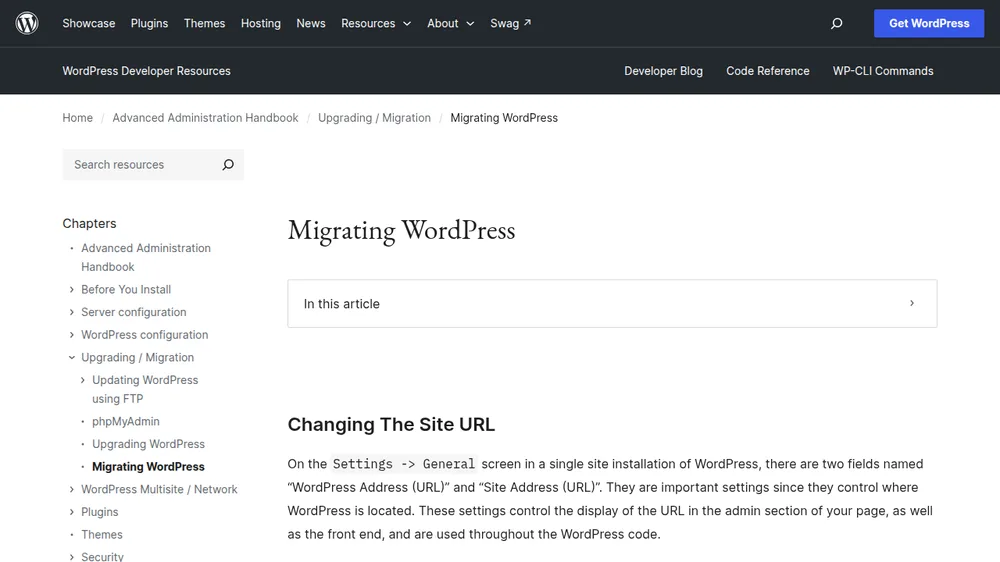
You now have a complete manual backup: one zip of files and one SQL file. The official guidance says the same — the WordPress backups documentation on WordPress.org is worth bookmarking. This skill also pays off in bigger jobs: if you ever follow a guide on how to move a WordPress site to a new host, the first step is always exactly this.
Where Should You Store Your Backups?
Here is the rule that matters most in this article: never keep your only backup on the same server as your website. If that server fails, gets hacked or is suspended, your site and its backup disappear together, holding hands.
Follow the simple 3-2-1 idea instead: three copies, on at least two different types of storage, with one copy somewhere completely different. In practice, that means one in cloud storage such as Google Drive or Dropbox, one on your own computer or an external drive, and perhaps one with a second cloud service. Name each folder with the date, so future you never has to guess which copy is newest — probably at 2 a.m., which is when websites always choose to break.
How Often Should You Back Up?
Ask yourself one honest question: how much work could I bear to lose? Your answer is your schedule. A sensible starting point is daily database backups and weekly full backups for an active blog, plus a full backup before every WordPress, theme or plugin update and before any big change such as a redesign. A quiet site can manage weekly. Whatever you pick, set a reminder — a routine that lives only in your head tends to retire without notice.
How to Restore a WordPress Backup, in Plain Steps
A backup you have never tested is only a rumour, so learn these steps before you need them. With a plugin, restoring is usually simple: install WordPress and the same backup plugin, find your backup in its list, click Restore, tick files and database, and wait. Log in afterwards and check your pages, images and menus.
For a manual restore, reverse the backup steps. Create a fresh database in your hosting panel and note its name, username and password. In phpMyAdmin, open that empty database, click Import, and upload your .sql file. Next, upload your files zip into public_html and extract it there. Finally, open wp-config.php and update the database details to match the new database:
define( 'DB_NAME', 'your_new_database' );
define( 'DB_USER', 'your_new_username' );
define( 'DB_PASSWORD', 'your_new_password' );
Now visit your site and test it: open a few posts, submit the contact form, and try logging in. To practise safely first, learning how to install WordPress on localhost with XAMPP gives you a private playground where a failed restore breaks nothing. Practising once, calmly, beats reading ten guides in a panic.
Frequently Asked Questions
Does my hosting backup count as my backup?
It helps, but do not rely on it alone. Hosts may keep backups for only a few days, and you may lose access if your account has a problem. Keep your own copy in cloud storage too.
How long should I keep old backups?
Keep at least the last three or four backups, plus one monthly copy going back a few months. An older clean copy can save the day.
Can I back up WordPress for free?
Yes. Free backup plugins handle files, database, scheduling and cloud storage, and the manual method costs nothing at all. Paid plans mainly add convenience, support and more storage.
What should I do before updating WordPress?
Take one complete backup of files and database, store it off your server, and confirm the files are really there. Then update with confidence, knowing you can roll back if anything misbehaves.
Conclusion
Backing up WordPress is not difficult, and it is not only for experts. Copy your files and database, store the result away from your server, back up on a schedule that matches how often your site changes, and practise restoring once. Do those four things and a bad update or a grumpy server becomes an annoying afternoon instead of a disaster. Start today — future you says thank you already.


Leave a Comment