

 Lavkush
The strongest password is a long one that you use for only one account, and the easiest way to create it is a passphrase: three or four random words joined together, like "mango bicycle river sunset". It sounds too simple to be safe, but length is what defeats password cracking software, and random words are what defeat human guessing. Better still, you do not have to memorise dozens of these passphrases. A password manager can remember them all for you, so your brain only has to keep one master password safe. This guide shows you the method, step by step, in plain words.
Why Most Passwords Fail
Most passwords are not cracked by genius hackers typing furiously in a dark room. They are guessed by software, bought in leaked lists, or simply reused after some unrelated website got breached. The patterns in this table appear in almost every leaked password database, and attackers test them first because they work so often.
| Bad password habit | Why it fails |
|---|---|
| Your name plus your birth year | Personal details are public on social media, and guessing tools try this pattern first |
| qwerty123 or 12345678 | These sit at the top of every most common password list ever published |
| The same password on every site | One breached website hands attackers the key to your email, banking and social accounts |
| P@ssw0rd and other symbol swaps | Cracking software already knows every letter-to-symbol trick, so this adds almost no strength |
The theme is simple: anything a human finds easy to invent, a computer finds easy to guess. Your password needs to be boring for you to type and painful for a machine to crack. Those two goals sound opposite, but the passphrase method gives you both at once.
The Passphrase Method: Random Words Win
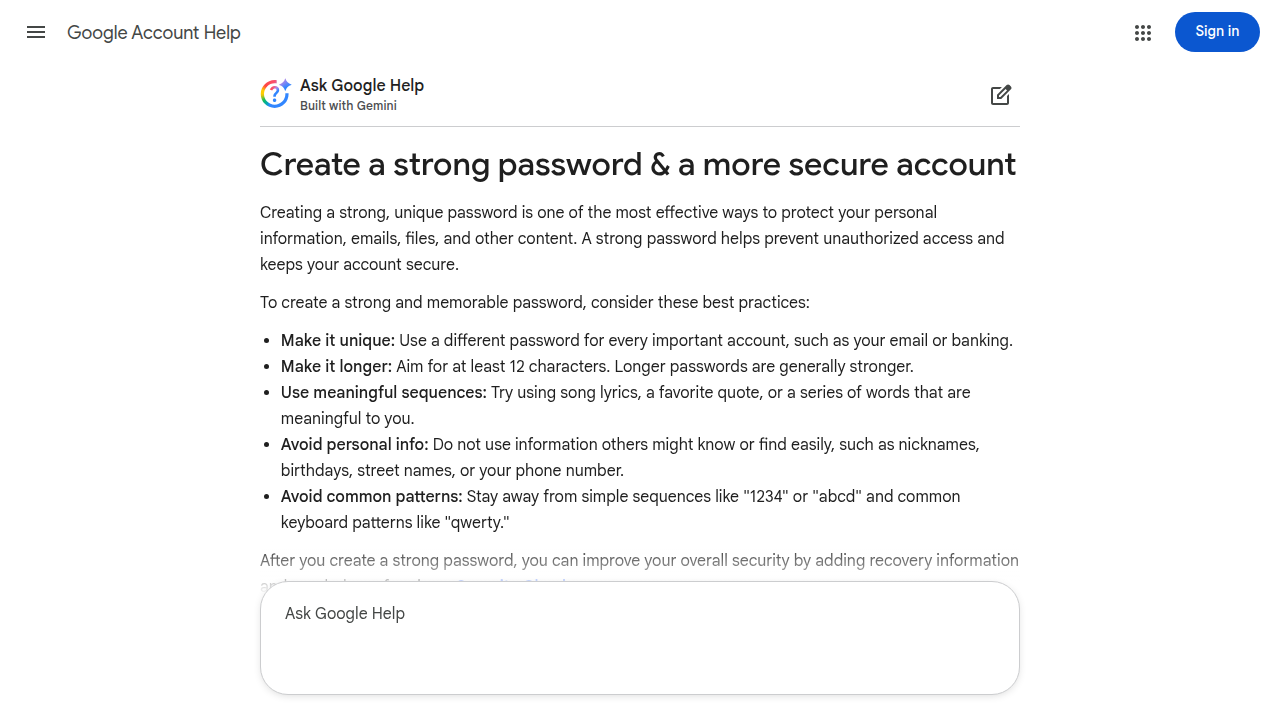
Here is the method security experts recommend, including the UK's National Cyber Security Centre in its top tips for staying secure online: pick three or four random words that have no connection to each other, and none to you, then join them into one long password. For example, "coffee lantern tiger monsoon" or "purple tractor window melody". Avoid song lyrics, famous quotes, team names and family names, because those are guessable. Randomness is the whole point: the words should be neighbours only inside your password, and nowhere else in your life.
If a website demands capitals, numbers or symbols, add light seasoning instead of starting again: capitalise one word, or place a number or symbol between words, like "Coffee-lantern-tiger-9". Google suggests a similar approach in its own guide to creating a strong password, favouring long phrases that you can picture in your head. That picture trick genuinely helps memory. Imagine a purple tractor driving through your kitchen window while a soft melody plays. Weird images stick in the mind, and a passphrase you can picture is one you will not forget, or feel tempted to write on a sticky note stuck to your monitor.
Length Beats Complexity
Cracking software works by trying possibilities at enormous speed, billions of guesses per second against stolen password data. Every extra character multiplies the number of possibilities, which is why a long passphrase of ordinary words can take centuries to brute force, while a short, fierce looking password like "Tr7$kQ9" falls quickly. Complexity rules trained us to create passwords that are hard for humans and easy for machines, which is exactly backwards. Length is the one upgrade that always helps, every time, with no downside. Aim for at least 14 to 16 characters, and let four random words carry you far past that without any suffering.
Never Reuse: One Account, One Password
Even a brilliant password becomes weak the moment you use it twice. Websites get breached regularly, including big and careful ones, and criminals immediately test the leaked email and password pairs against banking, email and shopping sites. This attack is called credential stuffing, and it succeeds purely because reuse is so common. It also helps to know what careful websites do with your password after you type it: they never store the password itself, which becomes clearer once you see how websites hash your password before saving it.
So the rule is absolute: one account, one password, with no exceptions for unimportant sites. That forgotten forum account where you reused your email password is a master key with a welcome mat in front of it. Uniqueness is not extra credit for careful people. It is the main defence, and the next section shows how to manage it without losing your mind.
Password Managers Explained
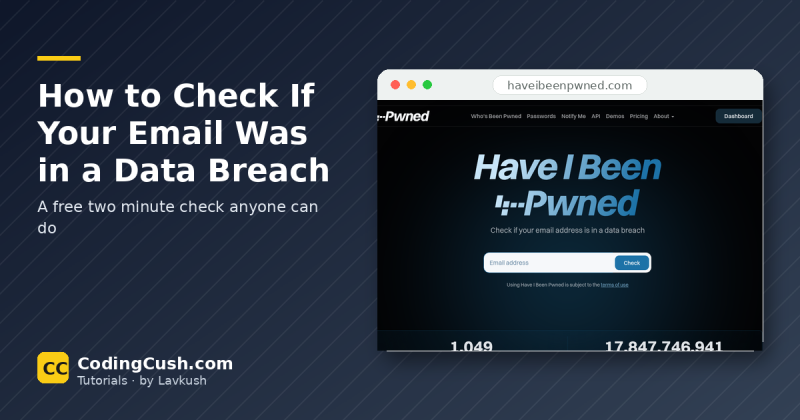
Remembering a unique passphrase for every account is impossible, and luckily it is not your job. A password manager is an app that stores all your passwords in one encrypted vault, locked by a single master password, which is the one passphrase you do memorise. The manager fills in your logins for you, generates long random passwords on demand, and warns you when a site you use has been breached. Well known options include Bitwarden and 1Password, plus the password managers built into Google accounts and Apple devices, so almost every phone already has a respectable free starting point.
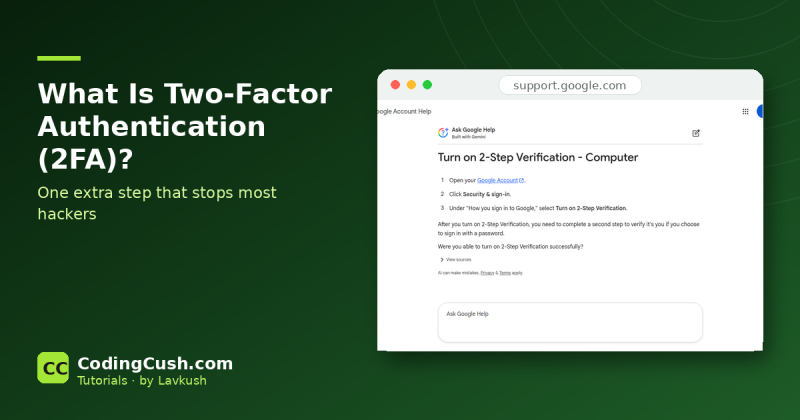
People often ask whether putting every password in one place is risky. It is actually the safer design. The vault is encrypted, so even the company running the manager cannot read your passwords, and one very strong master password, backed by two factor authentication, protects the whole collection far better than your memory protects fifty reused ones. The real risks were never the vault. They were the sticky note, the notebook in the drawer, and the single password you used everywhere because remembering more felt impossible.
Start With Your Most Important Accounts
You do not have to fix fifty accounts tonight. Start where a breach would hurt most. Your email account comes first, because whoever controls your email can reset almost every other password you own, so give it your strongest passphrase and two factor authentication today. Banking and payment apps come next, followed by your main social accounts, which attackers love because impersonating you to your friends is profitable.
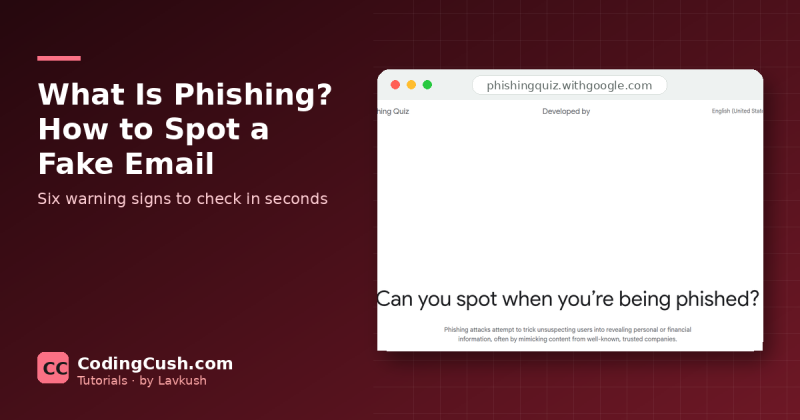
While you are at it, build one small reflex: before typing any password, glance at the address bar and confirm you are on the real website, not a lookalike. Fake login pages only work when the address goes unchecked, and a ten second pause defeats them, especially once you are comfortable with understanding what a URL is and how real addresses are built. Work through your remaining accounts gradually, a few each week, changing each password to a fresh passphrase stored in your manager.
Frequently Asked Questions
How long should a password be?
At least 14 to 16 characters, and longer is always better. A passphrase of four random words usually lands between 20 and 30 characters, which puts it far beyond what cracking tools can brute force in any useful amount of time.
Do I need to change my password every month?
No. That advice is outdated. Change a password immediately if a site reports a breach, if you shared it with someone, or if anything about the account looks suspicious. Otherwise, a long and unique password can stay as it is. Forced monthly changes mostly trained people to pick weaker, predictable variations.
Is it safe to save passwords in my browser?
It is far better than reusing passwords or keeping them in a notebook, and modern browsers protect saved passwords reasonably well. A dedicated password manager is still the stronger choice, with better breach alerts, sharing controls and syncing across devices. Either way, lock your phone and computer with a PIN or fingerprint.
What if I forget my master password?
Most managers cannot recover it for you, because they genuinely cannot see inside your vault. Write the master password on paper and store it somewhere safe at home, with your important documents. That sounds old fashioned, but a sealed envelope at home beats being locked out of everything forever.
Conclusion
Strong passwords are not about being clever. They are about being long, unique and a little bit random. Build one good passphrase for your master password, hand the rest to a password manager, protect your email account first, and add two factor authentication wherever it exists. One evening of setup buys you years of not worrying, and that is the best deal in all of online safety.

Leave a Comment