

 Lavkush
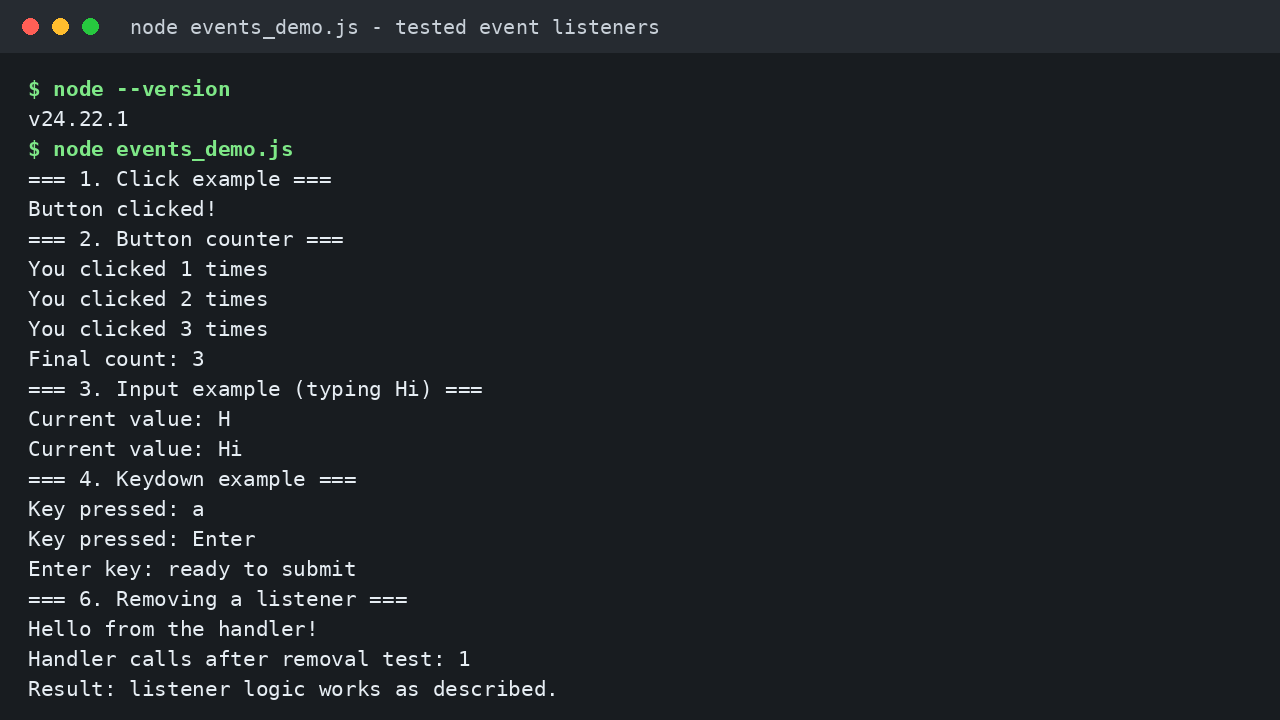
An event listener is JavaScript that waits for something to happen on a page, like a click, a key press or typing in a box, and then runs a function when it happens. You attach one with addEventListener: pick an element, name the event, and give the function to run. In this guide you will write click, input and keydown listeners, meet the event object, remove a listener, and build a button counter. Every result below matches a real test run of the same listener logic.
What Is an Event?
An event is a signal that something happened: a click, a key press, a typed letter, a submitted form. The browser notices each action and creates an event for it. Your job is to say what should happen in reply.
Without listeners, a page just sits there looking polite. With listeners, it reacts: clicking Save can store a form, and typing in a search box can filter a list as you type.
Three words matter. The target is the element the event happened on. The event type is what happened, like click or keydown. The handler is the function to run.
The addEventListener Syntax, Step by Step
The pattern has three parts:
element.addEventListener("eventType", handlerFunction);First, choose the element. Second, pass the event type as a string, in quotes. Third, pass the function to run. The MDN page for addEventListener lists the full syntax, including options you can ignore for now.
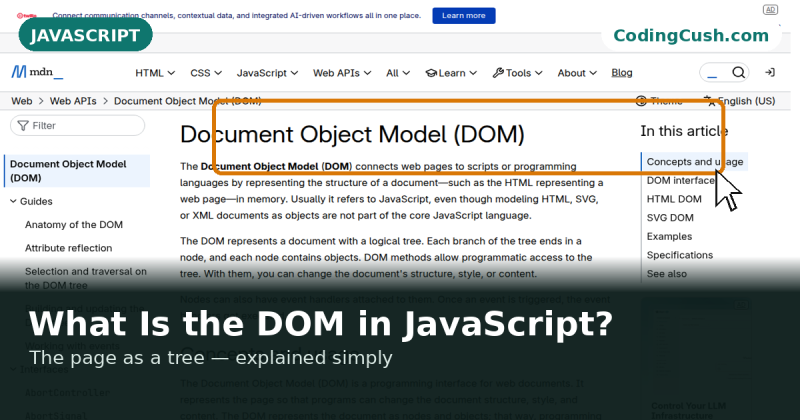
To choose an element, you find it in the page structure, called the DOM. If that word is new, our guide to what the DOM is in JavaScript, explained simply shows how the page becomes a tree of elements you can select.
One detail catches almost every beginner. Pass the function itself, not a call to it: showMessage, not showMessage(). The brackets would run it straight away, before any click. You are handing the browser a recipe, not serving the meal yet.
Example 1: A Simple Click Listener
Here is the smallest useful listener:
<button id="myButton">Click me</button>const button = document.querySelector("#myButton");
button.addEventListener("click", function () {
console.log("Button clicked!");
});Line by line: querySelector("#myButton") finds the button by its id. Then addEventListener says, when a click lands on this button, run this function, which prints one message to the console.
Expected behaviour: nothing on page load. Click once and the console shows Button clicked! once. Click three times and it appears three times. The listener keeps listening.
Example 2: A Button Counter That Remembers
Now a pattern you will reuse everywhere: counting clicks.
<button id="counterButton">Count clicks</button>
<p id="countOutput">You clicked 0 times</p>
let count = 0;
const counterButton = document.querySelector("#counterButton");
const output = document.querySelector("#countOutput");
counterButton.addEventListener("click", function () {
count = count + 1;
output.textContent = "You clicked " + count + " times";
console.log("You clicked " + count + " times");
});The variable count lives outside the handler, so it survives between clicks. Each click adds one, updates the paragraph, and logs the same line. After three clicks, the paragraph and the final log line both read You clicked 3 times. The full log shows 1, then 2, then 3.
The handler can still see count later because the function remembers the variables around it. That remembering has a name, and our guide to JavaScript closures explained with simple examples walks through it slowly.
Example 3: Input Events While Typing
The input event fires every time the value of a text box changes, letter by letter:
<input id="nameInput" type="text" placeholder="Type your name">const nameInput = document.querySelector("#nameInput");
nameInput.addEventListener("input", function (event) {
console.log("Current value: " + event.target.value);
});Type the letters H and i, slowly. The console shows two lines: Current value: H and then Current value: Hi. One event per change, each with the newest value. This powers live search boxes and character counters.
Do not confuse input with change, which usually waits until you leave the box. For a reaction on every keystroke, input is the one you want.
Example 4: Keydown Events and the Enter Key
The keydown event fires when a key goes down. Listening on the document covers keys anywhere on the page:
document.addEventListener("keydown", function (event) {
  console.log("Key pressed: " + event.key);
  if (event.key === "Enter") {
    console.log("Enter key: ready to submit");
  }
});
Press a and the console shows Key pressed: a. Press Enter and you get two lines: Key pressed: Enter and Enter key: ready to submit. The property event.key names the key, with friendly names like Enter and Escape. The MDN introduction to events covers the wider family of mouse, keyboard and form events.
Meet the Event Object
Every handler receives one argument, usually named event. The browser builds this object and fills it with details. Three properties cover most beginner needs. event.type is the type string, like click. event.target is the element it happened on, so event.target.value is an input box's current text. event.key is the key pressed.
In our test run, a click handler printed Event type: click and confirmed the target was the element we listened on. You never create this object. You accept it as the first parameter and read what you need, like a delivery note on every event.
Removing a Listener with removeEventListener
Sometimes a listener should stop: a one time button, a game that ended, a popup that closed. Removing has one strict rule. Use a named function, because you must hand back the exact same function you added.
function showMessage() {
  console.log("Hello from the handler!");
}

const removeButton = document.querySelector("#removeButton");
removeButton.addEventListener("click", showMessage);
removeButton.removeEventListener("click", showMessage);
In our tested version, the handler ran once before removal and printed Hello from the handler!. Two more clicks after removal printed nothing, and the call count stayed at 1. An inline anonymous function cannot be removed this way, because there is no name to refer back to.
One element can hold several listeners for the same event, running in the order added. Our test printed First listener ran then Second listener ran from one click.
Inline onclick vs addEventListener: Which Should You Use?
| Question | Inline onclick | Element onclick property | addEventListener |
|---|---|---|---|
| Where it lives | HTML attribute | JavaScript, one handler | JavaScript, as a listener |
| Handlers per event | One | One, new replaces old | Many, in order added |
| Can you remove it? | Remove the attribute | Set property to null | Yes, removeEventListener |
| Keeps HTML and JS apart? | No, mixed | Yes | Yes |
| Best for | Tiny demos | One simple reaction | Real projects, default choice |
Prefer addEventListener: behaviour stays in your JavaScript file, several listeners can share one element, and removal is clean.
Common Mistakes and Troubleshooting
Calling the function instead of passing it. addEventListener("click", showMessage()) runs showMessage at once and registers its return value, so nothing happens on click. Drop the brackets.
Listening before the element exists. If the script runs before the button is parsed, querySelector returns null and the next line throws an error. Put the script at the end of the body, and check the id spelling.
A typo in the event name. Event names are exact. "Click" with a capital C never fires, with no warning. If a listener stays silent, check the event string, then the element, then the console.
Trying to remove an anonymous function. removeEventListener cannot find an inline anonymous function again. Use a named function from the start when removal is planned.
Expecting a listener to fire only once. Listeners keep listening. For a single reaction, remove the listener inside the handler after its first run.
Frequently Asked Questions
What is the difference between an event and an event listener?
The event is what happens, like a click. The listener waits for it, and the handler is the function that runs in reply.
Can one element have two listeners for the same event?
Yes. They run in the order you added them, as our test showed with its first and second listener lines.
Why does my listener run without a click?
Almost always because the function was called while registering it, with brackets after its name. Pass the name alone, and the browser calls it only when the event happens.
What should I learn after event listeners?
Forms and data come next. A common pattern is a click or submit listener that loads data from a server, which our guide to the JavaScript Fetch API explained with examples covers step by step.
Conclusion
Event listeners follow one friendly pattern: choose an element, name the event, pass a function. You used it for a click message, a counter that reached 3, an input box that reported H then Hi, and a keydown listener that spotted Enter. You met the event object and removed a handler whose count stayed at 1. Now pick any button on a practice page and make it answer back.
Leave a Comment