

 Lavkush
 To fetch data from an API in JavaScript, use the built-in fetch() function: call fetch(url), wait for the response, then call response.json() to turn the reply into data your code can use. That is the whole idea. No library, no extra download, and no mysterious setup — fetch is already waiting in every modern browser, ready to ask a server for data and bring it back to your page.
What Fetch Actually Does
Think of fetch as a polite messenger. Your page needs something — a list of products, the weather, a user's profile — and that something lives on a server somewhere else. You hand the messenger an address, he goes and asks nicely, and he comes back with a parcel. Your job is simply to open the parcel.
If the word API still feels fuzzy, start with our simple guide on what an API is, explained simply, then come back here. In short, an API is the menu and the waiter combined: it tells you what you can request, and it delivers exactly that when you ask correctly.
One important detail catches almost every beginner: fetch() does not hand you the data straight away. It returns a Promise, which is JavaScript's way of saying, "I am working on it, check back in a moment." The network takes time, and JavaScript refuses to freeze your whole page while it waits. Sensible, really — nobody likes a website that stares blankly at them.
The full reference lives in the MDN overview of the Fetch API, which lists every part of the standard in one place. Keep it bookmarked; you will visit it more often than your favourite social feed, at least on productive days.
Your First Fetch with .then()
The classic way to use fetch is with .then(), which runs a function when the Promise finishes. Here is a complete GET request that loads a list of posts from a practice API and prints the first title:
fetch("https://jsonplaceholder.typicode.com/posts/1")
  .then(function (response) {
    return response.json();
  })
  .then(function (data) {
    console.log("Title:", data.title);
    console.log("Body:", data.body);
  })
  .catch(function (error) {
    console.log("Something went wrong:", error);
  });
Read it top to bottom and it almost tells its own story. First, fetch sends a GET request to the URL. Next, the first .then() receives the raw response and converts it with response.json(). Then the second .then() receives the actual data, ready to display. Finally, .catch() handles anything that failed along the way, such as having no internet connection.
Notice there are two steps, not one. The response arrives first as a parcel, and .json() unwraps it. Forgetting that second step is the number one reason beginners stare at a Promise in the console and wonder where their data went. It is in there — you just have not opened the box yet.
The Same Fetch with async and await
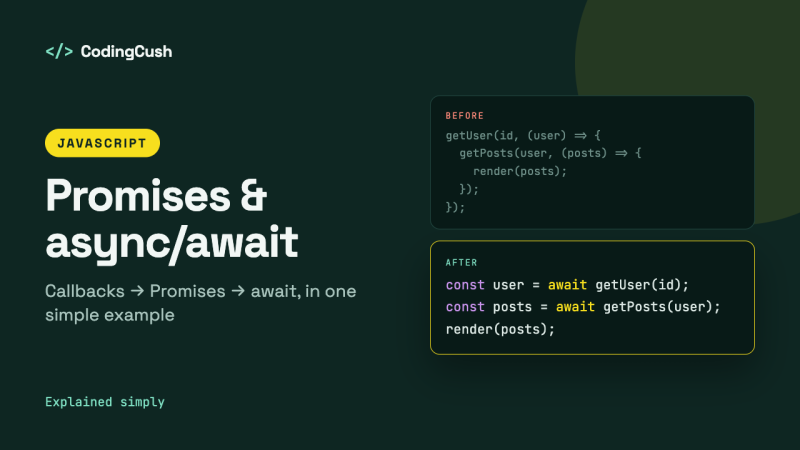
Most modern code uses async and await instead, because it reads like a simple list of instructions. The work underneath is identical; only the writing style changes. If Promises still feel slippery, our tutorial on JavaScript Promises and async/await explained walks through them slowly with examples.
async function loadPost() {
  try {
    const response = await fetch("https://jsonplaceholder.typicode.com/posts/1");
    const data = await response.json();
    console.log("Title:", data.title);
    console.log("Body:", data.body);
  } catch (error) {
    console.log("Something went wrong:", error);
  }
}

loadPost();
Each await simply means "pause this function here until the Promise finishes, then carry on". The rest of your page keeps running happily; only this function waits. For most new projects, this is the style worth learning first, because longer code stays far easier to read and debug.
Reading the Response Properly
A response is more than just data. It carries a status code and a handy ok flag that tells you whether the server was happy with your request. Status 200 means success, 404 means the address was not found, and 500 means the server itself had a bad day — it happens to the best of us.
async function loadUser(id) {
  const response = await fetch("https://jsonplaceholder.typicode.com/users/" + id);

  if (!response.ok) {
    console.log("Server replied with status:", response.status);
    return;
  }

  const user = await response.json();
  console.log("Name:", user.name);
  console.log("Email:", user.email);
}

loadUser(1);
Here is the surprise that catches people out: fetch does not treat a 404 or 500 as an error. As far as fetch is concerned, the messenger came back, so the job succeeded — even if the parcel contains bad news. That is why checking response.ok yourself is a habit worth building from day one. Depending on the reply, you can also use response.text() for plain text or response.blob() for files and images.
Sending Data with a POST Request
So far we have only asked for data. To send data — a form, a new comment, a signup — pass fetch a second argument: an options object that sets the method, the headers, and the body.
async function createPost() {
  try {
    const response = await fetch("https://jsonplaceholder.typicode.com/posts", {
      method: "POST",
      headers: {
        "Content-Type": "application/json"
      },
      body: JSON.stringify({
        title: "Learning fetch",
        body: "fetch makes sending data surprisingly calm.",
        userId: 1
      })
    });

    const result = await response.json();
    console.log("Server saved it with id:", result.id);
  } catch (error) {
    console.log("Could not save:", error);
  }
}

createPost();
Three pieces matter here. The method says what you want to do: POST creates something new, while PUT updates and DELETE removes. The Content-Type header tells the server, "this parcel contains JSON, please open it that way." And JSON.stringify() turns your JavaScript object into a JSON string, because the network carries text, not live objects.
The step-by-step MDN guide to using the Fetch API shows these same options with more variations, including file uploads. When you are unsure about an option's exact name, that page is the safest place to check before guessing.
Fetch Compared with the Old Way
Before fetch, developers used XMLHttpRequest, a powerful but clunky tool from an earlier era of the web. It still works, and old code still uses it, but for new code the difference is clear:
| Feature | fetch | XMLHttpRequest |
|---|---|---|
| Built into browsers | Yes, modern standard | Yes, older standard |
| Code style | Promises, works with async/await | Callbacks and event listeners |
| Reading JSON | One step: response.json() | Manual parsing with JSON.parse() |
| Typical length | Short and readable | Longer and more repetitive |
| Best for | Almost all new code | Maintaining older projects |
Neither tool is magic; both simply talk to a server. The win with fetch is that your code stays short enough to understand at a glance, which matters at midnight when something breaks and the only person available to fix it is a slightly tired you.
Common Mistakes to Avoid
A few small traps appear again and again. First, forgetting await before response.json(), which leaves you holding a Promise instead of data. Second, assuming a 404 will land in .catch() — it will not, so always check response.ok. Third, sending an object as the body without JSON.stringify(), which posts the deeply unhelpful text "[object Object]" to the server. Fourth, forgetting the Content-Type header, so the server receives JSON but treats it as plain text and ignores it.
Finally, remember that fetch runs in the browser, so the API must allow your site to call it. If the console shows a CORS error, that is the server refusing browser requests from your domain — annoying, but it is a server setting to fix, not a bug in your fetch code.
Frequently Asked Questions
Is fetch available in all browsers?
Yes, every modern browser supports fetch, including Chrome, Firefox, Safari and Edge. It also works in Node.js from version 18 onwards, so the same code style now runs on the server too.
What is the difference between .then() and async/await?
They do exactly the same job with Promises. .then() chains functions together, while async/await makes the same waiting look like ordinary step-by-step code. Most developers find async/await easier to read in longer functions.
Why does fetch not fail on a 404 error?
Because fetch only fails when the request itself cannot complete, for example with no network connection. A 404 still counts as a completed reply from the server, so check response.ok or response.status yourself.
Can fetch send headers, such as an API key?
Yes. Add a headers object to the options, just like the Content-Type example above. Many APIs accept a key this way, for example with an Authorization header. Keep private keys off public front-end code whenever you can, though.
Conclusion
You now know the complete fetch pattern: call the URL, check response.ok, unwrap the data with response.json(), and handle failures with .catch() or try/catch. Practise with a free practice API, try one GET and one POST, and within an hour this will feel like the most natural thing in JavaScript — because, data-wise, it is.


Leave a Comment