

 Lavkush
 If your Webflow form is not working, the submission usually went somewhere. It landed in the Forms tab of your Site settings, in a spam folder, in a plan quota, or it never sent at all because you tested it inside the Designer preview. A Webflow form that "sends nothing" is almost never broken code. It is one of a handful of settings. In this guide, we check them in the order that fixes most forms fastest: where submissions actually go, the notification email, plan limits, reCAPTCHA, custom actions, and the one testing mistake nearly everyone makes once.
First, Check Whether the Submission Exists at All
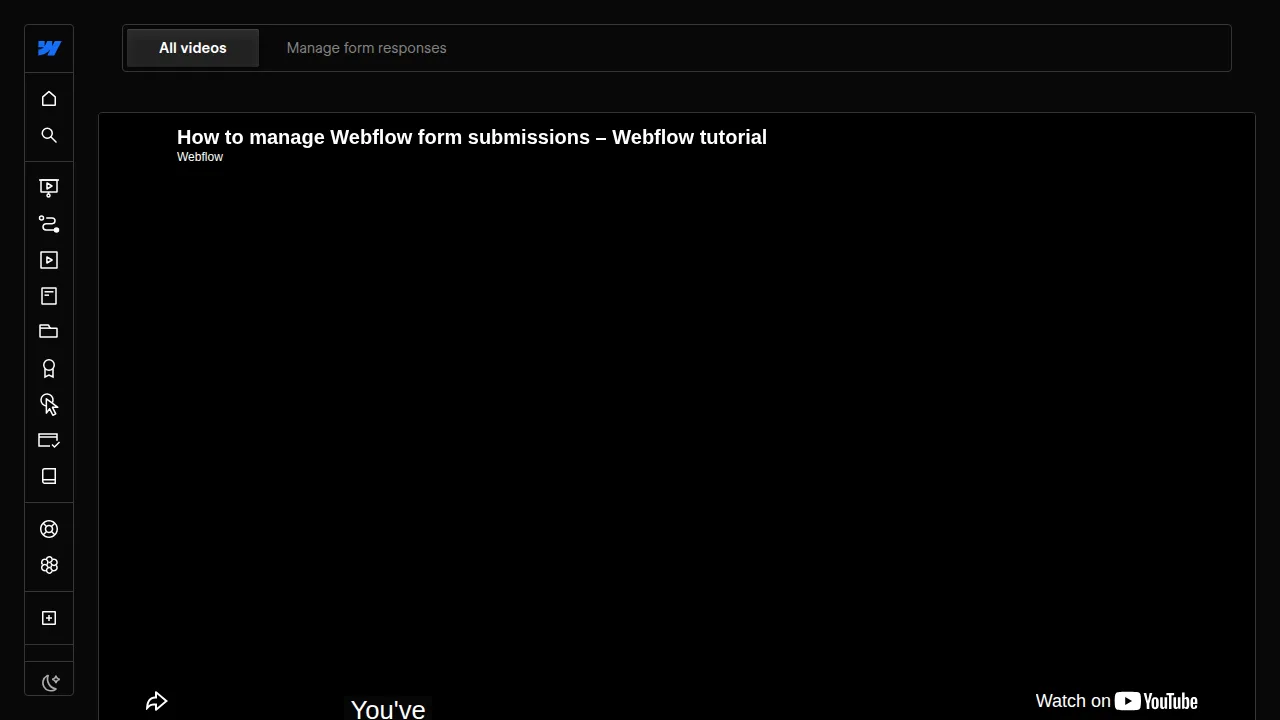
Before changing any setting, find out what actually happened. Publish your site, open the live page (not the Designer), fill in the form with your own details, and submit it. Then go to Site settings, then Forms, and look at the submission list. Webflow's University lesson on how to manage form responses walks through this screen in detail.
Three things can be true now. The submission is in the list: the form works, and only the email notification is failing. The submission is missing but the form showed a success message: something between the page and Webflow ate it, which points at custom actions or scripts. Or the form showed an error: that is a settings or validation problem. This one test tells you which of the nine fixes below you actually need, so do not skip it.
The 9 Fixes, in Order
1. Check the form notification email in Site settings
The number one cause. Go to Site settings, then Forms, and read the email address in the form notification settings. Submissions are emailed to the address saved there, which is often the Webflow account email, not the business inbox you actually read. Fix the address, save, and republish. While you are there, check the subject line setting too, so the emails are easy to recognise when they arrive.
2. Look in spam, promotions, and the Forms tab itself
Notification emails from a new site often land in spam or the Promotions tab until your inbox learns to trust them. Search your mail for the form name. And remember: even if every email vanished, the submissions themselves are stored safely in Site settings, under Forms. Nothing is truly lost. Open the list, export it if needed, and reply to anyone who wrote while the emails were playing hide and seek.
3. Check whether you hit your plan's submission limit
Webflow plans include a monthly form submission allowance, and free or staging setups are much tighter. When the quota is full, new submissions stop being collected until the next cycle or an upgrade. Go to Site settings, then Forms, and check the usage shown for your site. If a launch or a spam wave filled the quota in a week, that is your answer, and no setting change will fix it.
4. Review your spam protection settings
Spam filters protect you, but aggressive settings can quietly block real people. If you turned on extra protection, read Webflow's guide on how to prevent spam in form submissions and check each option you enabled. Test the form yourself from a normal browser window afterwards. If your own careful test gets blocked, genuine customers with VPNs, autofill, or older browsers may be blocked too.
5. Fix reCAPTCHA problems
If your form uses reCAPTCHA and visitors see an error, or the submit button never completes, the keys or the site settings are usually mismatched. Confirm reCAPTCHA is fully set up in Site settings and that the same form is not also fighting a second spam tool. Then test in a private window, because browser extensions and blocked third-party cookies make reCAPTCHA fail in ways that look exactly like a broken form but are really your own browser being strict.
6. Check custom form actions and third-party tools
If your form's Action field points at an outside service (a CRM, an email tool, or a custom endpoint) instead of Webflow's built-in handling, Webflow does not store the submission at all. It goes only to that address, and if the address is wrong or the service rejects it, the message disappears silently. Double-check the action URL character by character, confirm the method matches what the service expects, and test the service on its own. Our guide on how to build a website in Webflow covers the default form setup if you want to compare.
7. Check required fields and validation
A form can refuse to send because one required field is hidden, empty, or impossible to complete, like a required checkbox inside a collapsed section, or an email field set to the wrong type. Select each field in the Designer and review its settings. Make sure every required field is visible and reachable, the email field uses the email type, and file uploads stay within the allowed size. Then submit again slowly and read any error message word for word. It usually names the guilty field.
8. Make sure you are testing the published site, not the preview
This is the classic trap, and it catches everyone once. Forms do not send from the Designer, and they do not send from preview mode. They only work on a published site: your webflow.io staging address or your custom domain, on a site with a plan that supports form handling. If every test so far happened inside the Designer, your form may have been fine all along. Publish, open the real URL, and test there before changing anything else.
9. Name your forms, and check the right inbox per form
Sites often grow several forms: contact, newsletter, quote requests. Each form has its own name in its settings, and submissions are grouped by that name in the Forms tab. If you have been watching one form's list while testing another, it looks exactly like nothing arrives. Give every form a clear name, then filter the submissions list by that name. It sounds almost too simple, which is exactly why it is worth checking before you rebuild anything.
How to Test Your Form Properly
Good testing is boring, and that is why it works. Publish the site. Open the live URL in a private window. Fill the form like a real visitor, with a real email address you can check. Submit once, then wait two minutes. Check three places in order: the Forms tab in Site settings, the notification inbox, and its spam folder. Write down which of the three received it. That result points straight at the broken link: stored but not emailed means notification settings, emailed but not stored means a custom action, and neither means the form never truly submitted.
Frequently Asked Questions
Why does my Webflow form work on desktop but not on mobile?
Usually a design issue, not a sending issue: the submit button is covered by another element, or the form sits inside a container with hidden overflow on the mobile breakpoint. Test the mobile layout carefully and check which element sits on top of the button.
Where do Webflow form submissions go?
With the default setup, they are stored in Site settings, under Forms, and a notification email is sent to the address saved in your form notification settings. If you set a custom action URL, submissions go only to that service instead.
Do Webflow forms work on the free staging site?
Forms need a published site on a plan that supports form submissions. The Designer and preview mode never send anything. Publish to your staging address or custom domain and test there, and check your monthly submission allowance if tests suddenly stop arriving.
Can I send Webflow form submissions to more than one email?
The notification settings accept the addresses your plan allows, and many site owners add a shared inbox so nothing depends on one person's mailbox. If you need routing rules or CRM copies, send the form to a third-party tool with a custom action instead.
Conclusion
A silent form feels like a disaster, but the fix is almost always one setting: the notification email, a full quota, an over-eager spam filter, or a test that never left the Designer. Work through the nine fixes in order, test on the live site like a real visitor, and check the Forms tab before believing any form is empty. And if you are still choosing tools, our honest comparison of Webflow vs WordPress for beginners shows how form handling differs between the two.



Leave a Comment