

 Lavkush
 Almost every new Shopify store hits the same handful of problems: products that refuse to appear, a checkout that sulks, a domain stuck on "pending", a password page that will not retire. The good news is that most of these are not disasters — they are small settings in the wrong position, each with a known fix that takes minutes. This guide covers the 15 problems beginners meet most often, what causes each one, and the exact fix.
Before You Panic: Two Quick Checks
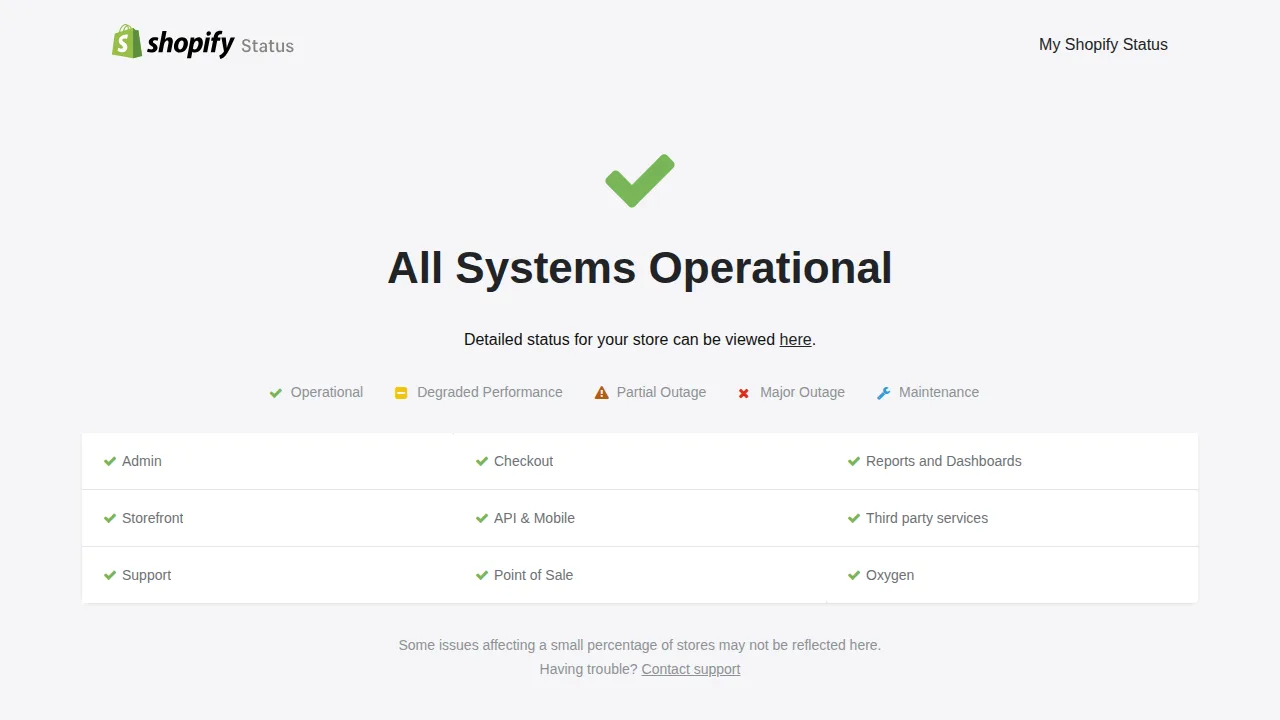
First, confirm the problem is actually yours. Visit the official Shopify Status page: if Shopify itself has an outage, the correct action is to wait with a cup of tea. Second, open your store in an incognito window — browsers cache old pages, and many "Shopify is broken" moments are just your browser showing you yesterday's store.
The 15 Problems and Their Fixes
1. Your Store Is Not Showing on Google Yet
Cause: Google has not indexed a brand-new store yet, or your password page is still on and blocking crawlers. Fix: remove the password page (problem 13), submit your sitemap (yourstore.com/sitemap.xml) in Google Search Console, and request indexing for your homepage. Indexing then takes days to weeks — patience is part of the fix.
2. Products Are Not Showing on the Storefront
Cause: the product is still a draft, is not added to the Online Store sales channel, or does not belong to the collection you are viewing. Fix: open the product, set its status to Active, confirm the Online Store channel is ticked, and add it to the right collection. This solves the "but I added it!" mystery most of the time.
3. "This Store Is Currently Unavailable"
Cause: usually a billing issue — a failed payment, a paused plan, an expired card — or occasionally a Shopify-side review. Fix: go to Settings → Billing, check for warnings, and update your payment method. If billing looks clean, check the status page and then contact Shopify Support; this one sometimes needs their help.
4. Domain Connected but SSL Stays "Pending"
Cause: DNS records are wrong, or still spreading across the internet. Fix: in Settings → Domains, check the status; for an external domain, confirm the A record points to Shopify and the CNAME to shops.myshopify.com, exactly as the official Shopify domains guide shows. Remove old AAAA or competing records, then wait — activation can take up to 48 hours, because DNS is famously unhurried.
5. Payments Not Set Up — or Test Mode Left On
Cause: Shopify Payments was never fully activated (missing bank details or verification), or the Bogus Gateway test mode is still on, so real cards get refused. Fix: open Settings → Payments, complete the setup — the official Shopify Payments help pages list your country's requirements — switch test mode off, then place one small real order yourself to prove it works.
6. Checkout Is Not Working
Cause: often a missing shipping rate for the customer's country (problem 10), a product with shipping wrongly disabled, or a required checkout field the shopper missed. Fix: test the whole checkout yourself with a real product and address, and read the exact error shown — Shopify usually tells you the problem plainly. Fix that one setting rather than changing five things at once.
7. Theme Changes Are Not Saving or Not Showing
Cause: you edited a draft theme instead of the published one, your browser cached the old page, or an app is overwriting your change. Fix: in Online Store → Themes, make sure you are customising the theme marked as the current, live theme, save, then view the store incognito. Editing a draft theme is the classic trap — like polishing a car still in the showroom.
8. Product Images Look Blurry
Cause: the image is simply too small; themes stretch small uploads across big spaces, and pixels cannot be invented. Fix: upload images at least 2048 pixels on the longest side where you can, with the product centred. Shopify compresses uploads slightly, which is normal — a large, clean original keeps the result sharp.
9. Discount Codes Are Not Applying
Cause: the code's conditions do not match the cart — a minimum spend, specific products or collections, an expiry date, or a "cannot combine" rule. Fix: open the discount in Discounts, read every condition slowly, then build a test cart that matches them exactly. Most "broken" codes are simply codes with fine print.
10. No Shipping Options Appear at Checkout
Cause: the customer's country is in none of your shipping zones, or the zone has no rate covering that product's weight or price. Fix: in Settings → Shipping and delivery, add the country to a zone and give it at least one rate — flat, weight-based, or calculated. This is the most common reason checkout "fails" for international buyers.
11. Items Show as Sold Out When You Have Stock
Cause: inventory is counted at a location holding zero stock, the variant's quantity was never updated, or an import quietly zeroed it. Fix: open the product variant, check the quantity at the location your store fulfils from, and correct it. Spot-check imported products in particular — imports zero stock more often than anyone admits.
12. Order Emails Are Missing or Arriving Twice
Cause: confirmations land in spam, a staff notification still points at an old address, or an app sends its own copies alongside Shopify's. Fix: check spam first (unglamorous, effective), review the recipient list in Settings → Notifications, and look for duplicate flows in your email apps. Finish with a test order to yourself.
13. The Password Page Is Still On
Cause: your store is still in pre-launch mode — many owners simply forget this switch exists. Fix: go to Online Store → Preferences and remove the password (on a paid plan). Until you do, visitors and Google see only the password screen, no matter how beautiful the store behind it is.
14. The Store or Admin Feels Slow, or Apps Fight Each Other
Cause: too many apps injecting scripts into your storefront, or two apps doing the same job — two pop-up apps will absolutely start an argument. Fix: list your apps, delete the ones you no longer use (disabling is not deleting), and keep one app per job. Slowness that arrived right after an install is your clue.
15. Taxes Are Set Up Wrong
Cause: tax regions were never configured, or products are marked taxable (or not) incorrectly, so checkout charges too much — or nothing. Fix: in Settings → Taxes and duties, set up every region you actually sell to, then check a few products' tax settings. Beyond the basics, a local accountant beats a forum thread.
Quick Reference Table
| Problem | First thing to try |
|---|---|
| Not on Google | Remove password page, submit sitemap |
| Products invisible | Set Active + Online Store channel |
| Store unavailable | Check Settings → Billing |
| SSL pending | Fix DNS records, allow 48 hours |
| Payments failing | Activate Shopify Payments, test mode off |
| Checkout broken | Test checkout and read the error |
| Theme changes missing | Edit the live theme, view incognito |
| Blurry images | Upload 2048px originals |
| Discount not applying | Match the cart to the code's conditions |
| No shipping options | Add the country to a shipping zone |
| Wrongly sold out | Check stock at the fulfilment location |
| Email problems | Check spam and notification settings |
| Password page on | Remove it in Online Store → Preferences |
| Slow store / app clashes | Delete unused apps, one app per job |
| Taxes wrong | Configure regions in Taxes and duties |
If several of these feel familiar, do not worry — they are practically a rite of passage in the first month after starting a Shopify store. Still deciding whether the platform fits you? Begin with our plain-English explainer on what Shopify is and how it works.
Frequently Asked Questions
Why does my Shopify store say "currently unavailable"?
Usually a billing or plan problem, such as a failed payment. Check Settings → Billing first, then the status page, then support.
My product is active but still not visible. Why?
Check the sales channel: the product must include the Online Store channel and belong to the collection you are viewing. Draft status and missing channels cause most cases.
How long does Shopify SSL take to stop pending?
With correct DNS records, usually a few hours, but it can take up to 48 hours. Wrong records keep it pending forever.
Can apps really slow down my store?
Yes — many apps add scripts to every page, and deleting unused apps is one of the fastest free speed fixes there is.
Conclusion
Shopify problems feel dramatic at midnight and turn out, by morning, to be one checkbox. Work through them calmly: check the status page, look incognito, read the exact error, and change one setting at a time.



Leave a Comment