

 Lavkush
 To choose a good WordPress theme, look past the pretty demo and check nine practical things: whether it is updated regularly, has solid reviews, loads fast, works on phones, is compatible with your WordPress version and main plugins, comes with real support, uses clean and safe code from a trusted source, can be customised without code, and fits your site's actual purpose. A theme is the design your visitors live in for years, so thirty careful minutes now will save you months of regret later.
Why the Demo Page Is a Trap
Every theme is sold with a gorgeous demo: professional photography, perfect fonts, content arranged like a magazine. It is the showroom car with the polished paint. But your site will not contain those photographs — it will contain your logo, your slightly blurry product photos and your real, imperfect text. Many "ugly site" problems are really "beautiful demo, ordinary content" problems. So treat the demo as a hint of what the theme can look like, not a promise of what your site will look like, and judge the theme by the nine checks below instead.
A quick refresher if you are new: a theme controls how your site looks, while plugins add features — a distinction we unpack in WordPress theme vs plugin. Choosing the right theme matters precisely because swapping it later means redesigning the whole house while your visitors are still living in it.
The 9 Checks, in the Order to Do Them
| # | Check | Good sign | Warning sign |
|---|---|---|---|
| 1 | Last updated | Updated within the last few months | No update for a year or more |
| 2 | Reviews and active installs | Many installs, 4–5 star average, recent reviews | A handful of installs and old, unhappy reviews |
| 3 | Speed | Lightweight demo, good PageSpeed score | Demo stuffed with sliders and animations everywhere |
| 4 | Mobile design | Demo looks clean and readable on a phone | Tiny text, overlapping menus on small screens |
| 5 | Compatibility | Tested with your WordPress version and key plugins | Requires odd workarounds to run your shop or forms |
| 6 | Support and documentation | Active support replies and written guides | Silent author, no documentation at all |
| 7 | Trusted source and clean code | From the official directory or a known seller | A "free premium theme" from a random download site |
| 8 | Customisation without code | Colours, fonts and layouts adjustable in the Customizer | Every small change needs a developer |
| 9 | Fits your purpose | Built for blogs, shops or portfolios like yours | A restaurant theme bent into a law firm site |
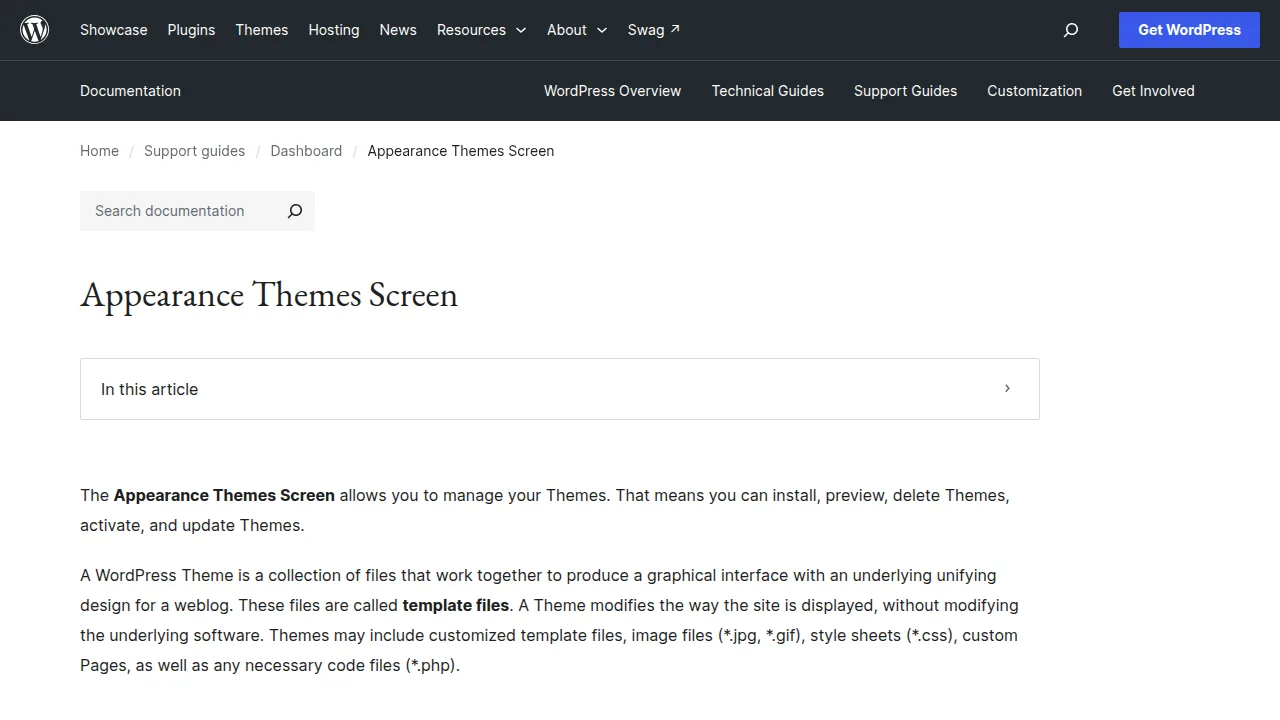
Start your search in the official WordPress theme directory, where every free theme is reviewed before listing and the page shows the facts you need for checks 1 and 2 — last update, active installations and ratings — in plain sight.
Updates, Reviews and Support: The Boring Checks That Matter Most
Check 1 deserves emphasis. WordPress itself changes several times a year, and an abandoned theme slowly rots: first a small display bug, then a broken checkout, then a security hole nobody will ever patch. A recently updated theme with an author who answers support questions is worth more than a stunning theme last touched in 2022. Read the recent reviews, not just the star average — look specifically for comments about support quality and about the last update. The official WordPress Theme Developer Handbook sets the standards good themes are built to, and themes from the official directory are checked against them.
Speed and Mobile: Test the Demo Like a Visitor
For check 3, run the theme's demo URL through a speed test and look at the mobile score. Heavy themes load sliders, animation libraries and a dozen fonts before showing a single word, and your visitors — most of them on phones, many on slow connections — will not wait. For check 4, simply open the demo on your own phone. Tap the menu. Read a paragraph. Try the contact form. Half of all "my site looks broken" complaints are really "nobody opened the demo on a phone before buying". Lightweight, well-known starter themes exist precisely because they pass these two checks easily and let your content do the decorating.
Free, Premium, or a Page Builder Theme?
Free themes from the official directory are genuinely good for blogs and small business sites, and they are the safest place to learn. Premium themes (usually a yearly fee) mainly buy you three things: more design options, priority support and bundled features. Buy premium for the support, not for a longer feature list — features bundled into a theme disappear when you change themes, which is why smart site owners keep features in plugins instead. As for page-builder-heavy themes that let you drag every pixel around: they are fun on day one, but they often fail checks 3 and 8 together, producing slow pages that only that theme can ever display. And whatever theme you pick, make your custom tweaks in a child theme so updates never erase them — our step-by-step guide to creating a WordPress child theme takes about fifteen minutes to follow.
Do Not Forget SEO and Accessibility
Two quieter checks belong on every shortlist. For SEO, a good theme uses proper heading order (one clear main heading per page, subheadings in sequence), produces clean HTML that search engines can read easily, and works smoothly with popular SEO plugins rather than fighting them. Sloppy themes bury your content under layers of styling code and random heading tags, which makes the search engine's job harder for no benefit. For accessibility, check that text has strong colour contrast, that menus and forms can be used with a keyboard, and that buttons and links are easy to tap on a phone. These details decide whether real visitors — including visitors with poor eyesight or older devices — can actually use your site, and search engines increasingly reward sites that get them right.
How to Test a Theme Before You Commit
Never judge a theme only by its sales page. Install it the safe way instead. First, use WordPress's built-in preview: in your dashboard, go to Appearance, then Themes, find the theme and choose Live Preview — you will see your own content wearing the new design, without activating anything. Second, read your own pages with your own words and images, not the demo's; check a long article, a short page and your busiest page, on desktop and on your phone. Third, if the site already receives visitors, test bigger changes on a staging copy of the site rather than on the live one — many hosts offer one-click staging, and it turns theme experiments from a public risk into a private rehearsal. Finally, note every setting you had to change during the trial. A theme that needs forty tweaks before it looks decent is telling you something about the year ahead.
Frequently Asked Questions
Can I change my WordPress theme later?
Yes, you can switch themes at any time, and your posts and pages survive. But menus, widgets and design settings usually need rebuilding, so changing themes is a redesign project, not a five-minute swap.
Are free WordPress themes safe?
Free themes from the official wordpress.org directory are reviewed and safe. The danger is "nulled" premium themes from random download sites, which are a classic hiding place for malware. If a paid theme is free somewhere unofficial, the price is your website.
How many themes should I keep installed?
Only the one you use, plus the latest default WordPress theme as an emergency spare for troubleshooting. Delete the rest — every unused theme is one more thing to keep updated.
What is the best theme for a beginner?
A lightweight, frequently updated theme from the official directory with good reviews and simple Customizer options. Start plain, learn what your site actually needs, and upgrade only when a real need appears.
Conclusion
Choose a WordPress theme the way you would choose a flatmate, not a fireworks show: updated, reliable, tidy, supported, and pleasant on a bad day with slow internet. Run the nine checks, test the demo on your phone, buy from trusted sources — and your theme will quietly serve your site for years instead of starring in your next troubleshooting weekend.


Leave a Comment