

 Lavkush
 A WordPress theme controls how your website looks, and a WordPress plugin controls what your website can do. That is the shortest honest answer. If you change your theme, the colours, fonts, layout and design change, but your pages and posts stay where they are. If you remove a plugin, you lose the feature it added — a contact form, a shop, a backup tool — but the design normally stays the same. Beginners mix the two up because both are installed from the same dashboard, both can be activated and deactivated with one click, and some themes quietly bundle plugin-like features inside them. Once you see the theme as the clothes and the plugin as the tools in the pockets, the difference becomes easy to remember.
Think about a shop. The theme is the paint, shelves and sign above the door. The plugins are the till, card machine and security camera. Repaint the shop and customers still find the same products. Remove the till, and the shop looks nice — it just cannot sell anything.
What Is a WordPress Theme?
A theme is a collection of files that controls the presentation of your site. It decides where the menu sits, how wide the content area is, which fonts are used, how a blog post looks on a phone, and how pages like the homepage, archive and search results are laid out. WordPress itself explains themes in its official documentation: the Appearance Themes guide on WordPress.org shows how themes are installed, previewed and customised from the dashboard.
Every WordPress site must have one active theme. You cannot run a site with no theme, and you cannot run two themes at the same time in the normal setup. You can, however, switch themes in a minute. When you switch, WordPress keeps your posts, pages, comments and media. What can change is the arrangement — widget areas may move, menus may need to be assigned again, and custom settings made inside the old theme may not travel to the new one. That surprises beginners, but nothing about your actual content has been deleted.
A child theme is a small theme that inherits the design of a parent theme and lets you make safe changes. If that idea is new to you, our guide on how to create a WordPress child theme walks through it step by step. The important point here is simple: themes, including child themes, are about appearance first.
What Is a WordPress Plugin?
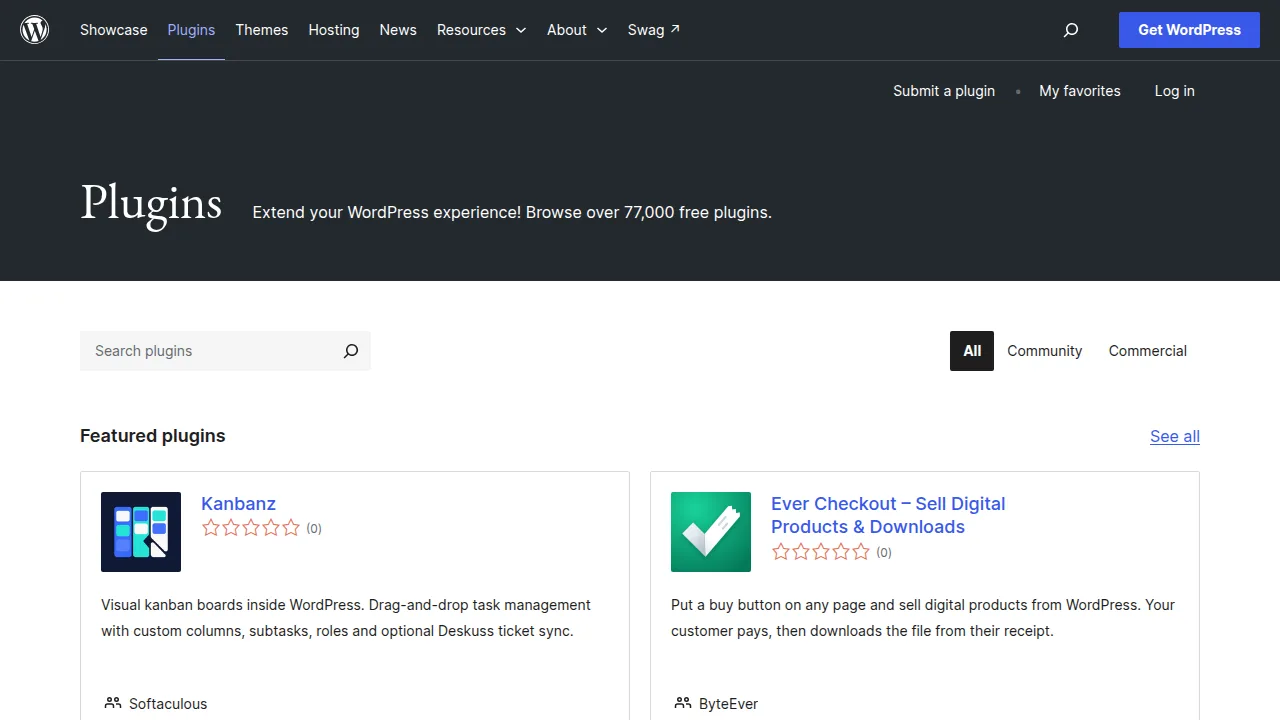
A plugin is an add-on that extends what WordPress can do. Out of the box, WordPress can publish posts and pages very well. It does not, by itself, give you a full online shop, a membership system, a booking calendar or advanced security scanning. Plugins fill those gaps. The official WordPress Plugins documentation describes plugins as ways to extend and add functionality to a website, and the plugin directory contains tens of thousands of them.
Unlike a theme, you can run many plugins at once — ten, twenty, sometimes more — although more is not automatically better. Each plugin should earn its place by doing a job you actually need. You can also deactivate a plugin without breaking the whole site. When you deactivate the contact form plugin, the form disappears. When you deactivate the backup plugin, your backups stop. The rest of the site normally keeps working.
If you want to see the other side of this world, our tutorial on how to create your first WordPress plugin builds a tiny working plugin with a shortcode, so you can feel how a plugin adds a feature without touching the theme at all.
Theme vs Plugin: A Simple Comparison Table
| Question | Theme | Plugin |
|---|---|---|
| Main job | Controls look and layout | Adds features and functions |
| How many can be active? | Only one | Many at the same time |
| Is it required? | Yes, every site needs one | No, a site can run with zero |
| What happens if you remove it? | Design changes; content stays | That feature stops working |
| Typical examples | Blog theme, shop theme, portfolio theme | Contact form, SEO, security, WooCommerce |
| Where is it managed? | Appearance > Themes | Plugins in the dashboard menu |
Read that table once and most beginner confusion disappears. If the question is "why does my site look different?", start with the theme. If the question is "why did this feature stop working?", start with the plugins. That habit saves a lot of random clicking, which is how most WordPress mysteries begin.
Why Do Beginners Confuse Them?
The confusion is not your fault — the WordPress world blurs the line in a few honest ways. First, some themes are really feature bundles. A real-estate theme, for example, may include property listings, maps and enquiry forms built right in. Those listings feel like design, but they are really plugin jobs hiding inside a theme. If you later switch themes, those listings can vanish, even though a normal post would have survived.
Second, page builders sit in the middle. A builder is usually delivered as a plugin, yet it controls the look of your pages in a very theme-like way. Third, both themes and plugins are updated from the same Updates screen, both can cause a white screen when they break, and both are often sold by the same companies. The labels are clear; the products are not always so tidy.
The safe rule is this: put design in the theme and important features in plugins. If a feature matters — your shop, your forms, your course system — prefer a plugin for it. Then you can redesign your site later without holding your business features hostage to one theme.
What Breaks When You Change or Remove Each One?
Change the theme and your content stays, but presentation changes. Menus may point to unassigned locations, widgets may move to inactive areas, and the homepage layout you built with the old theme's settings may look plain until you set up the new theme. That is annoying, but it is recoverable, and a staging site or a localhost test helps a lot. If you have never tried WordPress locally, our step-by-step guide to installing WordPress on localhost with XAMPP gives you a safe place to experiment.
Remove a plugin and only its job stops — but sometimes that job is bigger than you thought. Deactivate an SEO plugin and your custom titles may revert. Deactivate a caching plugin and the site may feel slower. Deactivate WooCommerce and your whole shop section disappears from view, although the product data usually remains in the database until you truly delete it. Always read what a plugin owns before removing it, and keep a backup. Boring advice, yes. So is wearing a seatbelt, and for the same reason.
How to Choose Wisely
Choose a theme for design, speed and support — not for a long list of bundled features. Check that it is updated regularly, works well on mobile, and does not force you into one builder unless you want that. Choose plugins one job at a time: install, set up, test, and only then add the next one. Keep both themes and plugins updated, delete anything you do not use (an installed but inactive plugin is still code sitting on your server), and never install a theme or plugin from an unknown nulled site.
A healthy site usually has one well-made theme and a short, purposeful list of plugins. No magic number, no drama.
Frequently Asked Questions
Can a WordPress site work without a theme?
No. WordPress always needs an active theme to display the site. It can work without any plugins, but not without a theme.
Can a plugin change how my site looks?
Yes, a little — or a lot. Form plugins style their forms, shop plugins style product pages, and page builder plugins control whole layouts. The plugin's main job is still a feature; the styling comes with it.
Is WooCommerce a theme or a plugin?
WooCommerce is a plugin. It adds shop features to WordPress. Many shop themes are simply themes designed to look good with the WooCommerce plugin.
Should I put custom code in my theme or a plugin?
If the code changes design, a child theme is fine. If the code adds a feature you would want even after a redesign, put it in a small custom plugin instead.
How many plugins are too many?
There is no fixed number. Ten well-made plugins are better than three badly made ones. Remove plugins you do not need and watch your site's speed and health.
Conclusion
Theme equals look, plugin equals function. Keep that one line in mind and WordPress becomes much less confusing. Pick your theme for design you love, pick plugins for jobs you truly need, and keep important features independent of your theme wherever you can. Your future self — the one doing a redesign at midnight — will be very grateful.


Leave a Comment