

 Lavkush
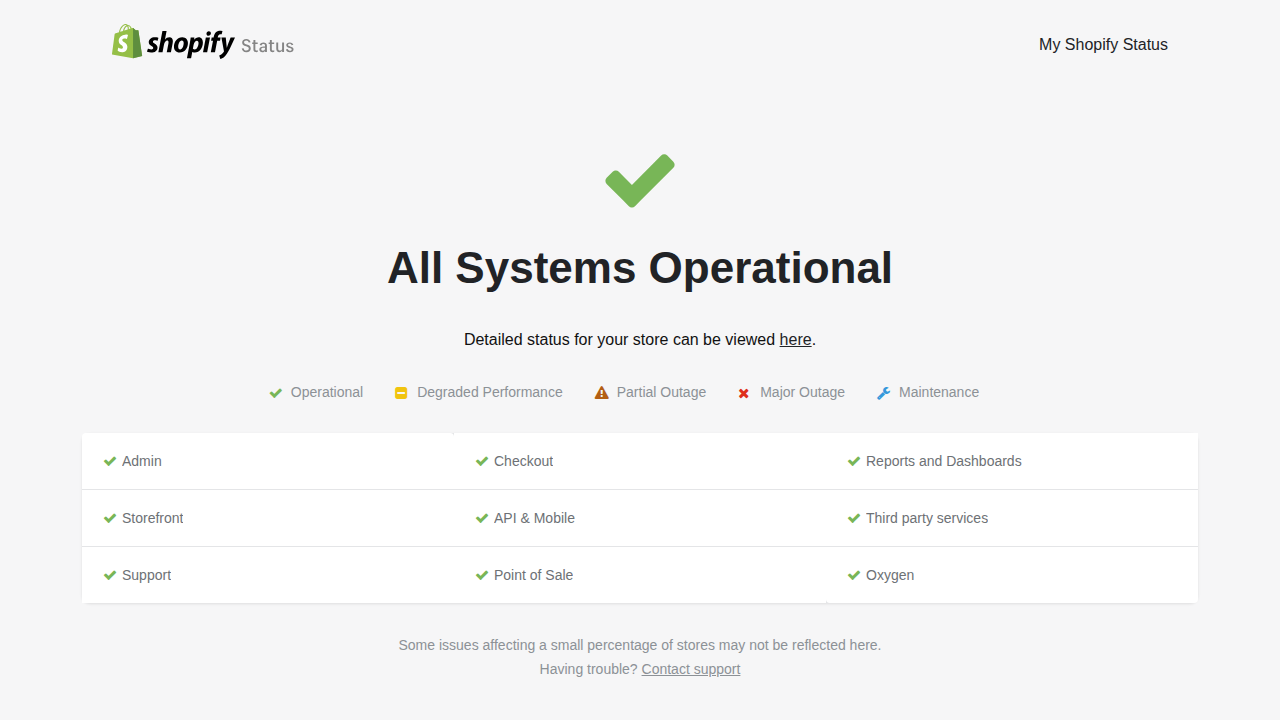
If your Shopify store suddenly will not load, the fastest way to know whether Shopify itself is down is to open the official Shopify Status page at shopifystatus.com: if it says "All Systems Operational" with green ticks, Shopify is up and the problem is almost certainly in your store, your internet connection or your browser; if it shows a partial or major outage for Admin, Checkout or Storefront, the problem is on Shopify's side and the only real fix is to wait while Shopify repairs it. Checking this first takes twenty seconds and saves hours of changing settings that were never broken.
Step 1: Check the Official Shopify Status Page
Open the official Shopify Status page at shopifystatus.com in your browser. You will see a simple dashboard that reports each part of Shopify separately: Admin, Checkout, Storefront, API and Mobile, Reports and Dashboards, Support, Point of Sale and third-party services. A green tick means that part is working normally. A yellow or orange mark means degraded performance or a partial outage, and a red cross means a major outage.
Read the page like a weather report for your store. If Checkout shows a major outage but Storefront is green, visitors can browse your products but cannot pay, which is urgent for sales but not something you can repair yourself. If everything is green and your store still fails for you, the fault is local, and the rest of this guide is your checklist. Shopify also offers a personalised "My Shopify Status" view once you log in, which shows incidents that affect your specific store, because a problem can touch a small group of stores without appearing as a global outage.
Step 2: Rule Out Your Own Connection and Browser
Before blaming any platform, test the boring local causes, because they are the most common ones. Open your store in a private or incognito window, which ignores your saved cookies and extensions. Try a different browser, and then a different network, for example your phone on mobile data instead of your home Wi-Fi. Ask a friend in another city to open the store, or check it on your phone with Wi-Fi switched off.
If the store opens everywhere except on your laptop, Shopify was never down: your browser cache, an aggressive ad blocker, a VPN or your internet provider's DNS is the culprit. Clear the cache, disable the VPN for a minute and try again. If the store fails on every device and every network, move to the next step, because now a store-level or platform-level problem is likely.
Step 3: Check Whether It Is Your Whole Store or One Part
"Shopify is down" can mean four different problems, and each has a different owner. Your storefront may fail while the admin works, which points at your theme, a newly installed app or a domain problem. Your admin may fail while the storefront sells happily, which points at a login, browser or account issue. Checkout may fail while everything else works, which is the pattern in our guide to Shopify checkout not working and how to fix it, with payment and settings checks in order. Or everything may fail at once, which is either a real platform outage or your domain expiring, and the status page plus a quick domain check will separate those two quickly.
| What fails? | Most likely cause | First move |
|---|---|---|
| Everything, for everyone | Platform outage or expired domain | Status page, then domain expiry check |
| Storefront only | Theme change, app conflict, DNS | Preview a fresh theme, undo recent changes |
| Admin only | Browser, cache, login session | Incognito window, different browser |
| Checkout only | Payments paused, test mode, outage | Check Shopify Payments and test mode |
| Only for you | Your network, VPN or DNS | Mobile data test, clear cache |
Step 4: If It Is a Real Outage, Do These Things While You Wait
A genuine Shopify outage feels helpless, but there is still useful work to do. First, do not start editing your theme, deleting apps or changing DNS settings in a panic: when the platform recovers, those hurried changes become brand-new problems of your own making. Second, note the time the problem started and take a screenshot of the status page; if you later talk to support or to customers, exact times beat vague memories. Third, tell your customers quickly and calmly on social media or by email that checkout is temporarily unavailable and that you will announce when it is back. Shoppers forgive outages; they do not forgive silence.
Fourth, keep refreshing the status page rather than your store, because Shopify updates incident notes there as engineers work. Most platform incidents are resolved within a few hours. When the status returns to green, place a small test order on your own store to confirm that browsing, checkout and payment all work end to end before you tell customers the good news.
Step 5: If the Status Is Green but Your Store Is Still Broken
A green status page with a broken store means the problem lives in your account. Work backwards through your most recent changes, because new problems usually follow new actions. Did you install an app today? Disable it temporarily. Did you edit theme code? Roll back to the previous version from the theme editor's version history. Did you connect or transfer a domain? Check that the DNS records still point to Shopify and that the domain has not expired at your registrar. Did payments stop? Open Settings, then Payments, and look for a paused or restricted Shopify Payments banner, which can follow an identity review.
The official Shopify Help Center is the right next stop after these checks, with guided diagnostics and 24/7 support chat for account-specific faults that a public status page cannot see. And if several unrelated things in your store feel broken at once, our checklist of common Shopify problems and how to fix them walks through the usual suspects one by one, from slow pages to missing products.
How to Get Warned Earlier Next Time
Once this scare is over, make the next one shorter. Bookmark the status page on your phone, not just your laptop, because outages rarely wait for office hours. Turn on notifications in any community or status-alert service you already use, and keep a simple "store down" draft message ready for your social channels so you are writing calmly in advance instead of typing in a panic. Finally, keep a short note of who controls what: domain registrar login, Shopify login and your backup admin's email. In a real emergency, hunting for passwords wastes the very minutes you are trying to save.
Frequently Asked Questions
How can I check if Shopify is down right now?
Open shopifystatus.com. Green ticks and "All Systems Operational" mean Shopify is up. Orange or red marks next to Admin, Checkout or Storefront mean Shopify has a live incident affecting that part.
Why is my Shopify store not loading but the status page is green?
Then the fault is local to your store or your connection: a theme or app change, a domain or DNS problem, a paused payment account, or simply your browser cache or network. Test in an incognito window and on mobile data to narrow it down.
How long do Shopify outages usually last?
Most incidents are resolved within a few hours, and many within the hour. The status page posts progress updates during an incident, so check there instead of repeatedly refreshing your store.
Can I fix a Shopify outage myself?
No. A platform outage is repaired by Shopify's engineers. Your job during an outage is to avoid making risky changes, inform your customers, and test a full order once the status returns to green.
What should I do if only checkout is down?
Check the status page's Checkout row first. If it is green, inspect your own payment settings: confirm Shopify Payments is active, test mode is off, and no verification banner is waiting in Settings, then Payments.
Conclusion
When your store fails, do not guess and do not panic-edit. Spend twenty seconds on the official status page, test on another device and network, work out which part is actually failing, and only then fix the thing that is yours to fix. That calm order of checks turns a frightening "Shopify is down" moment into a short, clear diagnosis almost every time.




Leave a Comment