

 Lavkush
 Your Shopify store is not showing on Google most often for one of four boring reasons: the store is still password-protected or too new, Google has not indexed your pages yet, your products are in draft or missing from your sitemap's reach, or your pages are indexed but ranking too low to be seen. None of these means Google hates your shop. Indexing — Google discovering, storing and then ranking your pages — is a process with steps, and each step has a simple check. Work through them in order and you will know exactly where your store is stuck, and what to do next.
It helps to separate two ideas sellers mix into one worry. If your page is not indexed, Google cannot show it anywhere. If it is indexed but not ranking, Google knows it well and is simply showing other pages first. The fixes are completely different, so our first job is diagnosis.
Check 1: Is Your Store Actually Open to Google?
A Shopify store with the password page switched on is invisible to search engines by design — it is a shop with the shutters down and a friendly note on the door. In your admin, check Online Store and then Preferences, and confirm the password protection is off if you are ready to trade. Stores under development, trial setups being prepared, and shops “soft launched” to friends often forget this one switch.
Also confirm the pages are public. Products must be Active, not Draft, and available on the Online Store channel. Google cannot index what a visitor cannot open, so browse your store signed out, in a private window, like a stranger. Whatever the stranger cannot see, Google cannot rank.
Check 2: Find Out Whether Google Has Indexed You
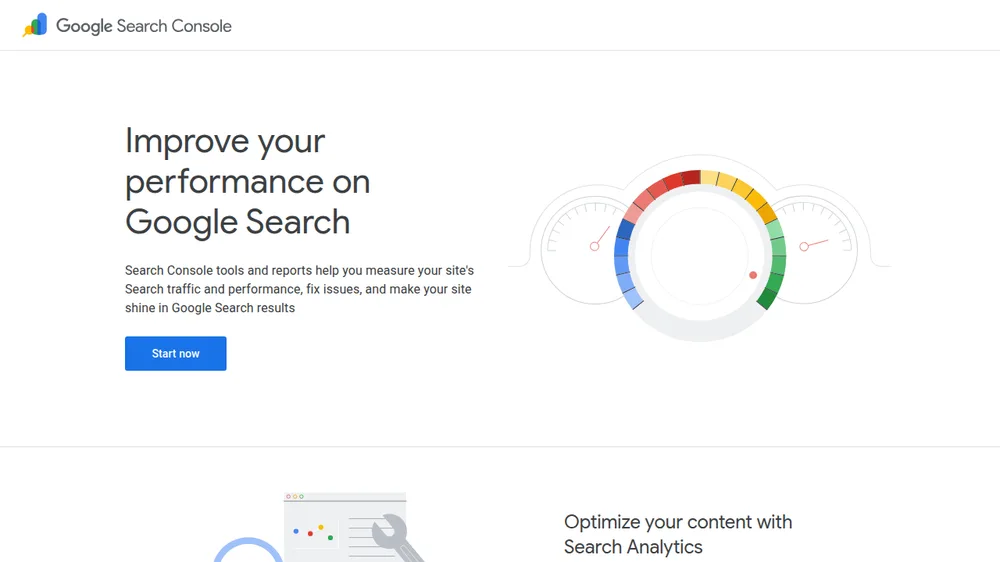
Do not guess — ask Google directly, in two quick ways. First, search Google for site:yourdomain.com, using your real domain. Results mean at least some pages are indexed. No results at all means Google has not stored your pages yet, or something is blocking it. Second, and better, use Google Search Console: add and verify your store if you have not already, then paste any page URL into its URL Inspection tool. It will tell you plainly whether that page is indexed, and if not, why Google thinks so.
Search Console is free and it is the ground truth for this whole topic. If you have been relying on other dashboards, our comparison of Google Search Console alternatives explains what the official tool still does best — and index reporting is exactly that thing. One honest warning: Search Console data lags by a few days, so a page submitted this morning may look “unknown” simply because the report has not caught up yet.
Check 3: Submit Your Sitemap and Request Indexing
Shopify automatically builds a sitemap for you at yourdomain.com/sitemap.xml, listing your products, collections, pages and blog posts. You do not create it and you cannot hand-edit it — but Google needs to know it exists. In Search Console, open Sitemaps, submit sitemap.xml, and check that its status shows as successful with discovered pages.
For an important new page — your homepage, a bestseller, a new collection — use URL Inspection's “Request indexing” after confirming the page is live and open. Google's own guidance on asking Google to recrawl your URLs explains this process and its limits honestly: requesting speeds up a visit, it does not guarantee instant indexing or a good ranking. Treat it like politely joining a queue, not jumping it. Submitting the same URL twenty times does not help; once is enough, then let the crawler work.
Check 4: Give a New Store Time — and Signals
A brand-new store with no links from anywhere is a shop on a street Google has not mapped yet. Indexing a first set of pages can take days to a few weeks, and that is normal, not a penalty. You can shorten the wait with honest signals: share your store on your social profiles, list it in your business profiles, and earn a mention or link from a real partner, supplier or local directory.
Keep publishing while you wait. A store with a handful of helpful blog posts and complete product pages gives the crawler more doors to walk through and more reasons to return. If your store is open, submitted and still completely absent after several weeks, re-run the checks above carefully — in practice, a setting like password protection or a domain problem is still hiding somewhere.
Check 5: Rule Out Domain and Duplicate-Store Problems
Domain confusion quietly splits many young stores in two. If you recently connected a custom domain, confirm it is set as your primary domain in Settings and then Domains, and that the old myshopify.com address redirects to it. Then search for your store name and your products using both addresses. If Google shows the myshopify version, your primary-domain setting or redirects need attention so all signals gather under one roof.
Also search for a few exact product titles in quotes. If nothing appears even for your most unusual product name, you are back to an indexing problem. If your products appear but on page five, you do not have an indexing problem at all — you have a ranking problem, which the next section handles. Knowing which problem you own is half the cure, and it stops you fixing the wrong one loudly.
Check 6: If You Are Indexed but Invisible, It Is Ranking
Ranking low is the normal starting position for a new store, not a failure. Google ranks pages that clearly match a search, load well, and earn trust over time. Start with the basics that Shopify's own SEO guide in the Shopify Help Center recommends: clear product titles that use the words buyers actually search, real descriptions written for humans instead of copied supplier text, sensible collection names, and image alt text that describes the product.
Then widen the lens. Google's free SEO Starter Guide from Google Search Central is the most trustworthy checklist in this whole field — no myths, no tricks, just how Google reads pages. Work through it once with your homepage and best product page open beside it. And remember that being found is only half the shopkeeper's job: if visitors arrive but leave without buying, our guide on why a Shopify store gets traffic but no sales tackles that next problem honestly.
A Simple Weekly Routine That Keeps You Visible
| When | Do this |
|---|---|
| After adding a product | Confirm it is Active, on the Online Store channel, then request indexing for its URL |
| Weekly | Glance at Search Console coverage — new errors are easier fixed young |
| Weekly | Publish or improve one page: a product description, a collection intro, a blog post |
| Monthly | Check your sitemap status and your primary domain setting once |
| Monthly | Search your top 3 products like a customer and note where you appear |
That routine takes less than an hour a week and beats any burst of panicked changes.
Frequently Asked Questions
How long does Google take to index a new Shopify store?
Typically days to a few weeks for the first pages once the store is public and the sitemap is submitted. There is no guaranteed timeline, and requesting indexing helps Google visit sooner but does not promise instant results.
Why does Google show my myshopify.com address instead of my domain?
Your custom domain is probably not set as the primary domain, or redirects are not in place yet. Set the custom domain as primary in Settings and then Domains, and give Google time to reprocess the change.
Can I edit my Shopify sitemap to add pages faster?
No — Shopify generates sitemap.xml automatically from your published products, collections, pages and posts. If a page is missing from it, the page is usually draft, unpublished, or not on the Online Store channel.
Does a password-protected store get indexed?
No. Search engines cannot get past the password page, so a protected store stays out of Google by design. Remove password protection when you are ready to welcome customers and crawlers.
I'm indexed but on page five. What actually helps?
Better-matched titles and descriptions, genuinely helpful content around your products, faster pages, and real links from relevant sites. Rankings climb with usefulness and time — there is no honest switch that skips the queue.
Conclusion
When your store is missing from Google, diagnose before you fix: open shop, then indexed, then ranking. Remove the password, publish your products properly, submit your sitemap in Search Console, request indexing for key pages, and tidy your domain. Then build visibility the steady way — clear titles, real descriptions and one improvement a week. Google will find a well-kept shop; it always does.


Leave a Comment