

 Lavkush
DNS, the Domain Name System, is the phonebook of the internet. It turns a human friendly name like codingcush.com into the number a computer actually needs, an IP address like 198.18.40.210, so your browser can load the site. Without DNS you would have to memorise a string of numbers for every website you visit. In this guide you will learn how a lookup travels through four kinds of servers, what the common record types do, and how to watch a real lookup with dig.
What DNS Does, in Plain Words
Every device on the internet has an IP address, a unique number that other machines use to find it. Humans are bad at remembering numbers, so we use names instead. DNS is the system that translates between the two. You type a name, DNS finds the number, and your browser connects to that number.
Think of it exactly like a phonebook: you know a name, you look up the number, then you call the number. The difference is that this phonebook is spread across millions of servers, and a lookup usually finishes in a few milliseconds.
Beginners often mix this up: DNS does not load the website. It only answers "what is the IP address for this name?" Once the browser has the address, it makes a separate HTTP request to fetch the page. Our guide to what happens when you type a URL in the browser picks up the story from there.
The Four Servers in a DNS Lookup
A lookup passes through four kinds of servers, which Cloudflare's DNS guide pictures as a librarian, an index, a rack of books and a dictionary.
The recursive resolver, the librarian. This is the server your computer asks first, usually run by your internet provider. It asks the other servers in turn until it has an answer, then hands it back to you. It also remembers answers, which is why repeat visits feel instant.
The root nameserver, the index. There are 13 sets of root servers in the world. They know where to find the servers for each top level domain, like .com, .org or .in. The root server never knows the final answer; it only points the resolver to the right TLD server.
The TLD nameserver, the rack of books. The TLD server handles one ending, such as .com. It knows which nameserver is authoritative for codingcush.com, and it points the resolver there.
The authoritative nameserver, the dictionary. This is the last stop. It holds the records for the domain and returns the IP address. If it has the record, the lookup is done; if not, the resolver reports that the name does not exist.
The 8 Steps of a DNS Lookup
Put together, a lookup with nothing cached takes eight steps. Here they are for example.com:
1. You type example.com and the query reaches a recursive resolver.
2. The resolver asks a root nameserver.
3. The root server points to the .com TLD server.
4. The resolver asks the .com TLD server.
5. The TLD server returns the address of example.com's nameserver.
6. The resolver asks that nameserver.
7. The nameserver returns the IP address for example.com.
8. The resolver hands the IP address back to your browser.
Then the browser makes its HTTP request to that IP address. In practice the lookup is usually shorter, because the answer is often already cached.
DNS Record Types You Will Actually Meet
A domain's DNS zone is a list of records. You only need six to read most setups:
| Record | What it does | Example |
|---|---|---|
| A | Points a name to an IPv4 address | codingcush.com → 198.18.40.210 |
| AAAA | Points a name to an IPv6 address | codingcush.com → 2400:cb00::1 |
| CNAME | Points a name to another name | www → codingcush.com |
| MX | Points a name to its mail servers | codingcush.com → mail server |
| TXT | Stores text, used for verification | google-site-verification=... |
| NS | Names the domain's nameservers | codingcush.com → ns1.host.com |
The A record does the main job in this article. The TXT record is the quiet workhorse: Google Search Console and other services ask you to add one to prove you own a domain. And the CNAME is what usually sits behind www, pointing it at the bare domain.
See It in Action: Looking Up a Real Domain
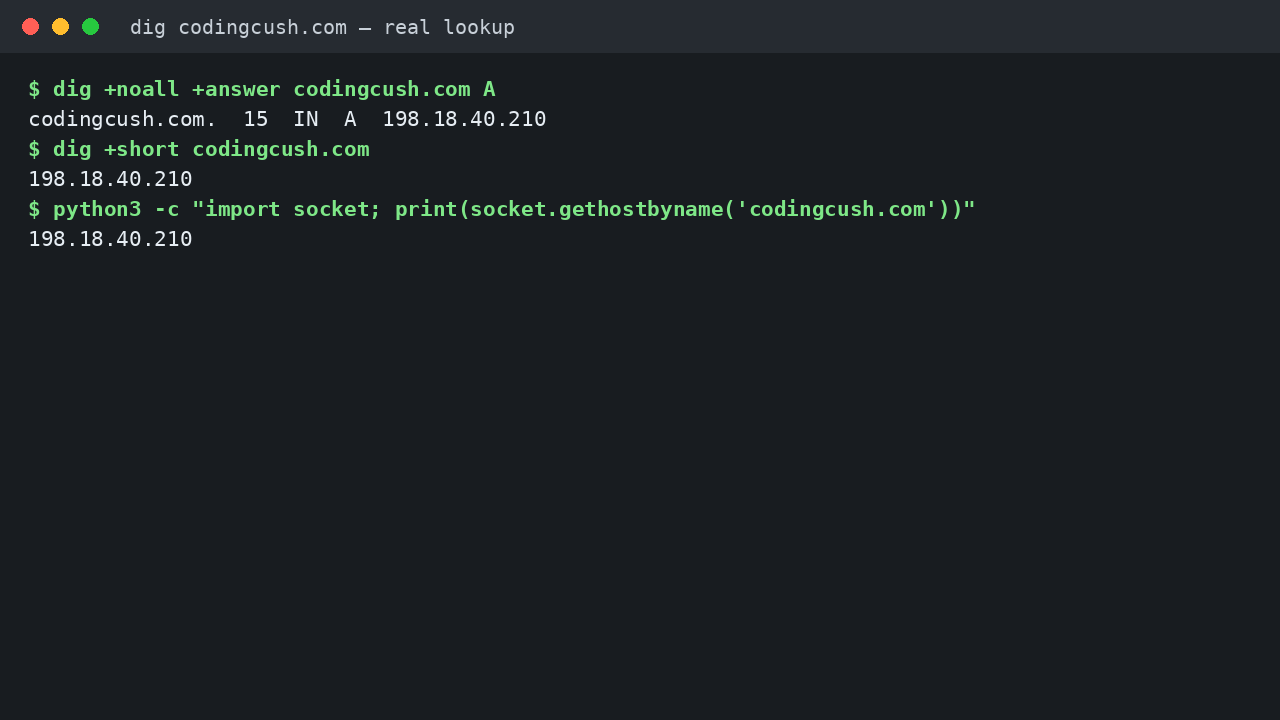
The dig command asks a DNS server a question and prints the answer. Here is a real lookup of this very site, run for this article:
$ dig +noall +answer codingcush.com A
codingcush.com.  15  IN  A  198.18.40.210

$ dig +short codingcush.com
198.18.40.210
Reading the answer line: the name, 15 is the TTL in seconds, IN means internet class, A is the record type, and 198.18.40.210 is the address the browser will connect to. The lookup answered in 0 milliseconds, because the result was already cached.
Python does the same lookup in one line:
import socket
print(socket.gethostbyname('codingcush.com'))
Output:
198.18.40.210Same answer, three different tools. If dig is not installed, nslookup codingcush.com gives the same result.
DNS Caching and TTL: Why Changes Take Time
DNS answers are cached at every level: in your browser, in your operating system, in your provider's resolver, and sometimes in your router. Each record carries a TTL, a time to live in seconds, which says how long a cached copy may be used. Our lookup above had a TTL of just 15 seconds; many records use 3,600.
Caching is why the internet stays fast, but it is also why DNS changes feel slow. When you point a domain at a new host, visitors with a cached old record keep reaching the old server until their TTL expires. That waiting period is called propagation. If you ever change a domain's A record, lower the TTL to 300 seconds a day before the move, so the old answer expires quickly.
Changing Your DNS Server to 8.8.8.8
Your computer normally uses your internet provider's resolver, but you can switch to a public one. Google's public DNS uses 8.8.8.8 and 8.8.4.4, and its guide to configuring Google Public DNS walks through the settings for Windows, Mac, Linux, ChromeOS and routers: open the network settings, find the DNS section, and replace the automatic addresses.
People switch because a public resolver is often faster, and it keeps working when an ISP's resolver has an outage. It will not make your internet faster in general, or fix a slow website. It only changes who answers the "what is the IP address" question. If a site fails to load, switching DNS is still a quick test: if 8.8.8.8 resolves it and your ISP's resolver does not, the problem is your provider's DNS, not the site.
Common Mistakes and Troubleshooting
DNS_PROBE_FINISHED_NXDOMAIN. Chrome shows this when the name does not exist in DNS at all. Check the spelling first, then check whether the domain has expired or was never registered. If the site worked yesterday, the domain's DNS records may have been changed or deleted.
Changed the A record and nothing happened. Wait out the old TTL, then test with dig against a public resolver like 8.8.8.8 instead of your ISP's, so you see the fresh answer rather than a cached one.
Confusing DNS with hosting. DNS only points the name at an address. If DNS resolves correctly but the site shows an error page, the problem is on the web server, not in DNS. Our guide to fixing DNS server not found errors walks through telling the two apart.
Frequently Asked Questions
What is DNS in simple words?
DNS is the internet's phonebook. It translates a domain name like codingcush.com into an IP address like 198.18.40.210, which is the number your browser actually connects to.
What is the difference between a recursive resolver and an authoritative nameserver?
The recursive resolver is the first server asked, and it chases the answer through the root, TLD and authoritative servers. The authoritative nameserver is the last stop: it holds the domain's records and gives the final answer. Cloudflare's guide to what DNS is explains both roles with a library analogy.
Why does a DNS change take time to work?
Because answers are cached until their TTL expires. Lower the TTL before a planned change, and test with dig against 8.8.8.8 to see the fresh answer.
Is 8.8.8.8 safe to use?
Yes. It is Google's public DNS resolver, free to use, and widely used. It only handles name lookups; it does not see your browsing content, which travels over HTTPS to the website itself.
Conclusion
DNS is a simple idea with a big job: turn names into numbers so browsers can find servers. A lookup asks a recursive resolver, which checks the root server, the TLD server and finally the authoritative nameserver, and the answer is cached along the way according to its TTL. Next time a site fails to load, run dig and you will know in seconds whether DNS or the website is the problem.


Leave a Comment