

 Lavkush
 Docker Compose is a tool that lets you run an application made of several Docker containers — for example a website, a database and a cache — from one simple text file called docker-compose.yml. Instead of starting every container by hand with long commands, you describe the whole setup once in that file and start everything together with a single command: docker compose up.
Why Does Docker Compose Exist?
Real applications are rarely one single programme. A typical small website needs at least three pieces working together: the web app itself, a database such as MySQL or PostgreSQL to store data, and sometimes a cache or a mail tool for testing. With plain Docker, you would have to create a network, then start each container separately with the right ports, volumes and environment variables typed out in full — every single time, in the right order, without a single typo. It works, but it feels like giving the same long speech every morning.
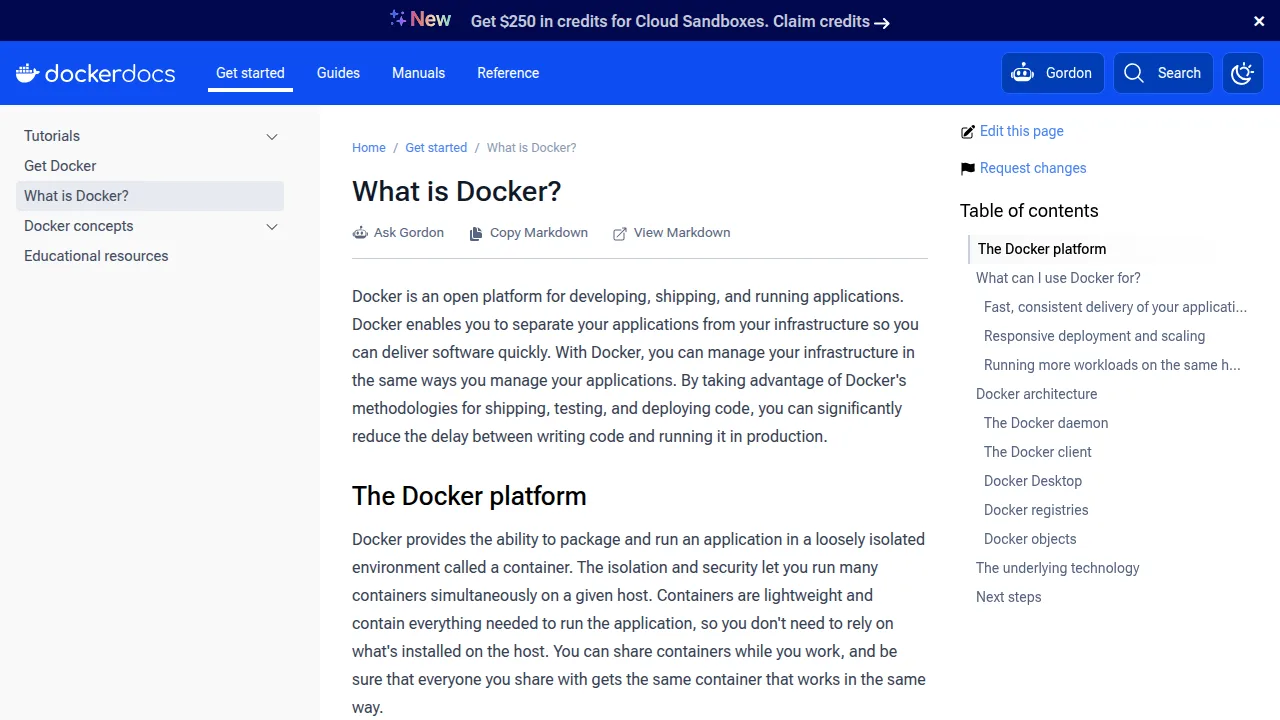
Docker Compose replaces that speech with a written recipe. The official Docker Compose documentation describes it as a tool for defining and running multi-container applications, and that one sentence is the whole idea: you define the app in a file, and Compose runs it. If you are completely new to containers, start with our explainer on what Docker is and how it works, then come back here.
The docker-compose.yml File, Line by Line
Everything in Compose revolves around one YAML file, usually named docker-compose.yml or compose.yaml, sitting in your project folder. Here is a small but realistic example: a web application with a MySQL database.
services:
  web:
    build: .
    ports:
      - "8000:8000"
    environment:
      - DB_HOST=db
    depends_on:
      - db
    volumes:
      - .:/app

  db:
    image: mysql:8
    environment:
      - MYSQL_ROOT_PASSWORD=secret
      - MYSQL_DATABASE=myapp
    volumes:
      - db_data:/var/lib/mysql

volumes:
  db_data:
Do not panic — every line has a plain meaning. Under services we list the containers our app needs: here, web and db. The web service is built from our own project folder (build: .), it publishes port 8000 so you can open the site in your browser, and depends_on tells Compose to start the database first. The db service simply uses the ready-made mysql:8 image, sets its passwords through environment, and stores its data in a named volume so your database survives even when the container is removed and recreated.
Two quiet superpowers hide in this file. First, the services can talk to each other using their names as hostnames — that is why the web app uses DB_HOST=db: Compose puts all services on one private network automatically. Second, the file lives with your code, so a teammate can clone the project and run the identical setup. No more "but it worked on my machine" — the machine is now described in text.
The Five Commands You Will Use Every Day
You only need a handful of commands to work happily with Compose:
| Command | What it does |
|---|---|
docker compose up |
Builds (if needed) and starts all services; add -d to run them in the background |
docker compose down |
Stops and removes the containers and the network (your named volumes stay safe) |
docker compose ps |
Lists your services and shows whether each one is running |
docker compose logs -f web |
Follows the live logs of one service — your first stop when something breaks |
docker compose exec web bash |
Opens a shell inside a running container so you can look around |
The Docker Get Started guide walks through these ideas step by step with a sample app, and it is the best next read once this article makes sense.
Docker vs Docker Compose: What Is the Difference?
Beginners often mix the two up, so let us separate them cleanly. Docker (the engine) builds and runs individual containers. Docker Compose is the organiser on top: it reads your YAML file and tells the engine which containers to create, in what order, on which network, with which settings. Docker is the kitchen staff; Compose is the recipe card and the manager who makes sure every dish leaves together.
This also explains a common confusion with virtual machines. A Compose file can happily run five containers that together use less memory than one virtual machine, because containers share the host system instead of emulating whole computers — a difference we compare in detail in our guide to Docker containers vs virtual machines.
A Simple Workflow: From File to Running App
Here is the everyday rhythm once your file exists. You run docker compose up -d in the morning and your whole project — app, database and all — wakes up. You write code, and because your project folder is mounted as a volume, most changes appear immediately without rebuilding. When you change dependencies or the Dockerfile itself, you rebuild with docker compose up -d --build. At the end of the day, docker compose down tidies everything away, and your data waits safely in its volume for tomorrow.
One honest warning: Compose is happiest on your own computer and on small single-server setups. Very large production systems usually graduate to orchestration tools such as Kubernetes, which spread containers across many machines. Compose is still the perfect first step, because the ideas — services, networks, volumes, environment — are exactly the same, just written in a friendlier file.
What You Need Before You Start
Compose itself is a small addition on top of Docker, so the shopping list is short. You need Docker installed and running — Docker Desktop on Windows or Mac, or Docker Engine on Linux — and a project folder to work in. Modern Docker versions include Compose as a built-in command, which you can confirm by typing docker compose version in your terminal. If that prints a version number instead of an error, you are ready; there is nothing else to install, no account to create and nothing to pay. Create an empty file named docker-compose.yml in your project, paste in the example from this article, adjust the service names to match your own app, and run docker compose up. The first run downloads the images it needs, which can take a few minutes on a slow connection; every later run reuses them and starts in seconds.
Common Beginner Mistakes
Three mistakes catch almost everyone once. First, forgetting that localhost inside a container means the container itself, not your computer and not the other container — use the service name, such as db, as the hostname. Second, storing database data without a volume, then wondering where the data went after docker compose down recreated the container. Third, putting real production passwords directly in the file and committing them to Git — use an .env file for secrets and keep it out of version control. Every developer has made at least one of these; the trick is to make each one only once.
Frequently Asked Questions
Is Docker Compose free to use?
Yes. Docker Compose is open source and ships as part of Docker Desktop and the modern Docker command line, so the docker compose command is already on your machine if Docker is installed.
Do I need to learn Docker before Docker Compose?
You need the basic idea of images and containers first, which takes an afternoon. After that, Compose is actually the easiest way to practise Docker, because the YAML file is far simpler to read than long terminal commands.
What is the difference between docker compose and docker-compose?
They are the same tool across generations. The old standalone tool used a hyphen (docker-compose); the current version is built into Docker and uses a space (docker compose). New tutorials, including this one, use the space version.
Can I use Docker Compose for a single container?
You can, and many people do, because the file documents the ports, volumes and settings in one readable place. Compose simply shines brightest when an app grows to two or more services.
Conclusion
Docker Compose turns a pile of fragile, hand-typed container commands into one calm, readable file that anyone on your team can run. Learn the five everyday commands, respect volumes and service names, and your local development setup will finally behave the same way on every machine — including, at last, yours.



Leave a Comment