

 Lavkush
A web server is a program that listens for requests from browsers, finds the page or file being asked for, and sends it back. Type an address, press Enter, and your browser asks a web server for that page. In this guide you will learn what a web server does, how static and dynamic content differ, how Apache and Nginx compare, and how a website goes live. You will also run a tiny real web server yourself in two minutes.
What a Web Server Actually Does
Think of a web server as a waiter: the browser orders, and the server brings the food. It does four things, in order. First, it listens, watching a port for requests on a computer that is on and online. Websites use port 80 for HTTP and port 443 for HTTPS. Second, it receives a request, a short message like "GET /about.html". Third, it finds the answer: it reads a plain file from the disk, or passes the request to a program, for a login or a blog post. Fourth, it sends a response, with a status code and the content. A 200 means "here it is", a 404 means "not found", and a 500 means "something broke on the server".
Static vs Dynamic Content
Some pages never change. A simple "About" page is the same HTML file for every visitor, so the server just reads the file and sends it. That is static content, and it is fast, because there is nothing to work out. Other pages are built fresh for each visitor: your inbox, a shopping cart, or a blog homepage are different depending on who asks and when. That is dynamic content. The page does not exist as a file yet, so an application, often in PHP, Python, or Node.js, builds it from a database. Most sites mix the two.
A Request, Step by Step
Follow one click for https://example.com/about. First, your browser asks DNS, the Domain Name System, to turn example.com into an IP address, the server's number on the internet. Second, the browser connects to that address on port 443, because the address starts with https, and asks for /about. Third, the server finds the page, reading a static file or asking an application. Fourth, it sends back a response with a status code, headers, and the page. Finally, the browser reads the HTML, fetches the images and stylesheets, and paints the page. The trip takes well under a second, but any step can fail: a missing file gives a 404, and a crashed application gives a 500.
Try It Yourself: Run a Real Web Server in Two Minutes
Python comes with a tiny built-in web server, perfect for learning because it shows the request and response in plain sight. Create a folder, save this as index.html inside it, and start the server from that folder:
<!DOCTYPE html>
<html>
<head><title>Hello from my web server</title></head>
<body><h1>Hello from my web server</h1></body>
</html>
python3 -m http.server 8000The server runs on port 8000 until you stop it with Ctrl+C. In a second terminal, fetch the page with curl:
curl -i http://127.0.0.1:8000/Real output from Python 3.12.3:
HTTP/1.0 200 OK
Server: SimpleHTTP/0.6 Python/3.12.3
Date: Thu, 19 Nov 2026 05:15:02 GMT
Content-type: text/html
Content-Length: 131

<!DOCTYPE html>
<html>
<head><title>Hello from my web server</title></head>
<body><h1>Hello from my web server</h1></body>
</html>
The status line says the request worked, the Server line names the software, and Content-Length says the page is 131 bytes long. The server also logs one line per request:
127.0.0.1 - - [19/Nov/2026 05:15:02] "GET / HTTP/1.1" 200 -A missing file gives the same "HTTP/1.0 404 File not found" a real site sends. This Python server is a learning tool, not a production server, so never use it for a real website.
Apache vs Nginx, in Plain Words
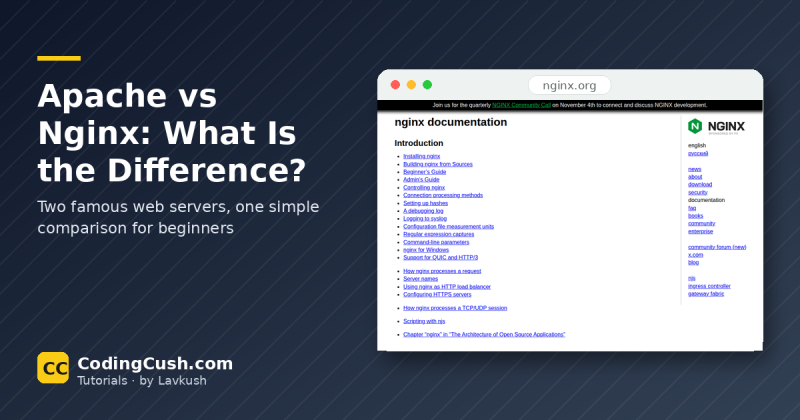
Apache, from the Apache Software Foundation, has been around since the 1990s and is famous for being flexible: modules extend it, and each site can carry its own small config file, which suits shared hosting. Nginx, pronounced "engine X", arrived later and was built for speed under heavy load, handling many connections at once with very little memory. Remember it like this: Apache is a waiter for every table, while Nginx is one very fast waiter for all the tables. For a deeper look, our guide to what Nginx is and how it works walks through it step by step.
| Apache | Nginx | |
|---|---|---|
| First released | 1995 | 2004 |
| Connections | One process or thread per connection | One process, many connections at once |
| Best at | Flexibility, modules, shared hosting | High traffic, static files, reverse proxying |
| Per-site config | .htaccess files and VirtualHost blocks | Server blocks in the main config |
Our full Apache vs Nginx difference guide compares them in more detail. For most beginners, either one works fine.
A Small Nginx Config, Explained Line by Line
Config example, not a command I ran. Nginx was not installed or run for this article. This minimal server block uses only directives from the official Nginx beginners guide:
server {
    listen 80;
    server_name example.com;
    root /var/www/example;
}
Line by line: server { opens a server block, the settings for one website. listen 80; tells Nginx to watch port 80, the normal HTTP port. server_name example.com; says this block answers requests for example.com. root /var/www/example; gives the folder where the site's files live, so a request for /about.html is answered with /var/www/example/about.html. Reload Nginx after editing to apply it.
A Small Apache Config, Explained Line by Line
Config example, not a command I ran. Apache was not installed or run for this article. This VirtualHost block uses only directives from the official Apache getting-started documentation:
<VirtualHost *:80>
    ServerName example.com
    DocumentRoot /var/www/example
    ErrorLog /var/log/apache2/error.log
</VirtualHost>
Line by line: <VirtualHost *:80> opens a block for websites on port 80, and the star means "on every address this machine has". ServerName example.com says this block answers requests for example.com. DocumentRoot /var/www/example is Apache's name for the folder holding the site's files, the same idea as Nginx's root. ErrorLog /var/log/apache2/error.log tells Apache where to write its error messages.
How a Website Goes Live
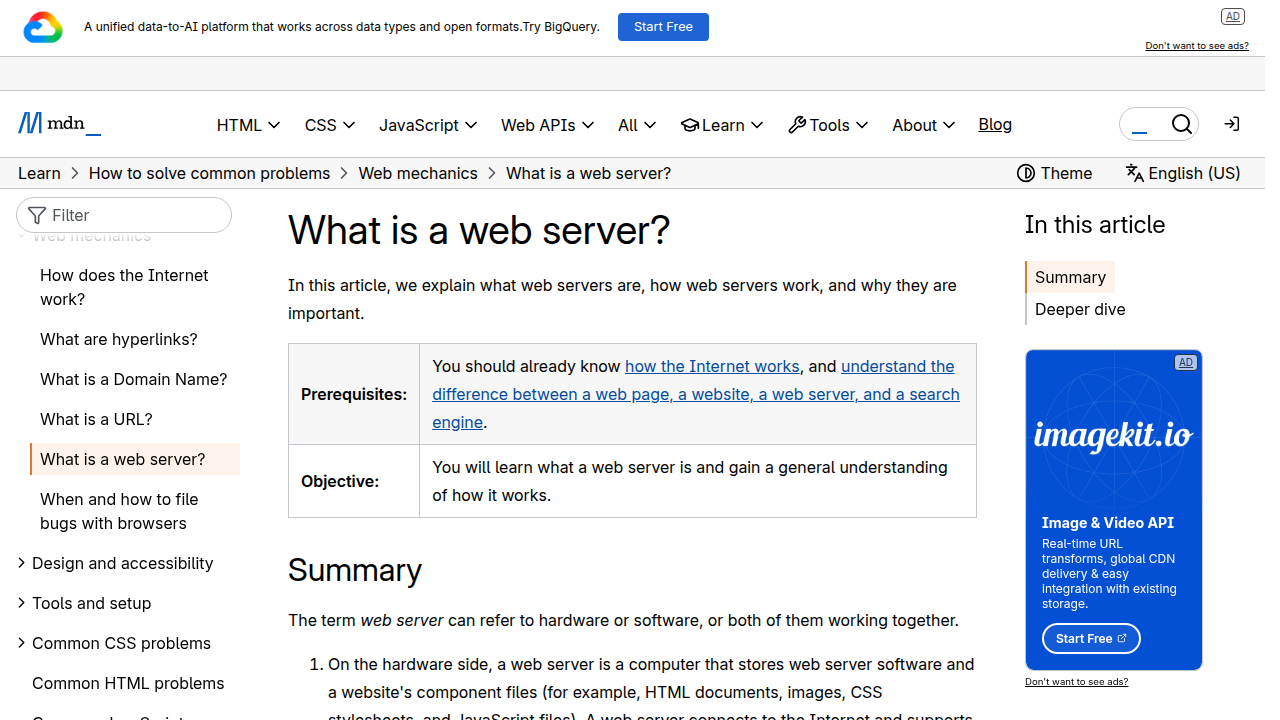
Going live connects four pieces: a domain, DNS, a server, and your files. First, register a domain name, like example.com. Second, point it at your server's IP address with a DNS A record; changes can take minutes or hours to spread. Third, install Apache or Nginx on the server, with a server block or VirtualHost pointing at your site's folder. Fourth, copy your files into that folder. Add HTTPS last: a free certificate lets the server answer on port 443 and encrypt traffic. Our guide to how to deploy a website on a VPS server covers each step, and the MDN guide to what a web server is explains the same flow from the browser's point of view.
Common Mistakes and Troubleshooting
Works locally, not on the server. Your files are probably in a different folder than the config points to, so the server answers 404 for everything. Check that DocumentRoot or root matches the upload folder, including capitals: Linux file names are case sensitive.
"Connection refused" in the browser. The server program is not running, or it listens on a different port. Check it is started and you are visiting the right port. A firewall blocking port 80 or 443 gives the same symptom.
You edited the config but nothing changed. Servers read their config when they start, not on every request, so reload or restart after editing. One missing semicolon in Nginx or one unclosed tag in Apache stops the config loading, and the error log names the line.
Frequently Asked Questions
What is a web server in simple words?
A program that waits for a browser to ask for a page, finds or builds it, and sends it back.
Is a web server hardware or software?
Both. The software, like Apache or Nginx, handles requests, and the hardware is the computer it runs on. Developers usually mean the software.
What is the difference between Apache and Nginx?
Apache gives each connection its own process or thread. Nginx handles many connections in one process, so it is fast under heavy traffic. For a small site, either one is fine.
Can I run a web server on my own computer?
Yes. Install Apache or Nginx, or use Python's built-in server for a quick test. Making it public needs extra steps, so most people use a rented server instead.
Conclusion
A web server is a simple idea with a big job: listen for requests, find or build the answer, and send it back. Static files go straight from disk to browser, dynamic pages are built by an application first, and Apache and Nginx are two well tested ways of doing that job. Run the Python demo yourself and see it work.


Leave a Comment